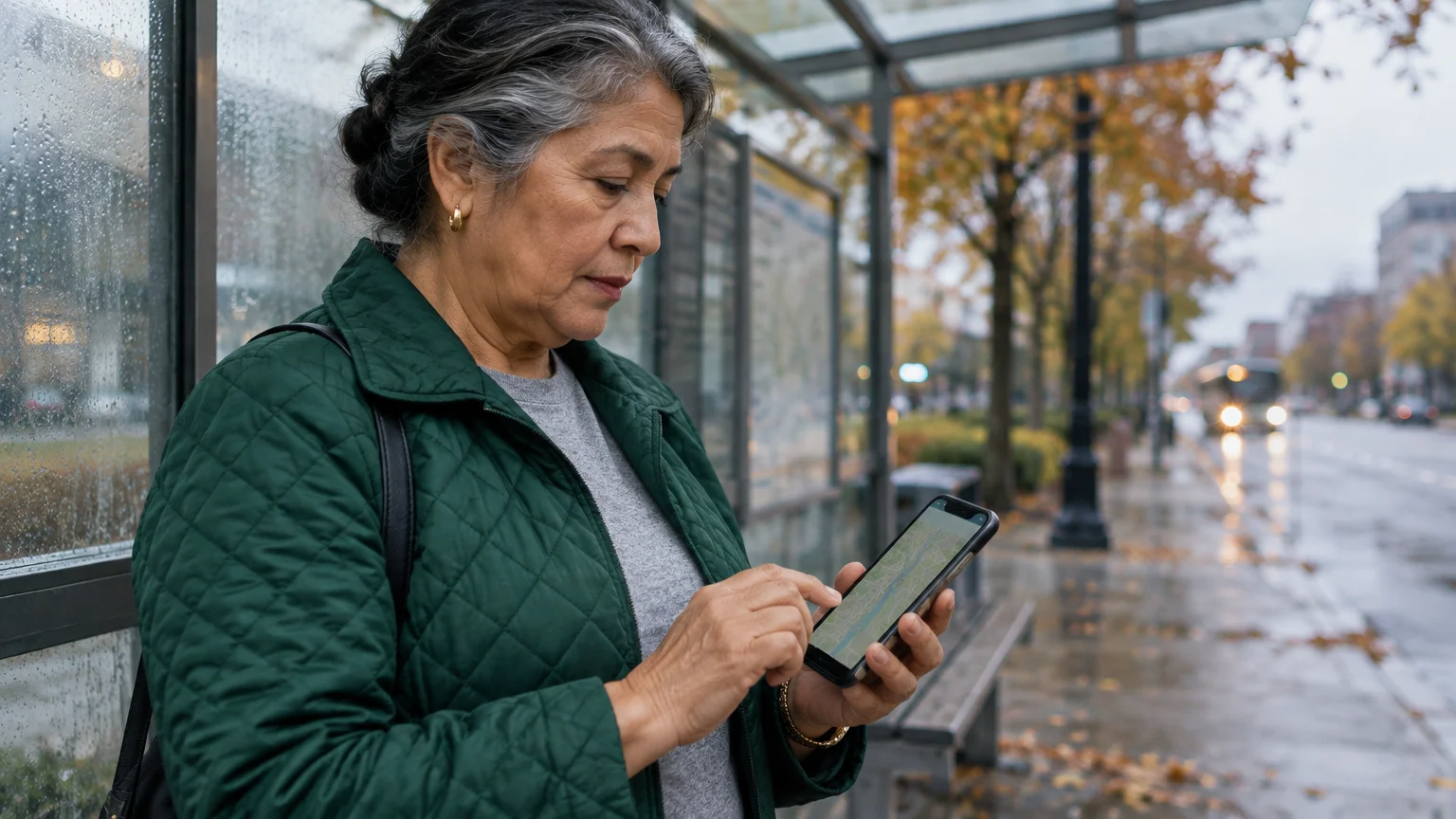
Connecting with your family through video calls or looking up directions to a new restaurant makes a smartphone an incredible tool. However, many people feel a sense of hesitation when they see terms like “mobile data” or “gigabytes” on their monthly phone bill.
You might worry about accidentally spending too much money or “running out” of internet access while you are away from home. Understanding how your phone uses information—and how you can control it—removes that stress and puts you back in the driver’s seat.
Learning how to manage your connection is also the first step toward knowing how to use mobile banking apps safely while you are on the go.
Think of your smartphone data like the water coming into your home. When you turn on the faucet, the water flows, and a meter tracks how much you use.
On your phone, “data” is the information that flows from the internet to your device when you are not connected to your home’s wireless network.
Whether you are checking an email at the park or sending a photo of your grandchildren while at the grocery store, you are using your mobile data plan.
This guide will walk you through exactly how to monitor that usage, how to save money, and how to feel confident every time you pick up your device.
- What is Mobile Data?
- What You Will Need to Get Started
- Common Activities That Use the Most Data
- How to Check Data Usage on an iPhone
- How to Check Data Usage on an Android Phone
- Tips to Lower Your Data Usage and Save Money
- What to Do If Something Goes Wrong
- Quick Reference Checklist
- Frequently Asked Questions
What is Mobile Data?
To understand data usage, we first need to distinguish between two ways your phone connects to the internet: Wi-Fi and Mobile Data. Wi-Fi is the wireless connection you likely have in your home.
It usually comes from a box provided by your internet company. When you are at home and see the icon that looks like a series of three curved lines (like a fan) at the top of your screen, you are using Wi-Fi.
This usually does not cost you extra, no matter how much you use it.
In some cases, you can even share this connection with your laptop or tablet by using your smartphone as a mobile hotspot.
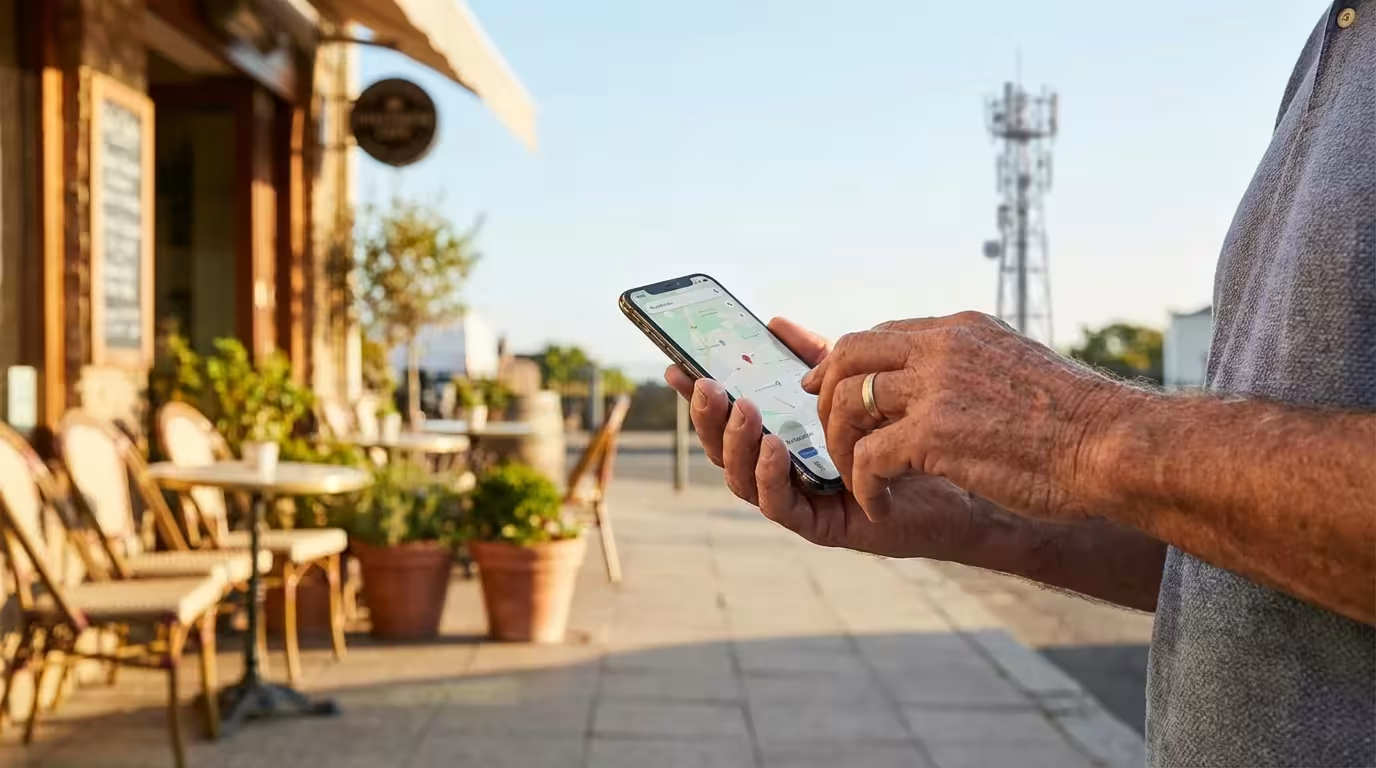
Mobile data—also called “cellular data”—kicks in when you leave your house and move out of range of your Wi-Fi. Your phone connects to the same tall towers that handle your phone calls.
This connection allows you to stay online while driving, walking, or sitting in a doctor’s office. Most phone companies, such as Verizon, AT&T, or T-Mobile, give you a specific amount of this data each month.
Some plans are “unlimited,” while others might give you 5 or 10 “gigabytes.”
A “gigabyte” (often shortened to GB) is simply a unit of measurement for digital information. To give you a concrete example, sending about 1,000 emails without attachments uses very little data—usually less than a tiny fraction of one gigabyte.
However, watching a high-quality movie for one hour can use up to three gigabytes. Because different activities use different amounts of data, knowing which apps are the most “hungry” helps you manage your phone bill effectively.
What You Will Need to Get Started
Before we look at the settings on your device, make sure you have everything ready. You do not need to be a computer expert to do this; you just need your phone and a few moments of quiet time.
To get the most out of this guide, ensure the following:
- Your Device is Charged: Make sure your phone has at least 20% battery or is plugged into a charger so it does not turn off while you are looking through settings.
- Access to Your Settings: You will need to know your passcode (the numbers you type in to unlock your phone) if you haven’t used it in a while.
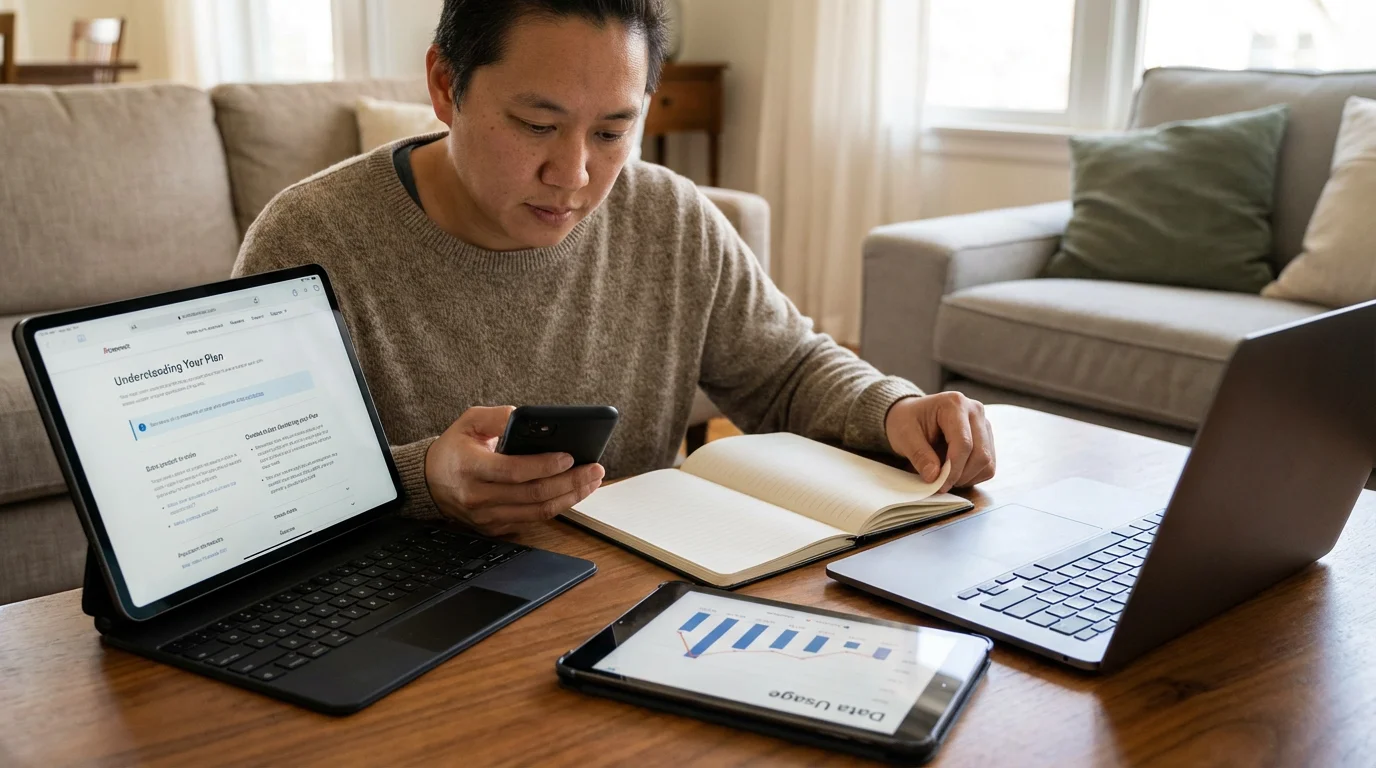
- A Recent Phone Bill (Optional): If you have a paper bill from your phone company, it can be helpful to see exactly how many gigabytes you are allowed to use each month.
It is completely normal to feel a bit overwhelmed by all the icons and menus on your phone. Take a deep breath and remember that you cannot “break” your phone by simply looking at your data settings.
You are doing a great job learning a new skill.

Common Activities That Use the Most Data
Not all activities on your phone are equal. Some use almost no data, while others can eat through your monthly allowance in just a few hours.
Understanding these differences helps you decide when to wait until you are home on your Wi-Fi to do certain tasks.
Low Data Activities:
Texting (without photos), checking your calendar, and reading text-based news articles use very little data. You can usually do these things all month long without worrying about your bill.
Simple emails also fall into this category. If you are just reading a message from a friend, your data usage is minimal.
Medium Data Activities:
Browsing social media apps like Facebook or Instagram uses more data because your phone has to download many pictures as you scroll.
Looking at maps and using GPS navigation also uses a moderate amount of data, as your phone constantly updates your location and the images of the roads around you.
High Data Activities (The “Data Hogs”):
Video is the biggest consumer of data. This includes watching YouTube videos, using Netflix, or having a video chat via FaceTime or WhatsApp.
When you stream video, your phone is downloading thousands of tiny images every second to create a smooth picture.
High-quality photos are also significant; if you send 20 high-resolution photos of your garden to a friend while you are at the park, you will use much more data than if you waited until you were back on your home Wi-Fi.
How to Check Data Usage on an iPhone
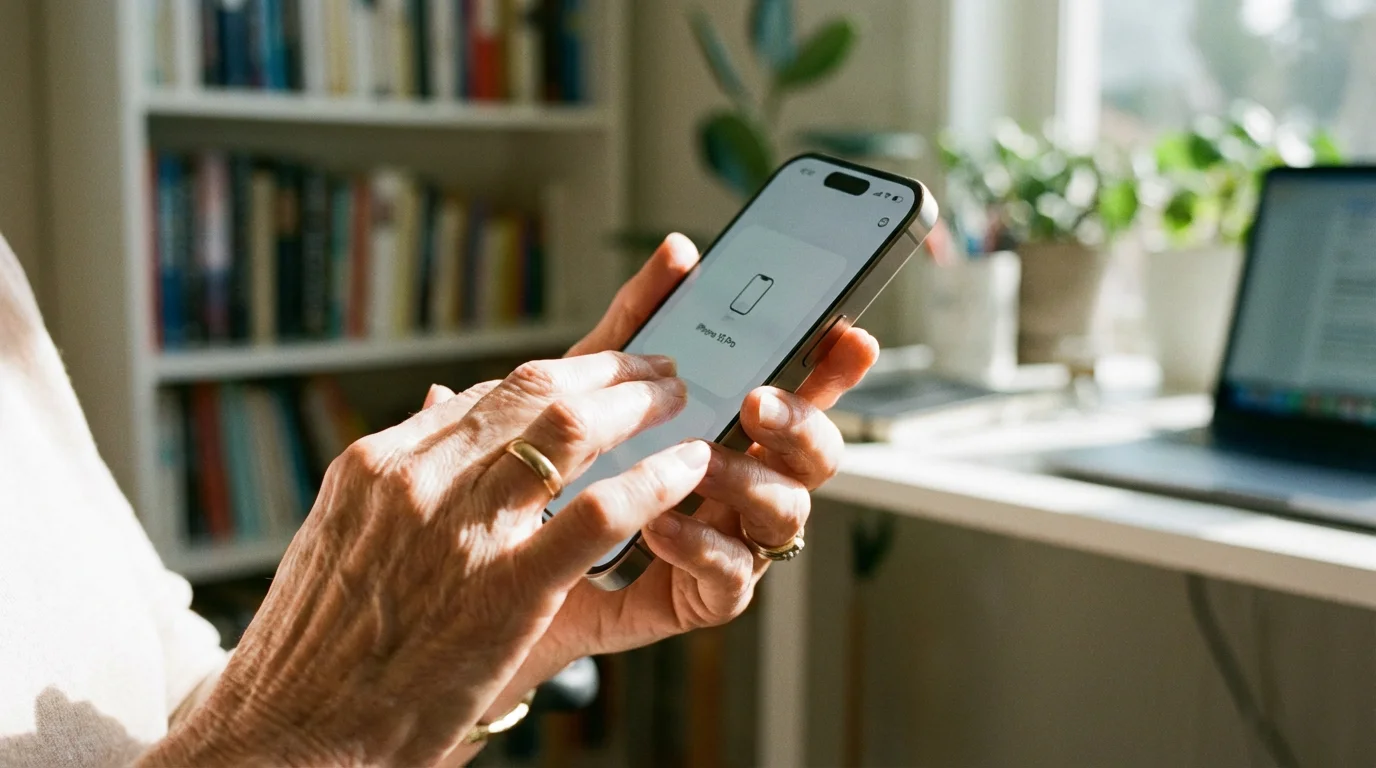
Apple makes it relatively easy to see exactly which apps are using your data. Follow these steps to find your data “ledger.”
- Find the Settings Icon: Look for an icon on your home screen that looks like a set of grey gears. Tap it gently once with your finger.
- Locate Cellular: Scroll down slightly until you see the word “Cellular.” It is usually near the top of the list, next to a green icon with an antenna. Tap “Cellular.”
- View Your Usage: Look for a section titled “Cellular Data.” Underneath, you will see “Current Period.” The number next to it (for example, 4.2 GB) tells you how much data you have used since the last time this meter was reset.
- Check Individual Apps: Scroll down further on this same screen. You will see a list of every app on your phone. Under each app name (like Facebook or Mail), there is a number. This tells you exactly how much data that specific app has used.
- Turn Off Data for Specific Apps: If you see an app using too much data, you can tap the green switch next to it. When the switch turns grey, that app will only work when you are on Wi-Fi. This is a great way to “lock” high-usage apps so they don’t cost you money when you are away from home.
Important Note for iPhone Users: Many iPhones do not reset this “Current Period” automatically every month. To get an accurate reading for your current billing cycle, you may need to scroll to the very bottom of the Cellular screen and tap “Reset Statistics.”
If you do this on the first day of your billing month, the numbers will match your monthly bill perfectly.
How to Check Data Usage on an Android Phone
Android phones (like those made by Samsung, Google, or Motorola) have a very helpful feature that allows you to set a “warning” so the phone tells you when you are getting close to your limit.
Because there are many types of Android phones, the names of the menus might be slightly different, but the steps are generally the same.
- Open Your Settings: Swipe your finger down from the very top of the screen to open the notification tray. Tap the small gear icon (the symbol for settings) usually located in the top right or bottom right of that tray.
- Find Network & Internet: Tap on the option that says “Network & Internet” or “Connections.”
- Tap on Data Usage: Look for “Data usage” or “Mobile data usage.” On Samsung phones, you might need to tap “Usage” after tapping “Connections.”
- Review the Graph: Most Android phones will show you a helpful graph. This line shows you how much data you have used over the last month. You can see which days you used the most.
- Set a Data Warning: Look for a gear icon or a setting that says “Data warning & limit.” Here, you can type in a number (like 4 GB). If you reach that amount, your phone will pop up a message to let you know. This is like a friendly tap on the shoulder to remind you to be careful.
You can also scroll down on this screen to see the list of apps. Just like the iPhone, your Android phone will list the apps from most used to least used.
If you see “YouTube” at the top with a large number, you know that is where your data is going.

Tips to Lower Your Data Usage and Save Money
You do not have to stop using your phone to save data. You just have to be a little more strategic about when and where you do certain things.
According to Consumer Reports, many users pay for “unlimited” plans they don’t actually need because they learn how to manage their usage effectively.
Wait for Wi-Fi:
The golden rule of smartphone data is to do your “heavy lifting” at home. If you want to download a new app, update your phone’s software, or watch a movie, wait until you see that Wi-Fi “fan” icon at the top of your screen.
Most apps will even ask you, “Download using cellular data?” If you see this, tap “No” and wait until you get home.
Download Before You Go:
If you are going on a long car trip or a flight, you can download music, audiobooks, or even maps to your phone while you are still at home on Wi-Fi. Apps like Google Maps or Spotify have a “Download” button.
Once the information is stored on your phone’s memory, you can use it anywhere without using a single bit of mobile data.
Turn Off “Background Refresh”:
Some apps like to “talk” to the internet even when you aren’t using them. They check for new emails or update the weather in the background.
You can turn this off in your settings. On an iPhone, go to Settings > General > Background App Refresh.
On Android, you can find this under “Data Saver” in the Network settings. Turning this off not only saves data but also helps your battery last longer.
Use “Low Data Mode”:
Both iPhone and Android have a special setting for emergencies. If you are running very low on data for the month, you can turn on “Low Data Mode” (iPhone) or “Data Saver” (Android).
This tells the phone to be extremely stingy with data, stopping almost everything except for the most essential tasks.

What to Do If Something Goes Wrong
Sometimes, despite your best efforts, you might receive a text message from your carrier saying you have used 90% of your data. Don’t panic.
Here is how to handle common data issues.
“I haven’t used my phone, but my data is gone!”
This is usually caused by an app that is “stuck” or a software update that started while you were away from home. Check your list of apps (as described in the iPhone and Android sections above).
Look for the app with the largest number next to it. If you see an app you don’t recognize or use, you can delete it.
To delete an app, press and hold your finger on the app icon on your home screen until a menu pops up, then choose “Remove” or “Uninstall.”
“My internet isn’t working at all!”
First, check to see if you accidentally turned off your mobile data. Go back to the “Cellular” or “Network” settings and make sure the main switch for “Mobile Data” is green or “On.”
If it is on and still not working, try turning your phone completely off, waiting 30 seconds, and turning it back on. This simple “reset” fixes about 90% of minor phone glitches.
“I’m worried about a huge bill.”
If you are consistently going over your limit, it might be time to call your phone provider or visit a carrier store. Sometimes, they have newer plans that offer more data for the same price you are currently paying.
Organizations like Senior Planet from AARP often have volunteers who can help you look at your bill and explain the charges in plain English.
Remember, technology is a tool meant to serve you. If it feels like it is causing more stress than joy, it is okay to put it down and ask for help.
Most family members or store associates are happy to help you navigate these settings.
Quick Reference Checklist
Use this list as a quick reminder of how to stay in control of your smartphone data:
- Check your data usage once a week to avoid surprises at the end of the month.
- Connect to your home Wi-Fi as soon as you walk through the door.
- Avoid watching long videos unless you are on Wi-Fi.
- Look for the “fan” icon at the top of your screen to ensure you are on Wi-Fi.
- Download maps or music at home before you leave for a trip.
- If you get a warning from your phone company, turn off “Mobile Data” in your settings until you get back to a Wi-Fi connection.
Frequently Asked Questions
Does using GPS use data?
Yes, using navigation apps like Google Maps or Apple Maps uses mobile data because the phone has to constantly download the map images as you move. However, it uses much less data than watching a video.
You can also download “Offline Maps” while at home to use GPS without using any data at all.
Does my phone use data when it’s in my pocket?
It can. If your “Background App Refresh” is on, apps may check for updates or new messages even while the screen is off.
To be safe, you can turn off mobile data entirely when you aren’t using it, or simply ensure you are connected to Wi-Fi whenever possible.
Is Wi-Fi safer than mobile data?
Mobile data (from your carrier) is actually very secure. When you use Wi-Fi at home, it is also very safe.
You should be more cautious when using “Public Wi-Fi” at places like coffee shops or airports, as those networks are less private. For more on staying safe online, you can visit GCFGlobal’s technology tutorials.
If I turn off mobile data, can I still receive phone calls?
Yes! Mobile data and cellular phone calls use different parts of the network.
You can turn off your data to save money and still receive calls and standard green-bubble text messages from your friends and family.
Learning to manage your data usage is a big step toward becoming a confident smartphone user. By knowing which apps use the most information and how to check your settings, you can enjoy all the benefits of your device without worrying about the cost.
Whether you are sharing photos with friends or looking up a new recipe, you now have the tools to do it wisely.
Disclaimer: This article is for informational purposes only. Screens and menus may look slightly different depending on your device model and software version.
When in doubt, visit your device’s official support website or ask a trusted family member for help.