
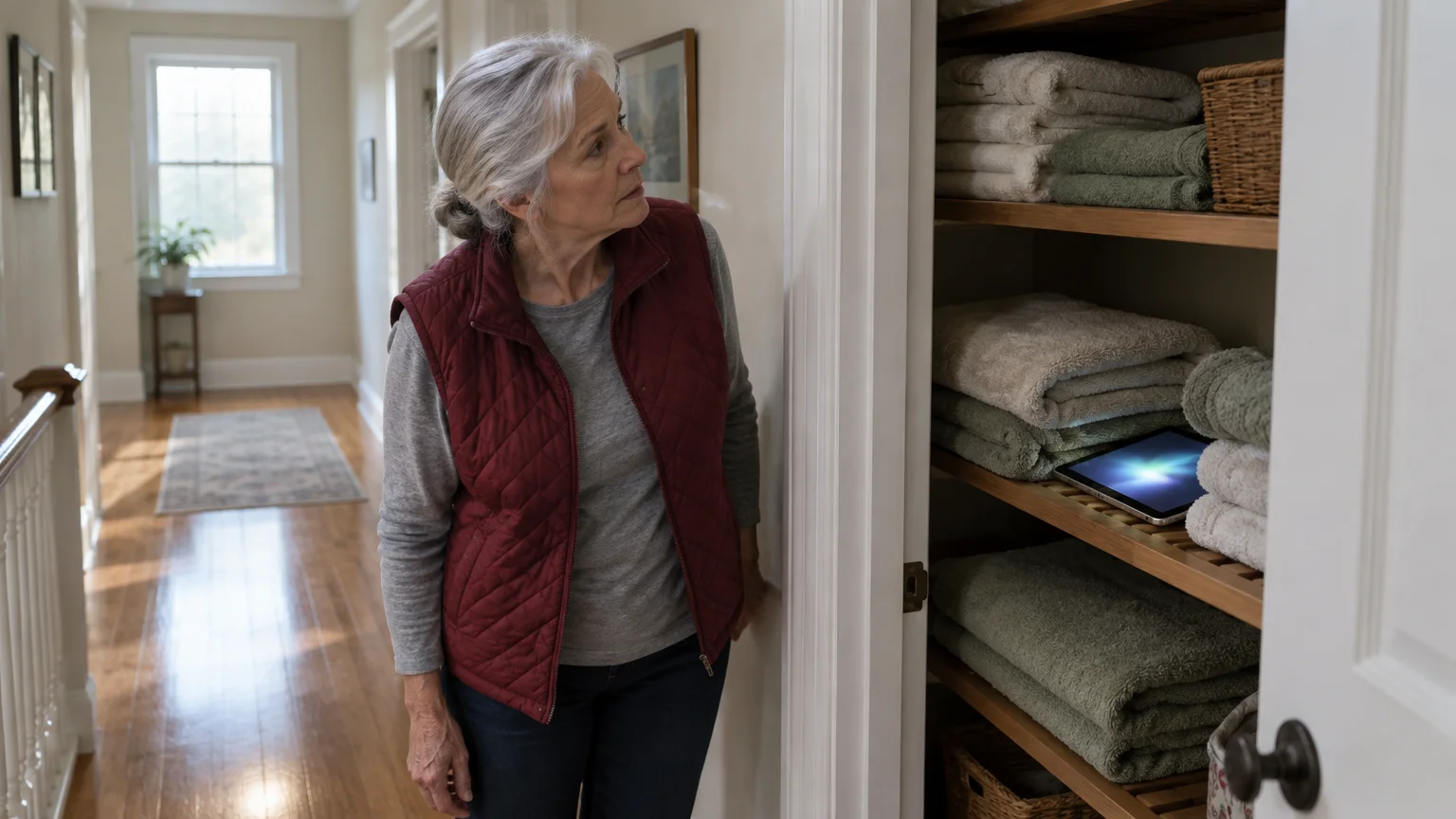
You can force a misplaced, silent iPad to emit a loud alert sound even if Do Not Disturb is active. Our guide shows you how to trigger this full-volume ring using any household desktop computer in under two minutes.
Most tutorials assume you need access to your two-factor text messages to log into Apple tools. In reality, Apple’s dedicated locator portal lets you bypass standard verification codes so you can sound the alarm immediately.
Whether the tablet slipped beneath a sofa cushion or inside a linen closet, this method bypasses physical mute switches instantly. Follow these exact steps to locate your tablet quickly and safely.
In this guide9 sections
- How the Silent Alert Override Operates
- What You Need Before Searching from a Computer
- Step-by-Step: Trigger the Alert from iCloud
- How to Ring a Muted Android Tablet
- Practical Scenario: Locating an iPad in an 1,800-Square-Foot Home
- Comparing Tablet Alert Methods and Decibel Levels
- Accessibility Adjustments for Reduced Hearing and Vision
- Protecting Your Account After Using Someone Else’s Computer
- Frequently Asked Questions
How the Silent Alert Override Operates
Apple devices manage audio streams through separate software channels. General media playback and app alerts share one channel, while incoming telephone calls and critical system signals occupy another.
If your device is close enough to hear your voice, you can also use Siri for everyday tasks like calling out to locate nearby electronics.
When you toggle the physical mute switch or activate Silent Mode in Control Center, you silence routine notification alerts. You also suppress keyboard clicks and standard application sound effects.
However, Apple’s Find My infrastructure uses high-priority push notifications that ignore local volume sliders entirely. When triggered, the iPad operating system commands the internal speakers to fire at maximum output.
The audio signal begins at a moderate level for two seconds so you do not hurt your ears if holding the unit. It then escalates to full volume, repeating a two-tone chime every few seconds.
This alert continues for two minutes unless someone presses a button on the iPad or unlocks the screen. Because the command travels over the internet, your iPad must have an active network connection to receive it.

What You Need Before Searching from a Computer
You can locate your tablet using any desktop computer running Windows, macOS, or ChromeOS. You do not need an Apple computer to perform this task; an everyday desktop web browser works properly.
If you are still getting comfortable navigating your tablet, our iPad beginner guide walks you through the essential buttons, icons, and menus.
Before sitting down at the computer, gather your Apple Account credentials. As of 2026, Apple uses the term Apple Account to refer to the email address and password previously called an Apple ID.
Many people worry that two-factor authentication will stop them because the missing iPad holds the required verification code. Fortunately, Apple provides a specialized web address designed specifically for emergencies.
Review Apple’s official guide to two-factor authentication to understand how account security operates. The emergency portal lets you access device location tools without approving a code on the lost tablet.
Ensure your home Wi-Fi network remains online. If the tablet ran out of battery entirely, it cannot ring, but the portal will display its last known location.

Step-by-Step: Trigger the Alert from iCloud
Follow these steps on any desktop computer connected to the internet. We have tested this process on modern versions of Google Chrome, Microsoft Edge, and Apple Safari as of 2026.
If you also have a smart speaker, learning how to set up and use Amazon Echo in your home provides another convenient way to broadcast sounds or find linked gadgets.
While searching from your desk, make sure you know how to adjust your computer’s sound settings so browser audio cues come through clearly.
- Open your desktop web browser and type icloud.com/find directly into the address bar at the top of the screen.
- Type your Apple Account email address into the sign-in field and click the Continue arrow.
- Enter your Apple Account password carefully, paying close attention to capital letters and numbers, then press Enter.
- Look at the map that appears on your screen; if prompted for a verification code, look below the code boxes and click Find Devices.
- Click the drop-down menu labeled All Devices located at the top center of the web page.
- Click the name of your missing iPad from the list of registered hardware.
- Click the button labeled Play Sound in the floating card on the screen.
The system sends an instant command across your home Wi-Fi network directly to the iPad. Within five to ten seconds, the device will begin its chime sequence.
Walk slowly through your home and pause in each room to listen. If the sound stops before you reach the tablet, you can repeat the process immediately.
Here are three immediate actions you can take if you need more time to track the sound down:
- Click Play Sound on the computer screen a second time to start another two-minute audio cycle.
- Turn off television sets, air purifiers, and radios to reduce background noise while you search.
- Open interior closet doors and inspect under blankets where soft surfaces absorb sound frequencies.

How to Ring a Muted Android Tablet
If your household uses an Android tablet instead of an iPad, the recovery procedure follows a similar principle. Google provides a dedicated service called Find My Device that overrides system volume settings.
On Android 15, the menu structure may vary slightly between hardware brands like Samsung, Google Pixel, and Motorola. On Samsung tablets running One UI, you find these options under Settings > Security and privacy > Lost device protection.
On a Google Pixel Tablet, open Settings > Google > All services > Find My Device. Check Google’s support documentation on finding lost Android devices for brand-specific variations.
To ring an Android tablet from a desktop computer, open your browser and visit google.com/android/find. Sign in using the primary Gmail account associated with that tablet.
Select your tablet from the top device bar and click Play Sound. Google’s tool rings the muted device at full volume for five consecutive minutes, giving you extra search time.

Practical Scenario: Locating an iPad in an 1,800-Square-Foot Home
Consider the scenario of Arthur, an 80-year-old homeowner who misplaced his 10.9-inch iPad (10th Generation) running iPadOS 18. He set the device to silent mode to avoid disruptive alerts during breakfast.
Having devices with loud external speakers and bright screens is one of several important features when exploring the best tablets for seniors.
Arthur lives in an 1,800-square-foot single-story ranch house featuring three bedrooms, two bathrooms, and a central living room. His iPad slipped between folded bath towels inside a hallway hamper at 10:15 AM.
Arthur sits down at his desktop personal computer in the den, which runs Windows 11. He opens Microsoft Edge and navigates directly to icloud.com/find without searching on Google first.
He enters his email address and password, then bypasses the two-factor authentication prompt by selecting Find Devices. The dashboard confirms that his iPad was active two minutes ago and shows 78% remaining battery.
Arthur clicks Play Sound at 10:22 AM. The iPad speakers emit a sharp tone that reaches 82 decibels at close range, but the dense cotton towels muffle the sound to 48 decibels in the hallway.
Arthur pauses in the hallway, notices the faint rhythmic chime, and opens the laundry hamper lid. He retrieves the undamaged tablet at 10:25 AM, tapping the screen to silence the alert.

Comparing Tablet Alert Methods and Decibel Levels
Understanding how different alert methods perform helps you select the best recovery technique. Standard cellular voice calls fail entirely when an iPad has Silent Mode or Do Not Disturb enabled.
Specialized network protocols bypass local operating system silencers by transmitting hardware-level broadcast flags. The table below outlines the performance characteristics of primary finding tools as of 2026.
| Recovery Method | Peak Decibels (at 1 Meter) | Silent Switch Bypass | Continuous Ring Duration | Account Cost (as of 2026) |
|---|---|---|---|---|
| Apple Find My (Play Sound) | 82 dB | Yes (Immediate Override) | 2 Minutes | Free (Built-In) |
| Google Find My Device | 84 dB | Yes (Immediate Override) | 5 Minutes | Free (Built-In) |
| Standard FaceTime / Phone Call | 0 dB (Muted) | No (Blocked by Silent Mode) | 30 Seconds (Voicemail) | Free (Carrier Dependent) |
| Bluetooth Hardware Tracker | 85 dB to 90 dB | Yes (External Speaker) | Until App Disconnects | $25 to $35 per Tag |
Notice that standard incoming calls produce zero decibels when Silent Mode remains active. Relying on someone to call your tablet will not help you discover its physical location inside your house.
Network override commands through iCloud provide the highest reliability without requiring any paid third-party hardware accessories.

Accessibility Adjustments for Reduced Hearing and Vision
If you have reduced hearing or visual acuity, you can configure your iPad to make finding it much simpler. Apple includes several built-in accessibility tools that assist your senses during recovery operations.
Similarly, learning how to set up voice control lets you command your mobile hardware entirely hands-free.
You can also improve visibility on your tablet display by discovering how to make your iPad screen black with white text using built-in display accommodation features.
For those with hearing challenges, learning how to turn on flashlight alerts for ringing adds a helpful visual strobe whenever your device receives notifications or calls.
To assist your vision, configure large text options so you can read on-screen recovery prompts easily. Follow Apple’s guide to making text larger on iPad to increase overall legibility.
On iPadOS 18, open Settings > Accessibility > Display & Text Size > Larger Text, then drag the slider to the right. On Android 15, open Settings > Accessibility > Display size and text > Font size.
You can also instruct your iPad to flash its camera light when alerts arrive. This setting helps locate a misplaced tablet hidden in dark rooms or under furniture.
To enable visual alerts on iPadOS 18, follow this exact menu path:
- Tap the Settings app icon on your home screen.
- Select Accessibility from the primary settings column on the left.
- Tap Audio & Visual located within the Hearing category.
- Tap LED Flash for Alerts at the bottom of the screen.
- Turn on the toggle switch next to LED Flash for Alerts and ensure Flash on Silent is active.
For individuals with hearing aids, check your compatibility pairing options. On iPadOS 18, open Settings > Accessibility > Hearing Devices to ensure audio alerts stream directly to your ears when within Bluetooth range.
Here are three accessibility tools that simplify locating a tablet inside your home:
- Siri Voice Commands: Say “Siri, where are you?” to prompt an immediate voice response if your microphone remains awake.
- Screen Flash: iPad screens light up at maximum white point brightness when receiving emergency location pings.
- Haptic Alerts: Supported cellular models vibrate forcefully against hard surfaces, creating distinct mechanical vibrations.
Protecting Your Account After Using Someone Else’s Computer
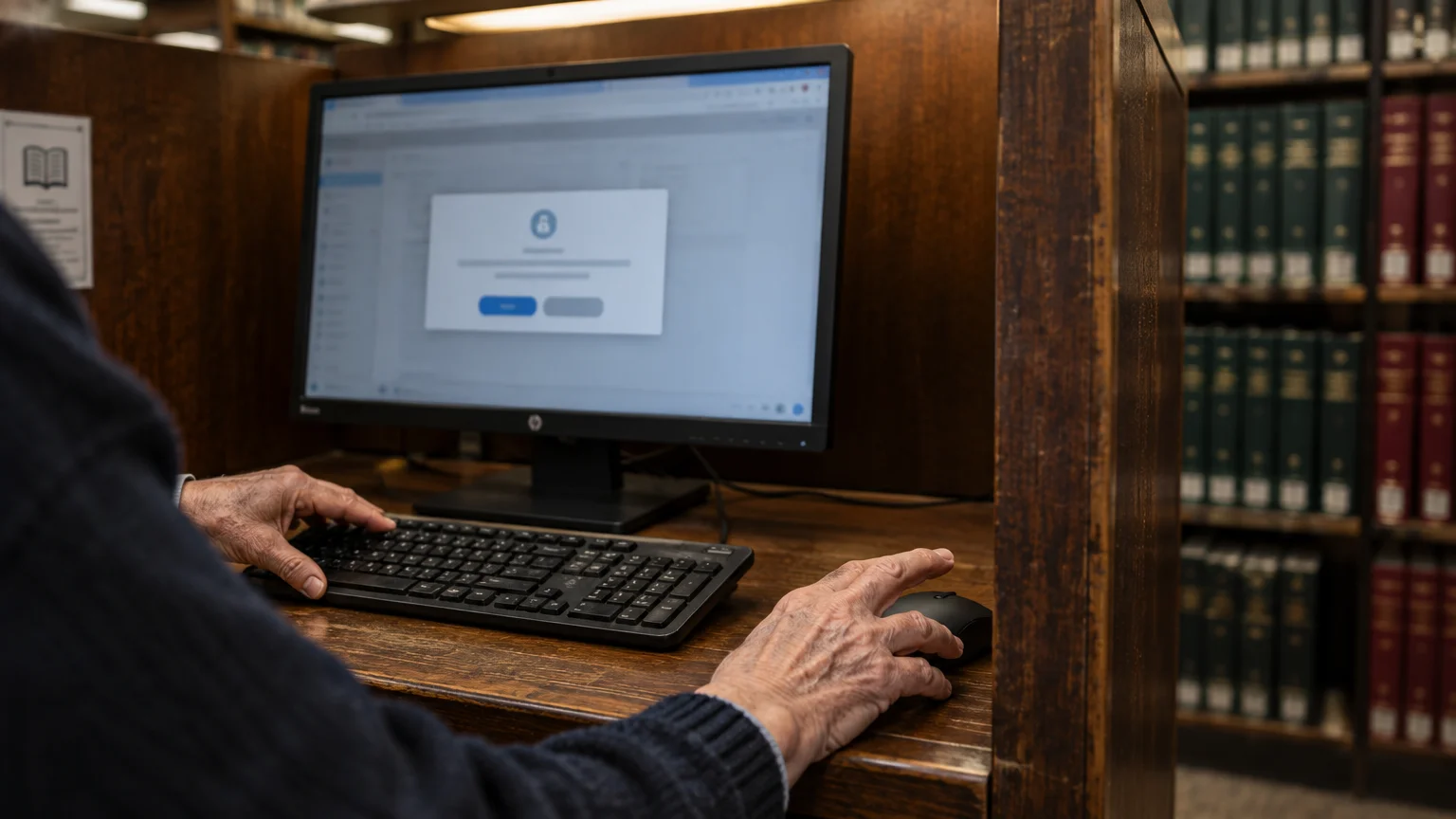
When you use a family member’s or neighbor’s desktop computer, you must protect your personal information. Leaving your Apple Account signed into an open browser exposes your personal photos, emails, and notes.
Before leaving the computer, verify that you sign out of the session completely. Review CISA’s recommendations for strong passwords to keep your master login credentials secure against unauthorized access.
Scammers frequently create fake login pages that resemble official recovery portals. Read the FTC’s guide on spotting tech support scams so you never share passwords with fraudulent pop-up windows.
Follow these specific precautions whenever you finish using an external desktop computer:
- Click your account name or profile icon in the top right corner of the iCloud window and select Sign Out.
- Uncheck any box that says “Keep me signed in” or “Trust this browser” when prompted by the website.
- Close all browser windows to clear temporary session data from the computer’s active memory.
Taking thirty seconds to sign out protects your privacy while ensuring your tablet remains accessible for future searches.
Frequently Asked Questions
Will my iPad ring if Do Not Disturb or Focus mode is turned on?
Yes. Apple’s Find My sound service carries an emergency override tag that bypasses Do Not Disturb, Sleep Focus, and physical silent switches at maximum speaker volume.
Can I make my iPad ring if the battery has completely died?
No, an iPad with a depleted battery cannot power its speakers. However, iCloud.com/find will display the last recorded geographic location before the battery lost power.
Do I need my two-factor verification code to sign into icloud.com/find?
No. When you visit icloud.com/find directly, Apple allows you to access device location and the Play Sound feature without entering a two-factor code sent to your missing device.
How long will the iPad continue to ring once I click the button?
The iPad will play its alert chime for two full minutes. It stops automatically after that period, or immediately when someone presses a physical button or unlocks the screen.
Note: Menus and button names change with software updates. These steps were written for current versions as of 2026; if a screen looks different on your device, the maker’s support page linked above has the latest wording.
ClearTechGuide is independent and is not affiliated with Apple, Google, Microsoft, Amazon or any other company mentioned.
