

Your phone dials 911 during your morning walk because body motion compresses the physical power button repeatedly. Fabric pressure against an elastic waistband trips safety software designed to call dispatchers automatically.
Generic guides advise locking your display or lowering screen sensitivity. That advice misses the real culprit: a hard-coded five-press power button shortcut that bypasses screen locks entirely.
We will show you how to disable this automatic dialing sequence on your Android or iPhone device. You can prevent accidental emergency calls while keeping critical safety tools available when you need them.
In this guide10 sections
- The Five-Press Emergency SOS Shortcut Explained
- How Elastic Waistbands Trigger Power Buttons
- Scenario: A Morning Walker’s Accidental 911 Dispatch
- How to Turn Off the Power Button SOS on Android
- Adjusting Accidental Touch Protection and Display Wake
- Preventing Accidental 911 Calls on Apple iPhone
- Official Protocol When You Accidentally Call 911
- Emergency Trigger Settings Compared Across Devices
- Physical Pocket Solutions for Morning Walkers
- Frequently Asked Questions
The Five-Press Emergency SOS Shortcut Explained
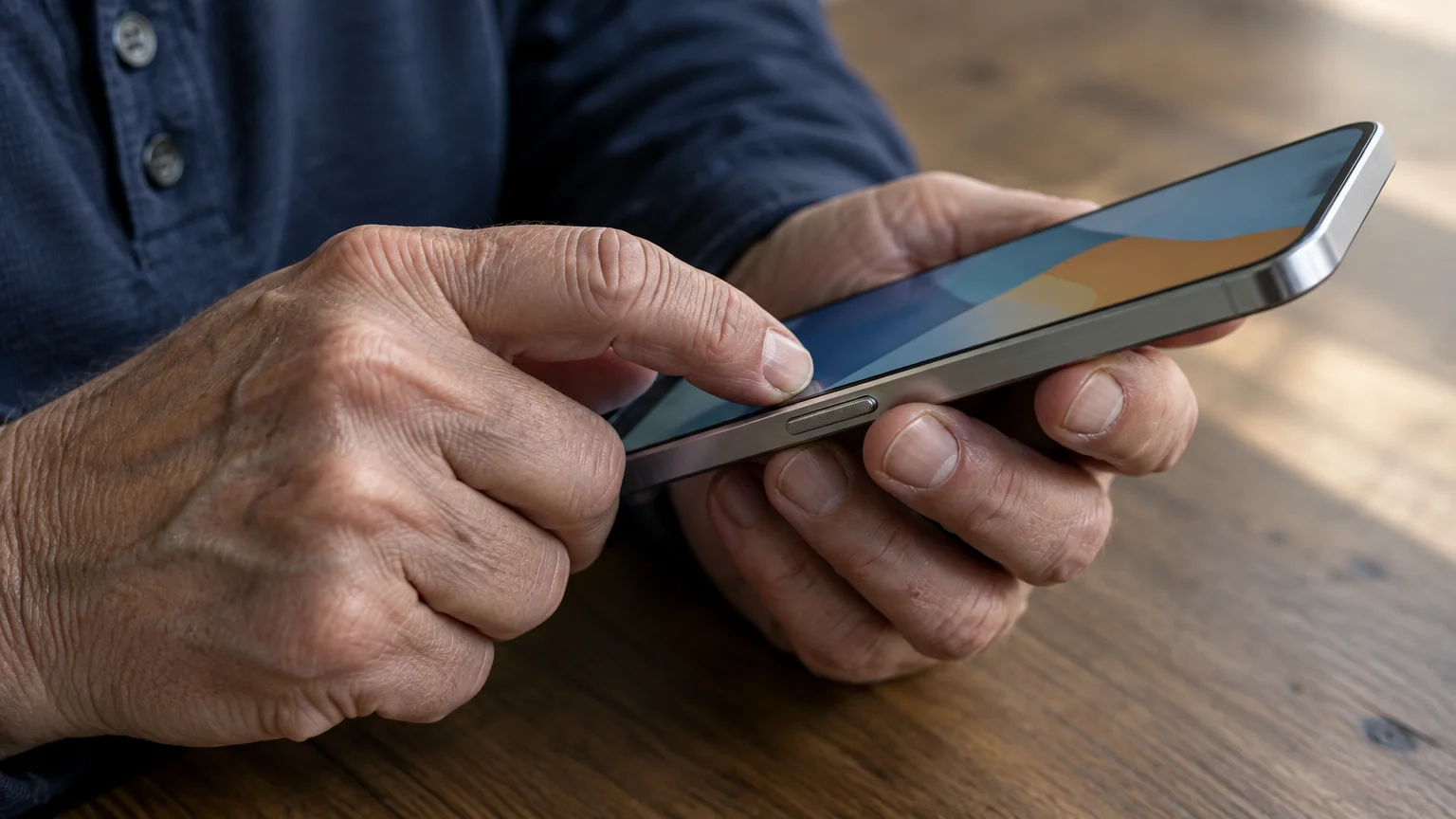
Emergency SOS is an automated mobile safety feature that contacts local emergency dispatchers when you click a hardware button several times in succession.
If dispatchers or loved ones attempt to call your handset back and you do not hear it, see our guide on what to do when your phone isn’t ringing.
Google introduced this five-press power button shortcut into the core operating system with Android 12. Phone manufacturers enabled the shortcut by default so users could summon help without unlocking their screens.
According to the National Emergency Number Association (NENA), wireless devices generate roughly 80 percent of the 240 million 911 calls placed each year in the United States.
In May and June 2023, emergency dispatch centers across the country recorded a 30 to 50 percent surge in silent calls. Public safety agencies traced this nationwide spike directly to the five-press power button trigger.
When you place your smartphone inside a snug pocket, repetitive movement mimics rapid button clicking. Your phone interprets those mechanical compressions as a distress signal and calls emergency personnel automatically.
Keeping your phone software current through the CISA guide to updating software ensures your device has the latest dispatcher safeguards and countdown confirmation screens.
How Elastic Waistbands Trigger Power Buttons
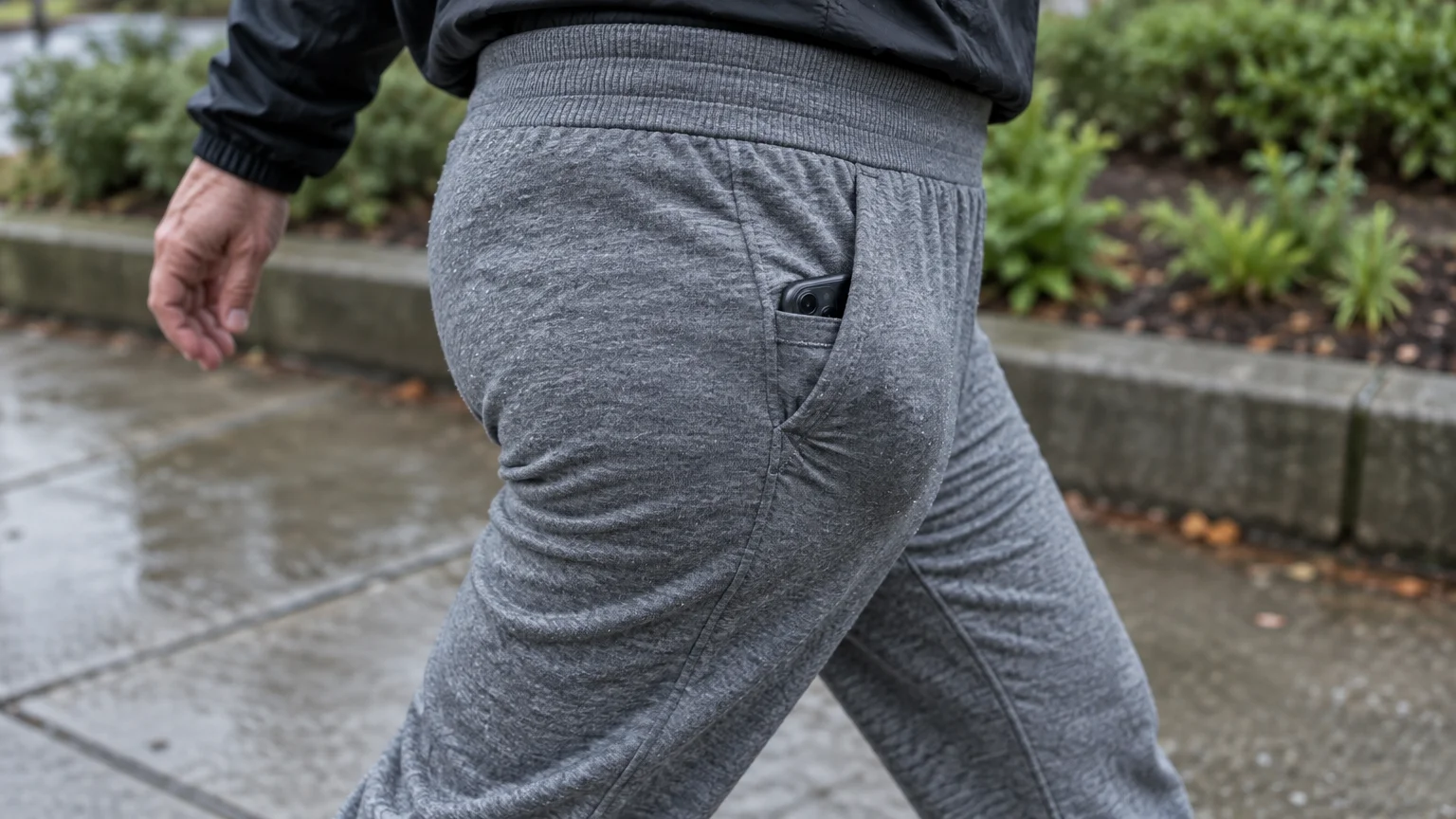
Elastic waistbands in athletic trousers, sweatpants, and walking shorts produce continuous lateral tension. Each time your hip flexor swings forward, the fabric stretches tightly across your phone chassis.
If moisture or outdoor humidity ever causes the opposite problem where your phone is not responding to your finger taps, gently drying the glass with a clean cloth will restore normal contact.
Frequent button bumps can also cause other unintended actions; see our guide on how to stop opening the camera by mistake if your phone frequently snaps pictures in your pocket.
This rhythmic compression drives the side of your phone directly into the stitched seam of the pocket. If your phone sits sideways, that seam presses squarely against the power key.
A steady walking cadence easily depresses the power switch five times within two or three seconds. The operating system registers five clicks, triggers an emergency alert, and begins an outbound call.
Moisture from morning exercise creates a second vulnerability. A capacitive touchscreen registers electrical charges from human skin or moisture rather than physical pressure.
Sweat soaking through pocket fabric conducts tiny electrical signals across the display glass. These signals can wake the device, open the emergency dialer, and confirm outbound calls unintentionally.
Scenario: A Morning Walker’s Accidental 911 Dispatch
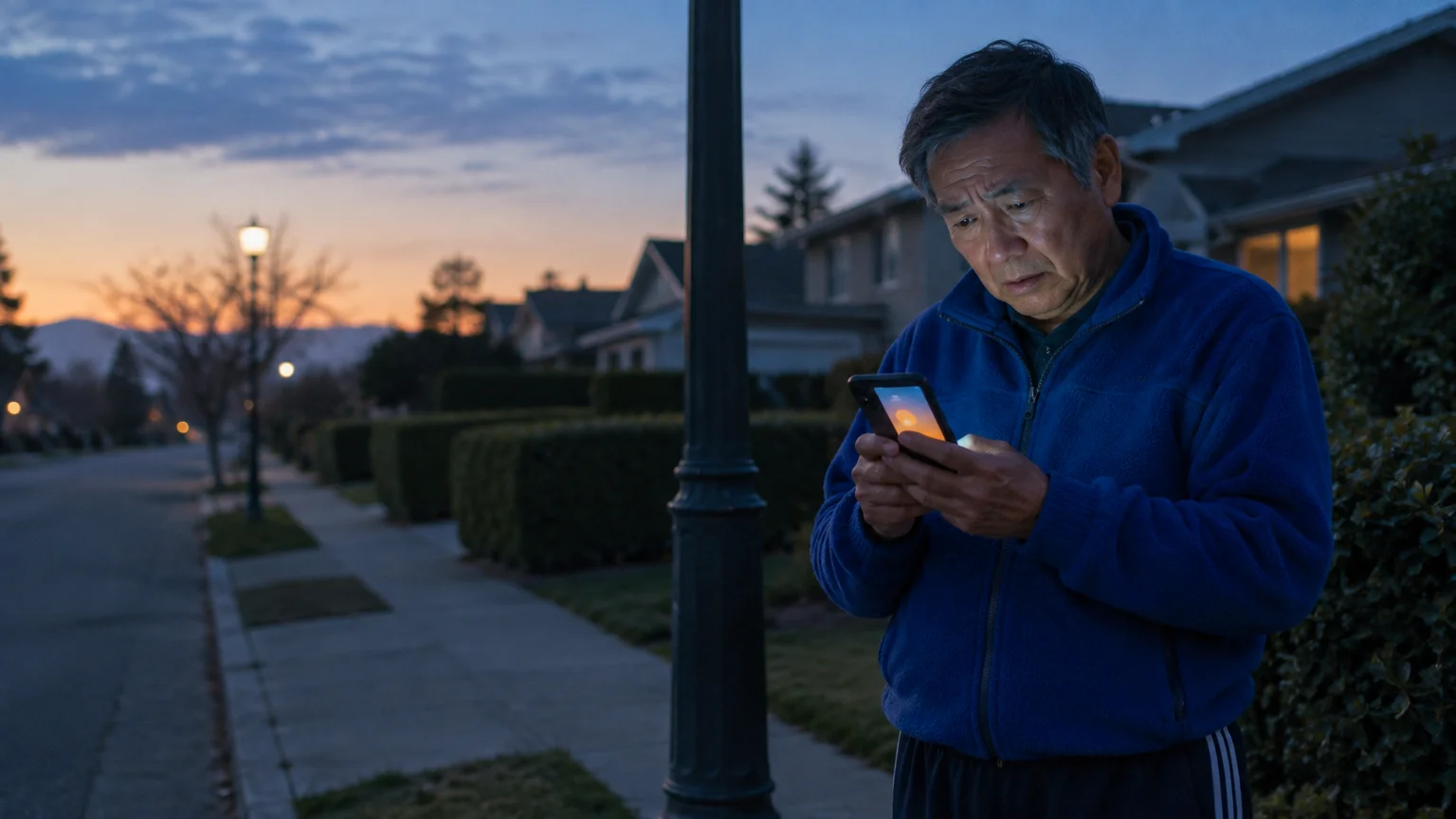
Consider Arthur, a 68-year-old walker who exercises for 45 minutes every morning at a pace of 3.2 miles per hour. He carries a Samsung Galaxy A54 inside the waistband pocket of his athletic trousers.
To protect yourself if your phone slips out of an exercise pocket unnoticed, take a moment to learn about using the Find My Device feature on your phone.
Arthur walks at a steady cadence of 112 strides per minute. His trousers use a 1.5-inch elastic waistband that holds the device firmly against his hip.
At minute 14 of his walk, Arthur climbs a moderate hill. His forward lean presses the side key of his phone tightly against the reinforced pocket seam.
Across a 2.4-second interval, Arthur takes five climbing steps. That movement depresses the power switch five consecutive times.
His phone initiates an Emergency SOS countdown. Traffic noise drowns out the five-second warning buzzer, so Arthur continues walking without realizing his phone placed an emergency call.
The 911 dispatcher hears rustling fabric and rhythmic footsteps on an open line. Dispatch protocol requires sending a local patrol officer to Arthur’s GPS coordinates for a welfare check.
How to Turn Off the Power Button SOS on Android
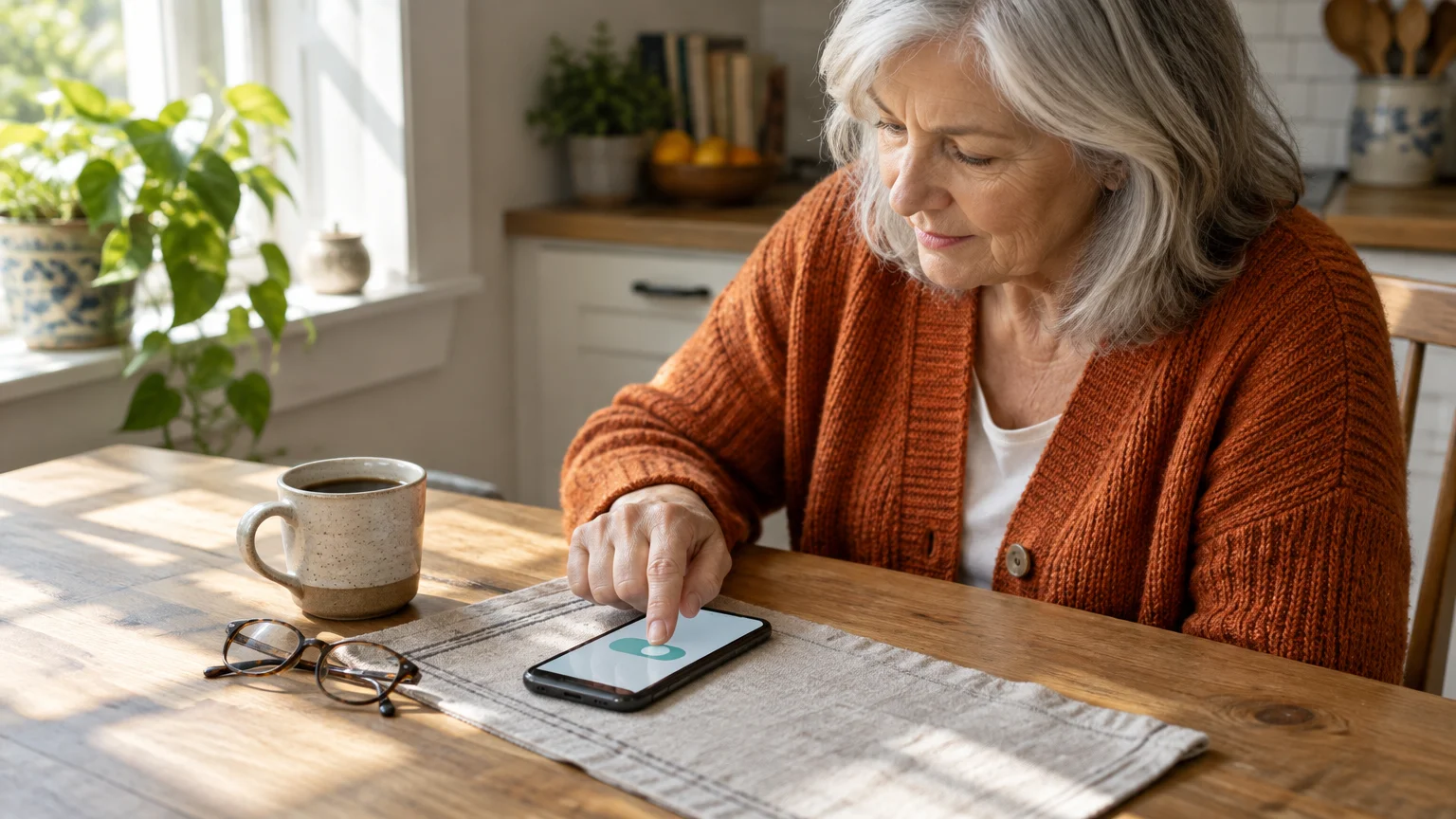
You can stop accidental emergency calls by adjusting the button trigger in your system settings. Disabling this shortcut prevents false alarms while leaving regular phone dialing intact.
Keeping your Phone app icon prominently positioned begins with understanding your Android phone’s home screen layout and app shortcuts.
For extra peace of mind when relaxing at home, consider learning how to set up an Alexa device to call for help without relying on your pocketed smartphone.
Warning: Turning off this shortcut stops your phone from dialing 911 through rapid power button presses. You must open the Phone app and dial 911 manually during an emergency.
If small display fonts make these menus difficult to read, review the Google Android accessibility overview to enlarge your screen text before changing system settings.
Follow these steps on Google Pixel phones running Android 14 or Android 15 as of 2026:
- Open the Settings app on your Google Pixel.
- Scroll down and tap Safety & emergency.
- Tap Emergency SOS.
- Turn off the toggle switch next to Use Emergency SOS to disable the five-press shortcut entirely.
- Alternatively, tap Emergency actions and turn off Call emergency services if you prefer to record video without placing a call.
Samsung Galaxy devices run the One UI interface, which presents emergency features in a separate menu layout. Use these steps for Samsung phones running One UI 6 as of 2026:
- Open the Settings app on your Samsung phone.
- Tap Safety and emergency.
- Tap Emergency SOS.
- Turn off the main toggle switch at the top of your screen.
- If you keep the shortcut active, select Emergency number to call and turn on the requirement to touch and hold the screen for three seconds before dialing.
You can review additional hardware settings in the official Google Android Help center if your device maker uses custom menu labels.
Adjusting Accidental Touch Protection and Display Wake
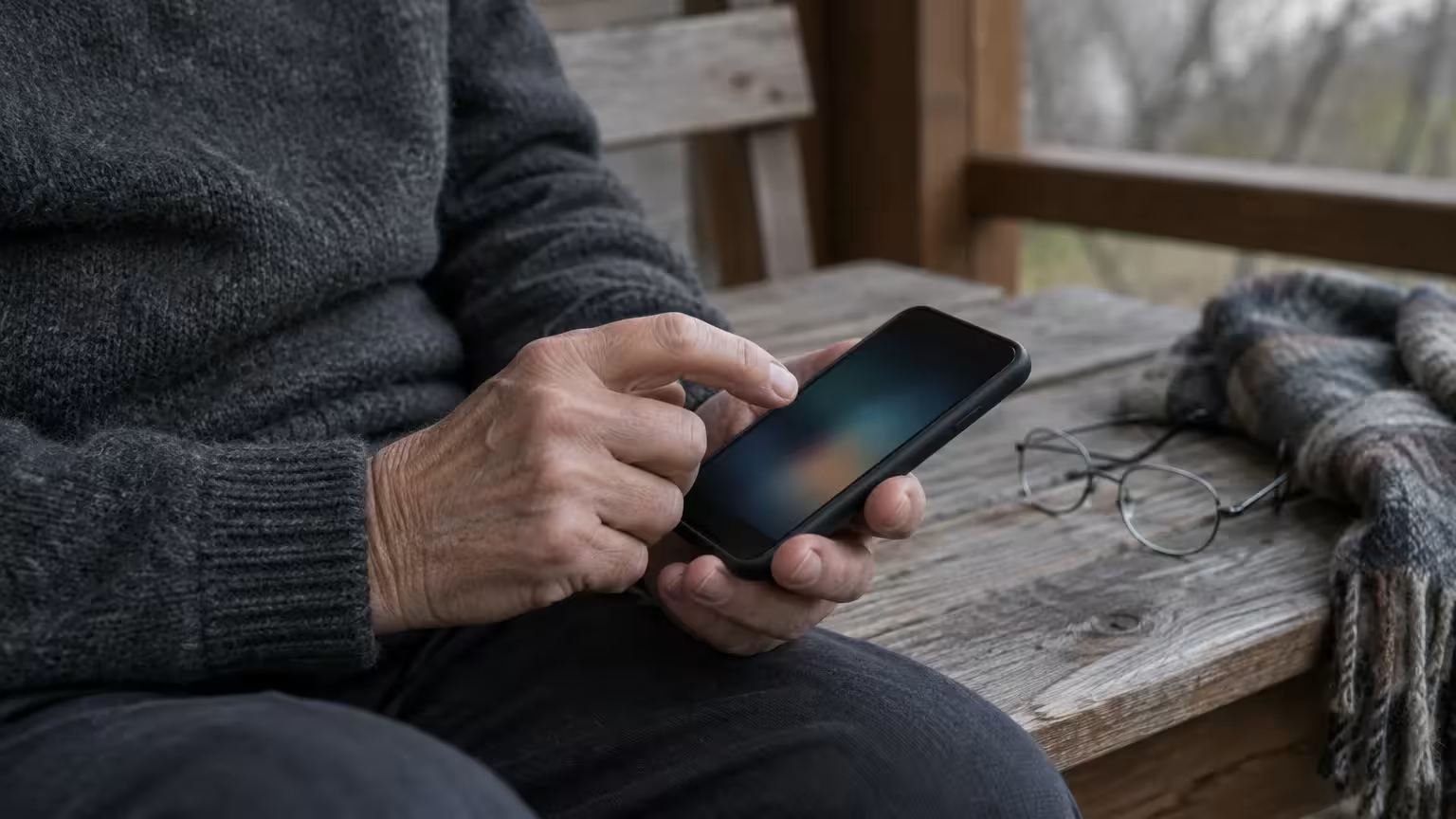
Disabling button shortcuts solves physical switch compressions. You must also prevent your display from waking up when moisture and pocket fabric brush against the screen.
If you keep display wake gestures turned off, you can also turn on flashlight alerts for ringing so you never miss a call when your device is resting on a table.
If managing your wake settings causes your display to turn off too quickly during normal use, learn how to stop your phone screen from going black so fast.
Accidental touch protection is a display setting that ignores screen contact whenever an internal proximity sensor detects a dark, enclosed pocket.
Follow these steps to turn on accidental touch protection and disable wake gestures on a Samsung phone:
- Open the Settings app.
- Tap Display.
- Scroll down and turn on the toggle switch for Accidental touch protection.
- Return to the main settings menu and tap Lock screen and AOD.
- Tap Touch settings and turn off Double tap to turn on screen.
Turning off double-tap gestures prevents fabric folds from activating the lock screen. Your display stays dark while you walk, blocking access to the emergency dialer.
Follow these steps to manage screen wake settings on a Google Pixel device:
- Open the Settings app.
- Tap Display, then tap Lock screen.
- Turn off the toggle switch next to Tap to check phone.
- Turn off the toggle switch next to Lift to check phone.
These adjustments prevent normal walking movements from illuminating your phone screen. The display remains asleep, eliminating unintentional touch entries on your emergency call buttons.
Preventing Accidental 911 Calls on Apple iPhone
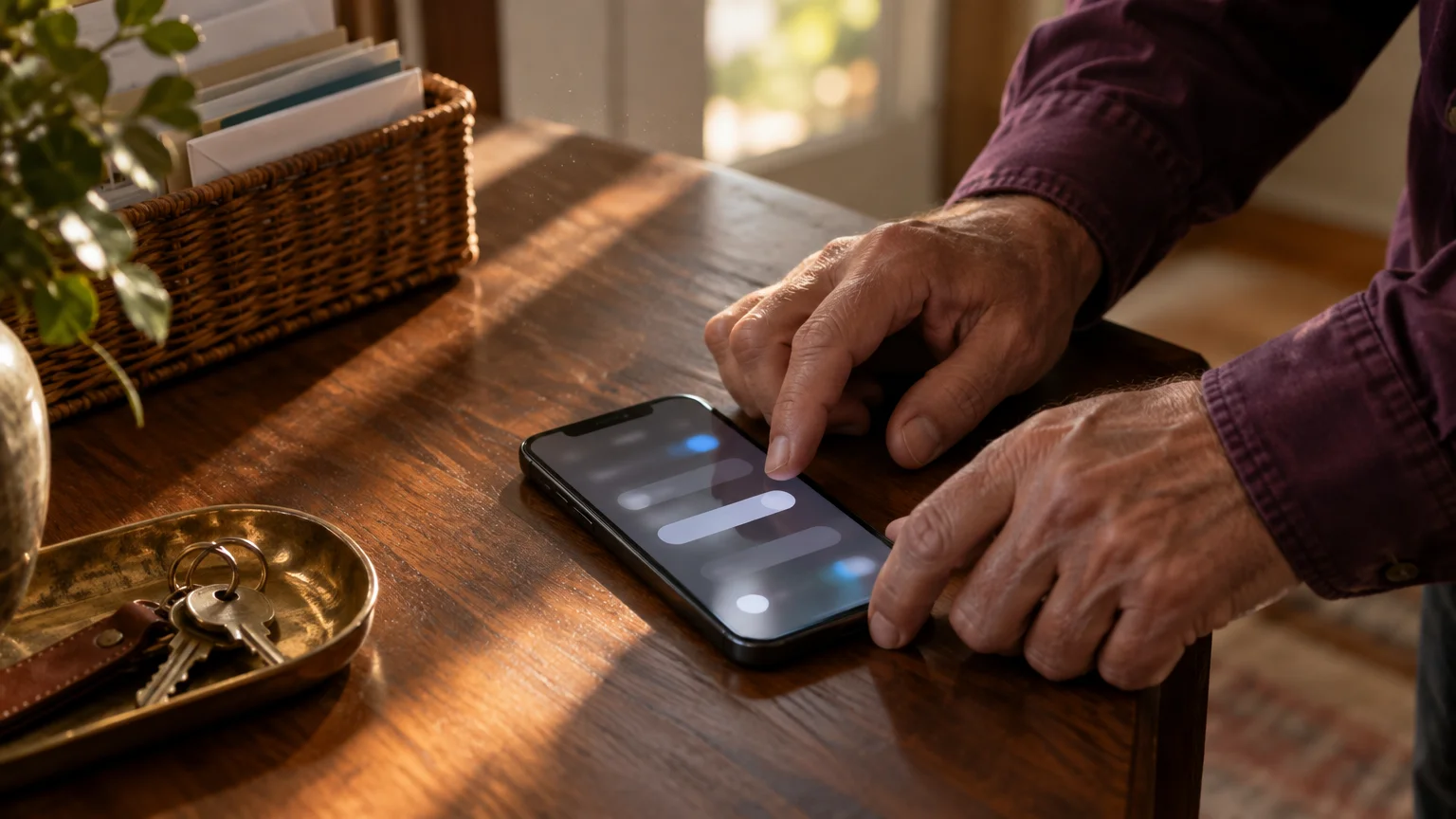
Apple devices feature automated safety shortcuts that can trigger inside athletic apparel. Modern iPhones running iOS 17 or iOS 18 offer two hardware shortcuts for emergency dialing.
If you recently upgraded to an all-screen Apple model and are still getting used to the hardware controls, review our simple guide on how to unlock an iPhone without a home button.
If you or an older relative carry a basic handset instead, review our tutorial on how to use the emergency call feature on a flip phone.
The first shortcut activates when you hold the side button together with either volume button. The second shortcut activates when you press the side button five times quickly.
Warning: Turning off these options prevents side buttons from placing emergency calls automatically. You must slide the Emergency Call slider on your screen or dial 911 manually through the Phone keypad.
If you prefer larger interface elements while adjusting these controls, use the official instructions to make text bigger on iPhone and iPad.
Follow these steps to stop your iPhone from dialing 911 through button presses:
- Open the Settings app on your iPhone.
- Scroll down and tap Emergency SOS.
- Turn off the toggle switch next to Call with 5 Button Presses.
- Turn off the toggle switch next to Call with Hold and Release.
- Leave Call After Serious Crash turned on so crash detection remains active while driving.
Turning off both button triggers stops tight waistbands from squeezing your phone into an emergency sequence. You can review additional safety features in the Apple iPhone User Guide.

Official Protocol When You Accidentally Call 911
If your phone triggers an emergency call during exercise, you may feel an urge to end the call immediately. You should never hang up on an accidental 911 call.
Federal Communications Commission (FCC) and emergency dispatch protocols require call handlers to treat disconnected calls as active emergencies. Dispatchers assume an injured caller lost consciousness or faced an intruder.
When an emergency call disconnects without an explanation, dispatchers must dial your phone number back immediately. If you do not answer, dispatchers send police officers to your GPS coordinates.
Follow these steps if your device dials 911 by mistake:
- Keep the phone to your ear and wait for the dispatcher to answer your call.
- State your name clearly and explain that your phone dialed by accident while you were walking.
- Confirm that you are safe and do not require police, fire, or medical assistance.
- Answer any routine verification questions regarding your identity and location before hanging up.
Emergency dispatchers encounter accidental pocket calls every day. Speaking with the operator confirms your safety immediately and keeps first responders available for genuine emergencies.
Emergency Trigger Settings Compared Across Devices
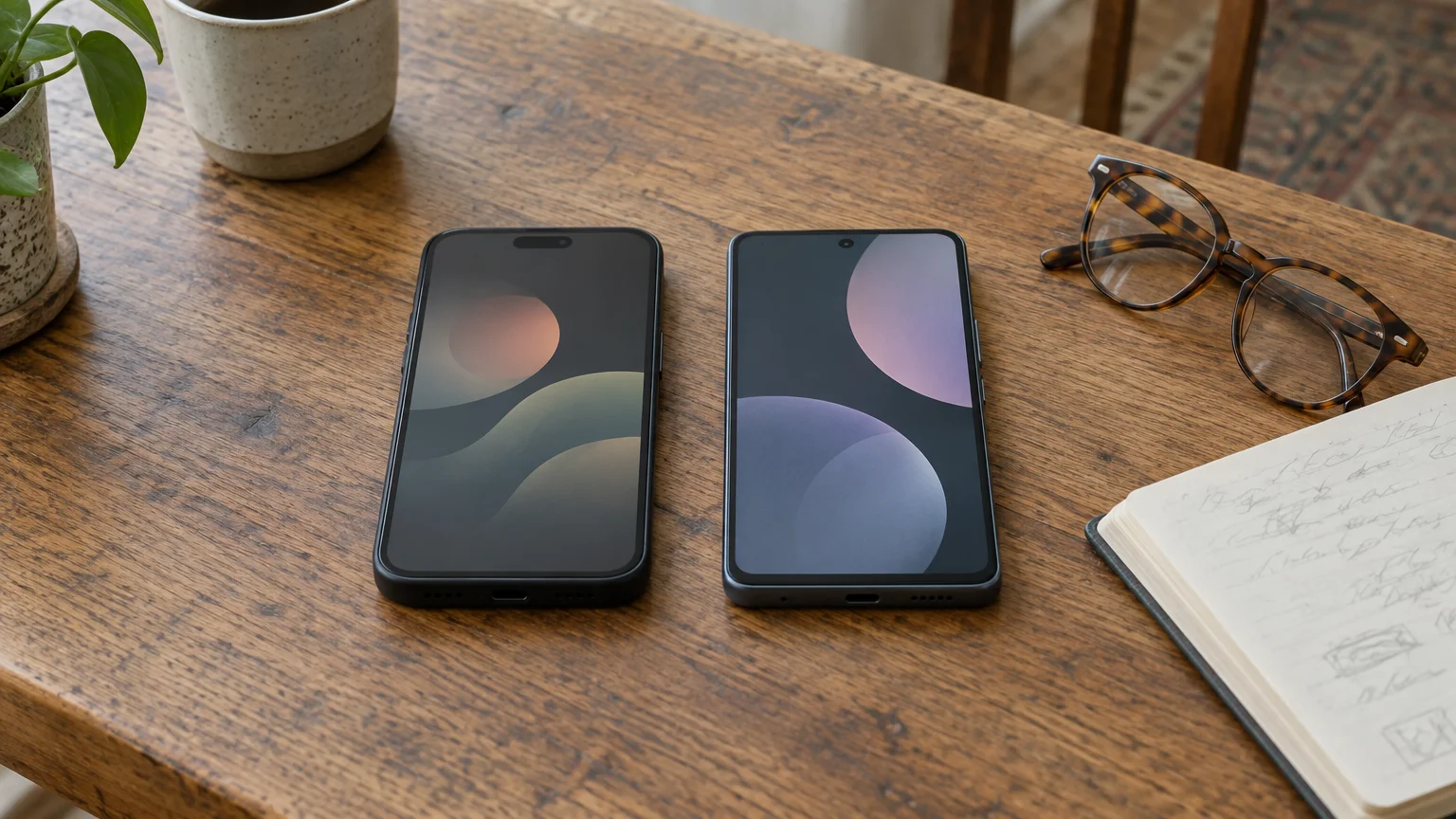
Different phone manufacturers use distinct default settings for emergency calling. The table below compares hardware triggers and safe configurations across major mobile platforms as of 2026.
| Platform & Hardware | Default 911 Trigger | Settings Menu Path | Recommended Configuration |
|---|---|---|---|
| Samsung Galaxy (One UI 6) | 5 rapid side key presses | Settings > Safety and emergency > Emergency SOS | Turn off Emergency SOS toggle or require swipe confirmation |
| Google Pixel (Android 14/15) | 5 rapid power button presses | Settings > Safety & emergency > Emergency SOS | Turn off Use Emergency SOS toggle |
| Apple iPhone (iOS 17/18) | 5 side clicks or button hold | Settings > Emergency SOS | Turn off 5 Button Presses and Hold and Release toggles |
| Motorola (Android 14) | 5 rapid power button clicks | Settings > Safety & emergency > Emergency SOS | Turn off Call emergency services action |
Reviewing these settings allows you to customize device behavior to match your physical routines. You can adjust these shortcuts anytime your exercise habits or travel plans change.
Physical Pocket Solutions for Morning Walkers
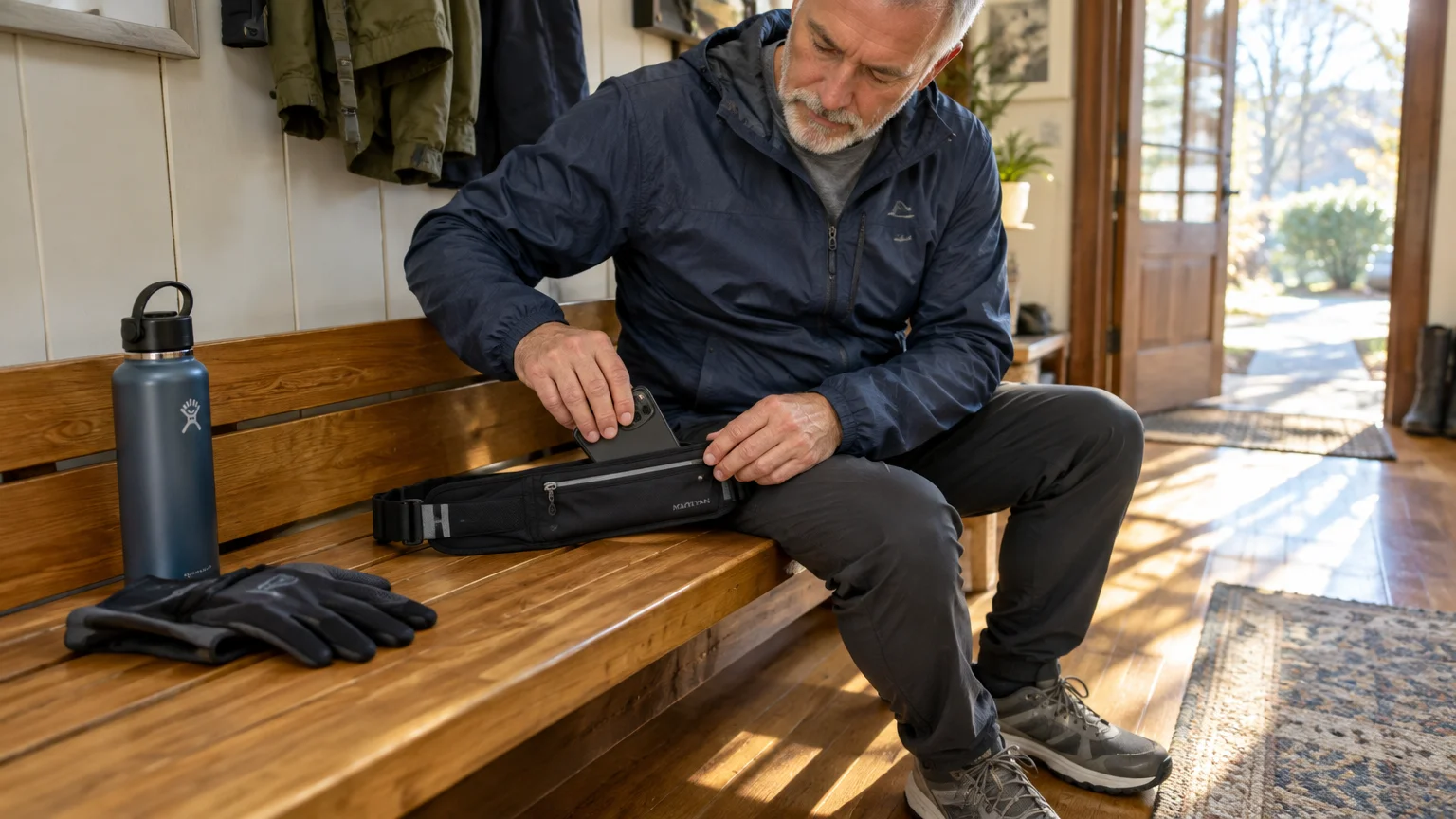
Adjusting software settings removes automated calling shortcuts. You can also make physical gear adjustments to eliminate button compression while you exercise.
A rigid protective phone case with recessed button cutouts stops fabric seams from contacting buttons. Flexible silicone cases bend under waistband pressure and push side buttons inward.
Use these equipment adjustments to protect your phone during morning walks:
- Carry your phone inside a dedicated running belt with an elastic pouch positioned against your lower back.
- Orient the phone screen outward away from your body to prevent skin moisture from contacting the glass.
- Slide your phone into your pocket upside down so side buttons sit deep below the waistband seam.
- Choose a hard polycarbonate phone case that features raised shields around the power and volume keys.
These carrying habits protect your device from sweat and prevent mechanical button friction. You can complete your exercise routine without unexpected interruptions from emergency services.
Frequently Asked Questions
Will turning off Emergency SOS prevent me from calling 911?
No. Disabling the shortcut only stops rapid button clicks from dialing dispatchers, and you can still dial 911 manually through the Phone app.
Can 911 dispatch centers fine me for an accidental pocket call?
Municipalities do not fine callers for occasional accidental calls if you stay on the line and explain the mistake. Repeated hang-ups that trigger emergency responses can lead to local civil penalties.
Why does my phone emit a loud siren noise before dialing 911?
Manufacturers include a warning alarm and countdown timer to alert you before an automated call connects. If you hear this alarm inside your pocket, retrieve the phone immediately and tap cancel.
How can I verify that my phone will not pocket dial without calling 911?
Press your power button five times while looking at your unlocked screen after updating your settings. If configured correctly, your phone remains on your current screen without initiating a countdown.
Does turning on Do Not Disturb block accidental 911 calls?
No. Do Not Disturb silences incoming notifications and phone calls, but operating systems exempt outgoing emergency calls from all silent modes.
Note: Menus and button names change with software updates. These steps were written for current versions as of 2026; if a screen looks different on your device, the maker’s support page linked above has the latest wording.
ClearTechGuide is independent and is not affiliated with Apple, Google, Microsoft, Amazon or any other company mentioned.
