

Placing small digital jigsaw pieces with a bare finger often leads to dropped pieces, accidental zooming, and tired hand muscles. Switching to an iPad stylus restores the tactile control of a traditional tabletop puzzle board.
If you are new to Apple tablets entirely, reviewing our beginner guide to setting up and using an iPad can help you get comfortable with standard gestures first.
While generic advice suggests using any cheap rubber pointer, true precision requires pairing active palm rejection with iPadOS touch dampening filters. This guide measures tip precision, compares stylus barrels, and reveals the exact settings needed to counteract involuntary hand tremors.
Whether you assemble 100-piece landscapes or 1,000-piece fine art jigsaws, proper hardware combined with built-in accessibility tools ensures steady, reliable puzzle play.
In this guide8 sections
- Why Fingers Fail at Digital Puzzles
- Passive vs Active Styluses: Tip Precision and Hand Resting
- Hardware Comparison: Stylus Options for Puzzlers with Tremors
- Configuring iPadOS Touch Accommodations to Filter Tremors
- Worked Scenario: Eleanor’s Setup for 500-Piece Digital Puzzles
- Step-by-Step: Connecting and Testing Your Stylus
- Optimizing In-Game Settings for Precision Piece Placement
- Frequently Asked Questions
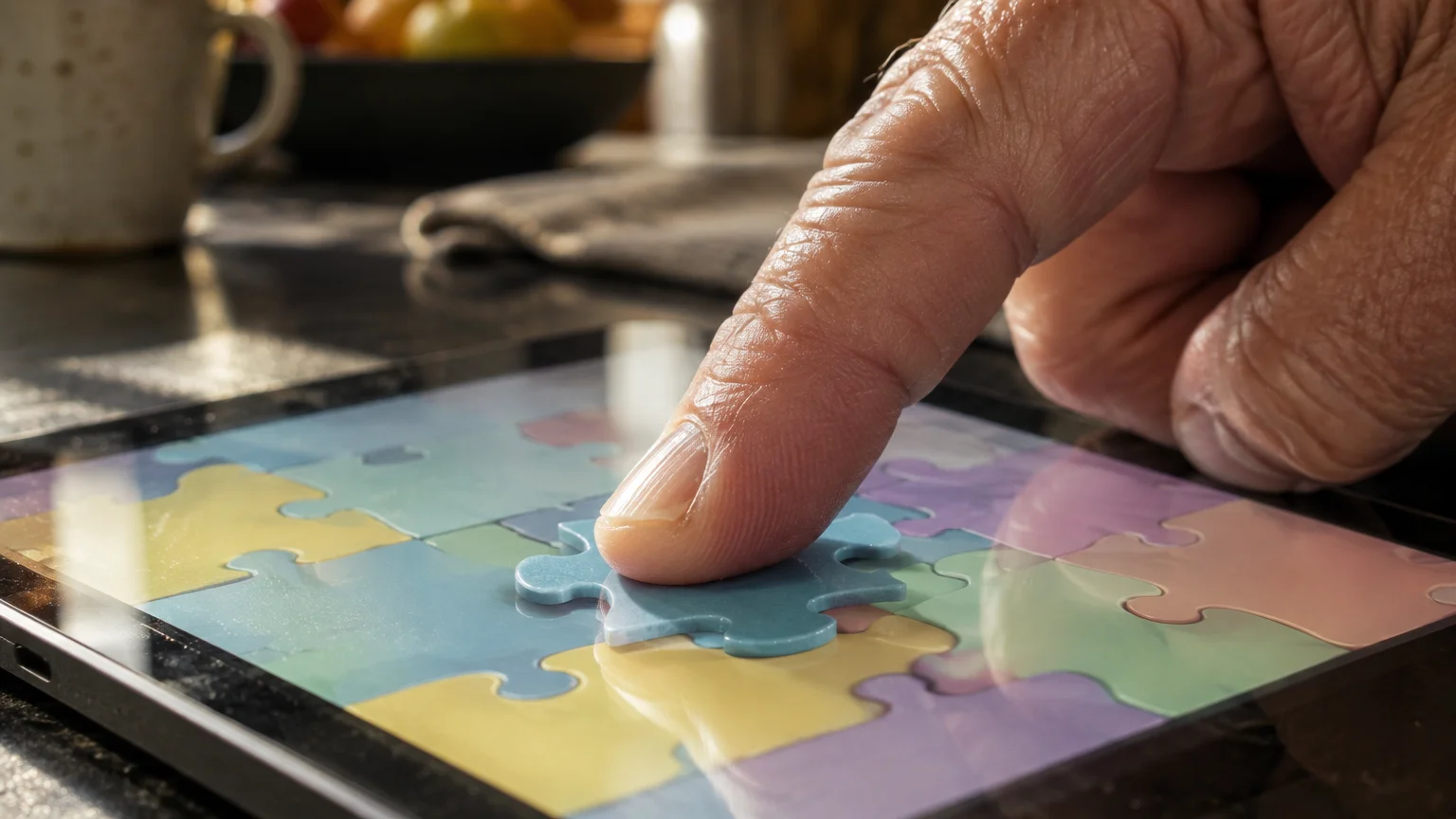
Why Fingers Fail at Digital Puzzles
A capacitive touch screen is a display that detects input by measuring changes in electrical current when touched by skin or conductive material. Your bare fingertip creates a broad contact patch roughly 10 to 12 millimeters wide on the glass.
Beyond jigsaws, exploring apps designed for brain training and memory offers other enjoyable ways to stay mentally engaged on your tablet.
When you solve a 500-piece digital puzzle, individual puzzle tabs and interlocking slots often measure under 8 millimeters wide on a standard tablet screen. Your fingertip hides the destination slot completely, forcing you to guess the final alignment.
Dry fingertips or moisture create friction against glass, which causes inconsistent dragging motions. A finger can hitch suddenly during movement, causing the puzzle application to register an early release and drop the piece across the board.
According to clinical data, essential tremor affects roughly 7 to 10 million Americans, with prevalence increasing sharply among adults aged 65 and older. Mild rhythmic shaking makes precise targeting on smooth glass especially difficult.
A Pew Research study on technology adoption among older adults shows substantial growth in tablet use over the past decade. Even so, basic touch controls still pose physical hurdles during fine tabletop gaming.
Using a dedicated stylus narrows the contact point down to a visible tip. It restores the natural grip angle you use with physical puzzle pieces, reducing wrist strain and visual obstruction.
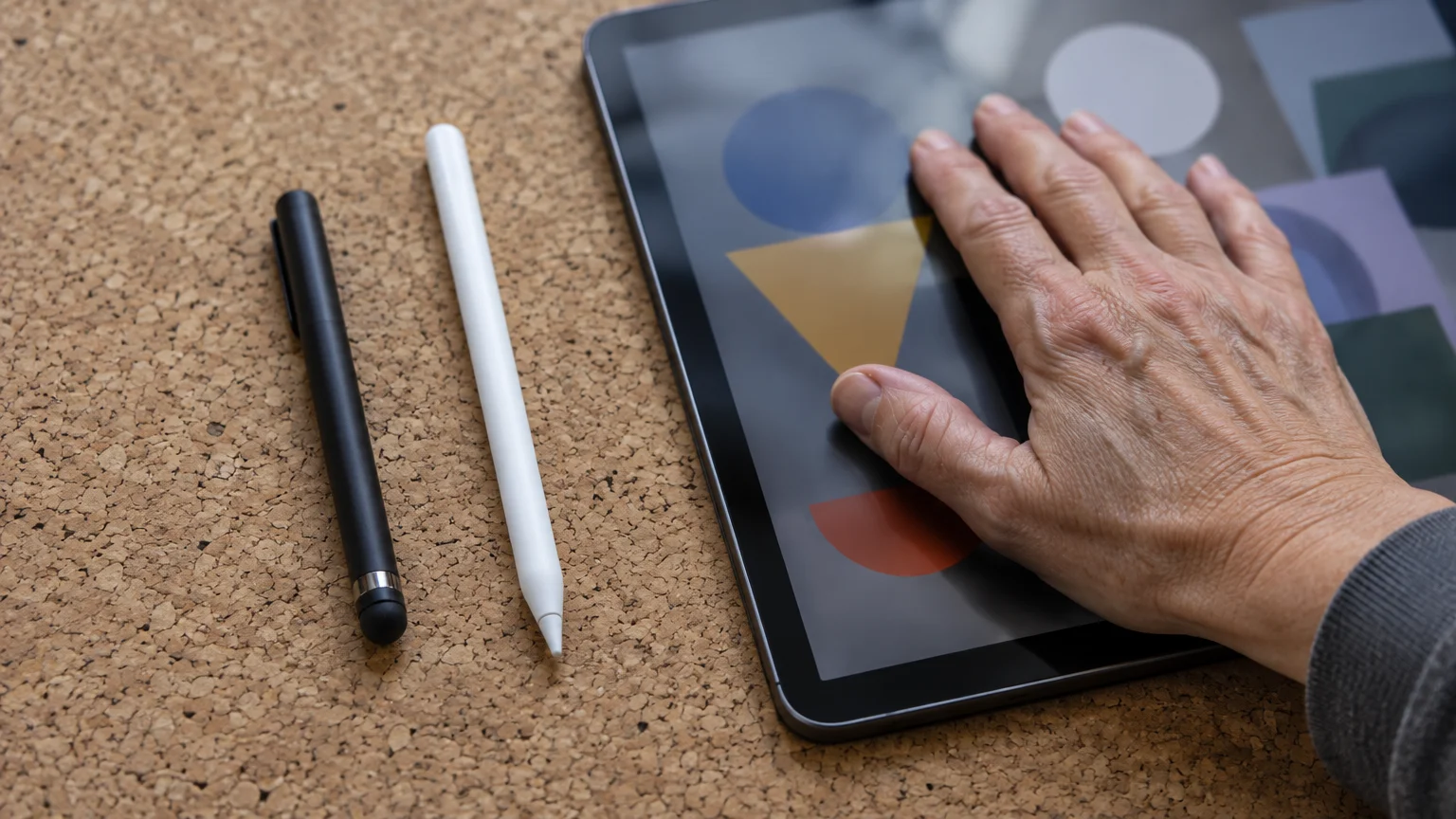
Passive vs Active Styluses: Tip Precision and Hand Resting
A passive stylus is a non-electronic pointer that simply mimics a human finger using a conductive rubber or mesh tip. It requires no battery, pairing, or software connection to operate.
Adapting everyday technology for joint comfort extends to your home as well, such as using keypad smart locks designed for stiff hands to avoid fumbling with small keys.
An active stylus contains internal electronics that communicate directly with a tablet digitizer to deliver high positioning accuracy. It transmits electrical signals that tell the iPad its exact coordinate position.
Palm rejection is a tablet feature that ignores touches from the resting side of your hand while recognizing the fine tip of a stylus. This feature is critical for stabilizing hand tremors.
When solving tabletop puzzles, resting the heel of your hand against the table stabilizes involuntary wrist oscillation. A passive stylus prevents you from doing this on a tablet screen.
Because passive pens lack digital communication, the iPad cannot tell your hand apart from the stylus tip. If you rest your palm while using a passive rubber pen, the screen registers accidental two-finger pinching, dragging the entire puzzle board.
An active stylus solves this issue by shutting off touch detection across the rest of the screen whenever the active pen tip approaches the glass. You can plant your hand firmly on the display to steady your fingers without disrupting your puzzle.
Active tips also measure roughly 1.5 millimeters wide, compared to 6 to 8 millimeters for passive rubber domes. That narrow tip leaves the puzzle piece edges visible as you guide them into place.
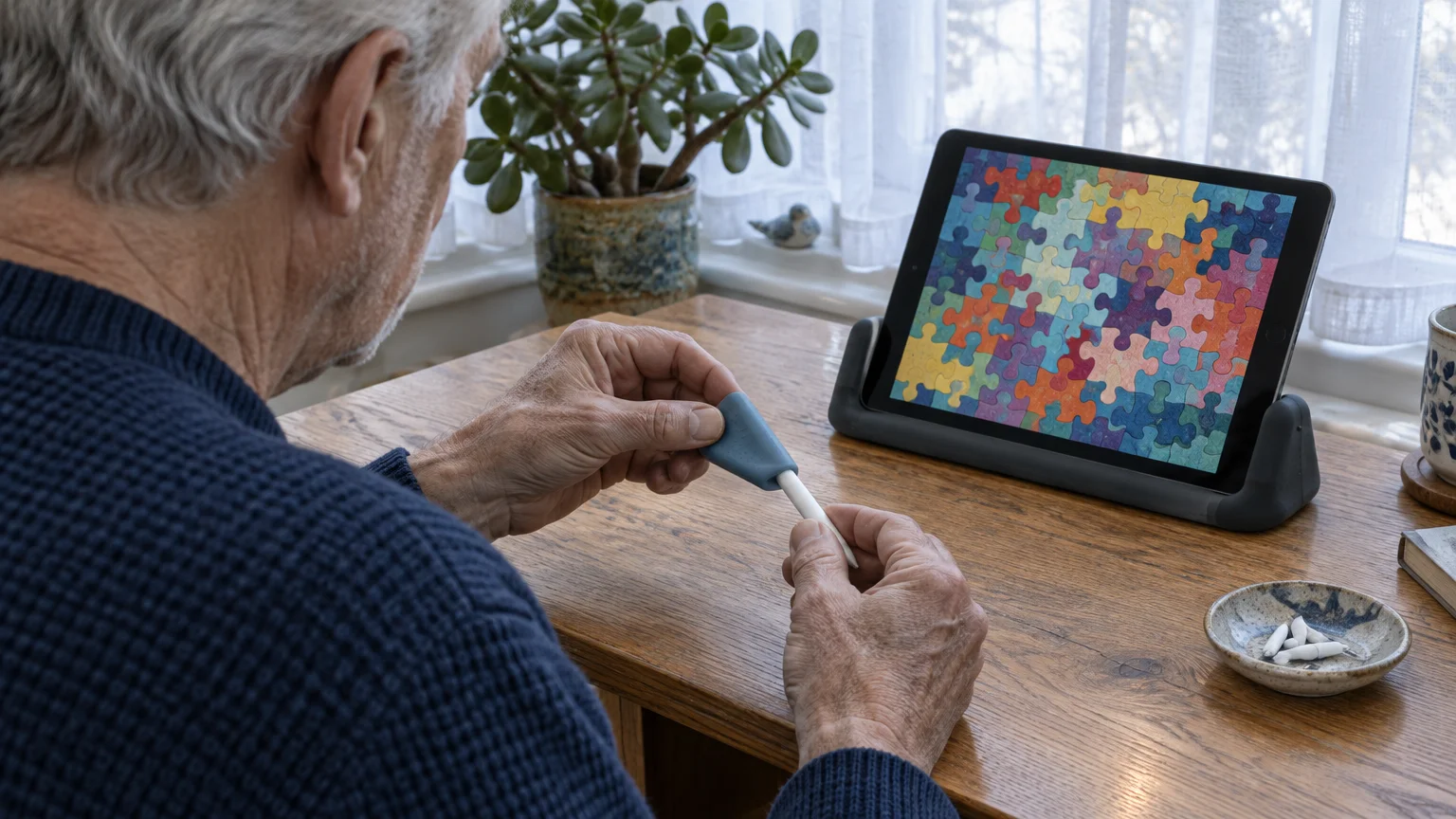
Hardware Comparison: Stylus Options for Puzzlers with Tremors
Selecting the right digital pen requires balancing tip width, barrel shape, and palm rejection reliability. Prices and specifications reflect official manufacturer details as of 2026.
If you are still deciding which device to purchase, our guide on key tablet features for older adults breaks down screen sizes and processing power.
The Apple Pencil USB-C costs $79 and features a 1.5-millimeter active tip with full palm rejection. It charges via a sliding USB-C port and provides exceptional accuracy for standard puzzle sorting.
The Apple Pencil Pro costs $129 and adds haptic feedback and magnetic wireless charging. Before buying, verify your tablet model; as of 2026, the Apple Pencil Pro works exclusively with newer devices like the iPad Pro M4, iPad Air M2, and iPad mini A17 Pro.
The Logitech Crayon costs $69.99 and uses Apple-approved active pen technology. Its flat, rectangular aluminum barrel prevents rolling and provides a wider, more secure grip for arthritic fingers.
The Studio Neat Cosmonaut costs $25.00 and functions as a passive stylus with a wide, rubberized barrel shaped like a dry-erase marker. It lacks palm rejection but offers a comfortable grip for those with severe grip limitations.
Universal micro-knit mesh styluses cost $10 to $15 for multi-packs. Their conductive fabric tips glide smoothly over glass without sticking, though their wide 6-millimeter tips do not offer active palm rejection.
| Stylus Model | Category | Tip Diameter | Palm Rejection | MSRP (as of 2026) | Grip Profile |
|---|---|---|---|---|---|
| Logitech Crayon | Active Digital | 1.5 mm | Yes (Digital) | $69.99 | Flat, wide aluminum |
| Apple Pencil USB-C | Active Digital | 1.5 mm | Yes (Digital) | $79.00 | Slim round, single flat edge |
| Apple Pencil Pro | Active Digital | 1.5 mm | Yes (Digital) | $129.00 | Slim round, single flat edge |
| Studio Neat Cosmonaut | Passive Capacitive | 8.0 mm | No (Skin detected) | $25.00 | Extra-thick round rubber |
| MEKO Microfiber Mesh | Passive Capacitive | 6.0 mm | No (Skin detected) | $12.99 (Pack) | Standard slim aluminum |
For puzzlers dealing with tremors, active styluses like the Logitech Crayon or Apple Pencil USB-C provide the greatest stability. Their fine tips allow you to see puzzle piece tabs while resting your hand on the glass.
If budget constraints require a passive stylus, choose a wide barrel or add a foam pencil grip to reduce hand fatigue. However, you will need to hover your hand above the screen while playing.
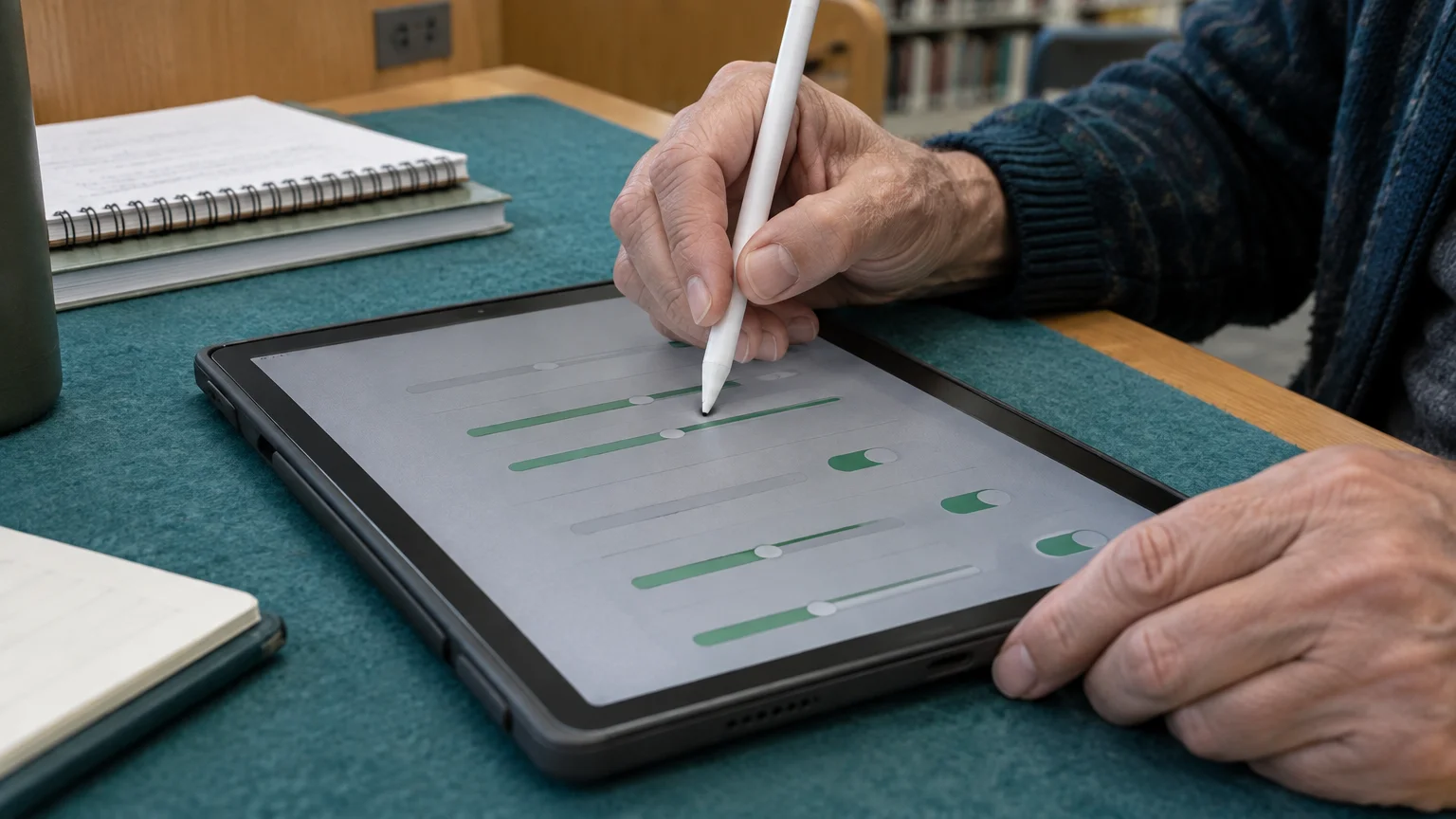
Configuring iPadOS Touch Accommodations to Filter Tremors
Hardware accounts for only half of the solution. You must configure system-level touch dampening so your iPad ignores involuntary shakes when you pick up and release digital puzzle pieces.
If you struggle to inspect tiny details on physical reference photos alongside your digital board, you can also use your tablet or phone as a digital magnifier.
To ease visual fatigue during lengthy sessions, you can also learn how to turn on dark mode or inverted colors on your iPad.
Operating system menus differ between platforms. Below are the exact settings paths for iPadOS 18 and Android 15 as of 2026.
On iPadOS 18, open the Settings app and select Accessibility. Next, tap Touch, then select Touch Accommodations.
Follow these steps to configure iPadOS 18 touch filtering:
- Tap the toggle next to Touch Accommodations to turn the feature on.
- Tap the toggle next to Hold Duration to activate touch recognition delays.
- Use the plus and minus buttons to set Hold Duration to 0.30 Seconds.
- Scroll down and tap the toggle next to Ignore Repeat to prevent rapid, accidental double taps.
- Set the Ignore Repeat duration to 0.25 Seconds using the adjustment buttons.
- Under the Tap Assistance header, select Use Initial Touch Location so your initial point of contact anchors the puzzle piece.
Review Apple’s guide to accessibility features for detailed guidance on system responsiveness and custom gesture support. You can also consult Apple’s instructions on making screen text larger if puzzle menu options appear hard to read.
Android tablets provide comparable touch filters. The exact menu paths vary depending on whether you use a Google Pixel Tablet or a Samsung Galaxy Tab running Android 15.
To configure touch delays on Android 15:
- On Google Pixel: Open Settings, tap Accessibility, select Timing controls, then tap Touch & hold delay and choose Medium or custom milliseconds.
- On Samsung Galaxy: Open Settings, tap Accessibility, select Interaction and dexterity, then tap Touch and hold delay to set a custom timer.
- On Samsung Galaxy: In the same menu, tap Ignore repeated touches and set the threshold to 0.30 seconds.
Check Google’s Android accessibility overview for additional platform instructions across different tablet manufacturers.
Worked Scenario: Eleanor’s Setup for 500-Piece Digital Puzzles
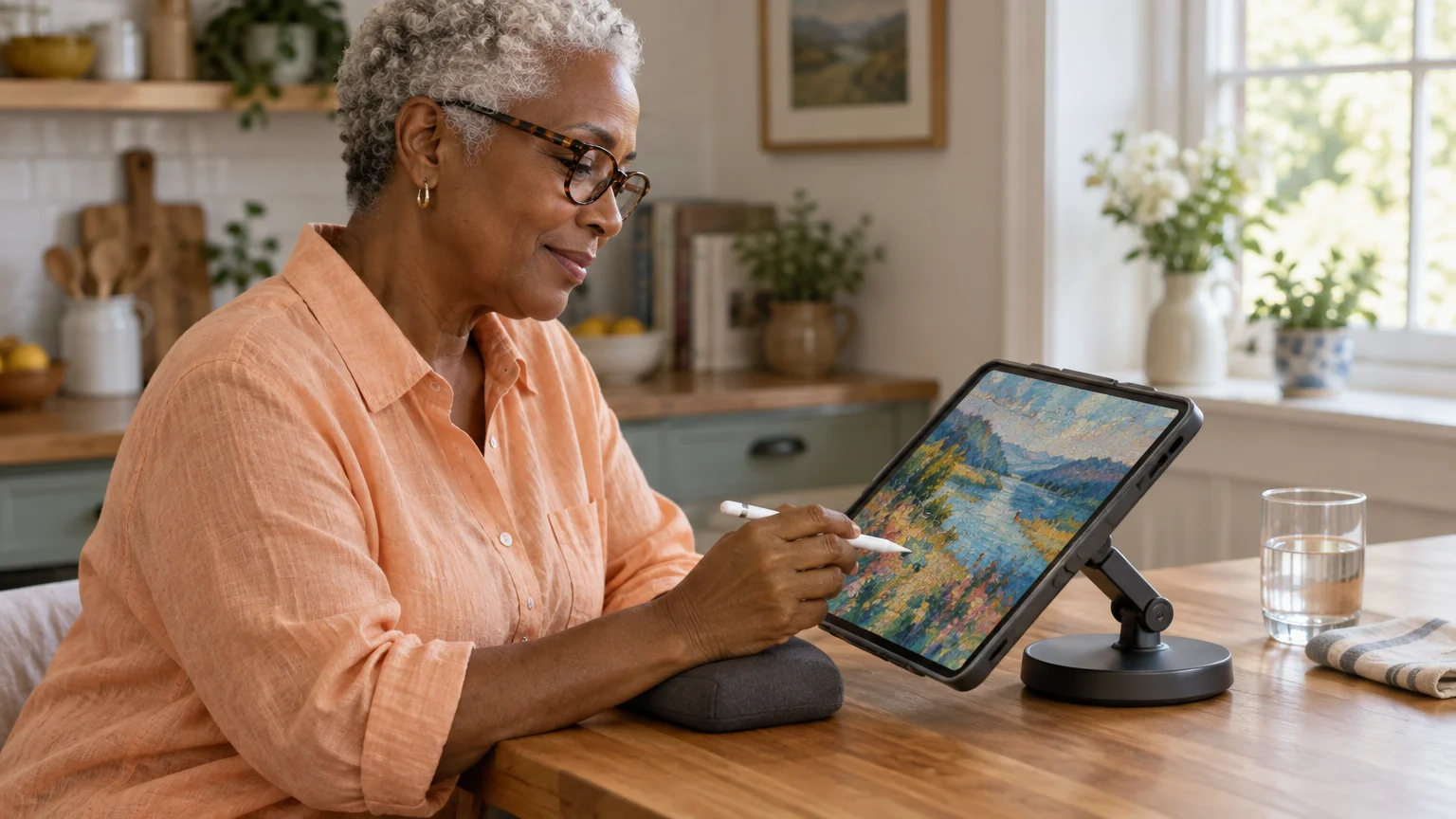
Consider Eleanor, a 73-year-old puzzle enthusiast who developed a mild essential tremor in her dominant right hand. She enjoys assembling 500-piece landscapes in digital puzzle apps on her 11-inch iPad.
She also locked her screen orientation so shifting her tablet wouldn’t disrupt her view—a step covered in our guide on how to stop your tablet screen from rotating.
Using a bare finger, Eleanor repeatedly dropped pieces before reaching their destination slots. Her fingertip covered the piece’s interlocking tabs, and brief hand tremors caused the app to register accidental double taps, throwing the board into full-screen zoom.
Eleanor purchased a Logitech Crayon for $69.99 as of 2026. She paired it with an adjustable tablet stand set to a 25-degree drafting tilt, bringing the screen closer and reducing neck strain.
She configured iPadOS 18 Touch Accommodations with a Hold Duration of 0.30 seconds. This small pause ensures that momentary contact while hovering does not accidentally grab nearby puzzle pieces.
She set Ignore Repeat to 0.25 seconds, which filters out rapid tremor vibrations when lifting the stylus from the glass. She also selected Use Initial Touch Location under Tap Assistance.
Here is Eleanor’s physical and digital puzzle setup:
- Hardware: 11-inch iPad (iPadOS 18) mounted on a 25-degree non-slip silicone desk stand.
- Input tool: Logitech Crayon with a flat aluminum barrel measuring 12 millimeters across.
- Software setting: iPadOS Hold Duration set to 0.30 seconds; Ignore Repeat set to 0.25 seconds.
- Puzzle complexity: 500 pieces, with individual pieces measuring approximately 14 millimeters on screen.
- Session duration: 45 minutes of continuous play with zero dropped pieces or unintended zooms.
With active palm rejection enabled, Eleanor rests the heel of her hand directly on the tablet screen. The stable contact point dampens her tremor, while the 1.5-millimeter stylus tip leaves piece borders completely visible.
Step-by-Step: Connecting and Testing Your Stylus
Before buying accessories from third-party websites, check the FTC’s consumer guidelines on online shopping to confirm seller return policies and avoid counterfeit hardware. Authentic active pens are required for reliable palm rejection.
Make sure your tablet operating system is current before pairing new accessories. Follow CISA’s recommendations to keep device software updated to preserve security patches and hardware compatibility.
Follow these steps to connect an active stylus to your iPad:
- For Apple Pencil USB-C: Slide open the end cap, connect a USB-C cable from the pen to your iPad, and tap Connect when prompted on screen.
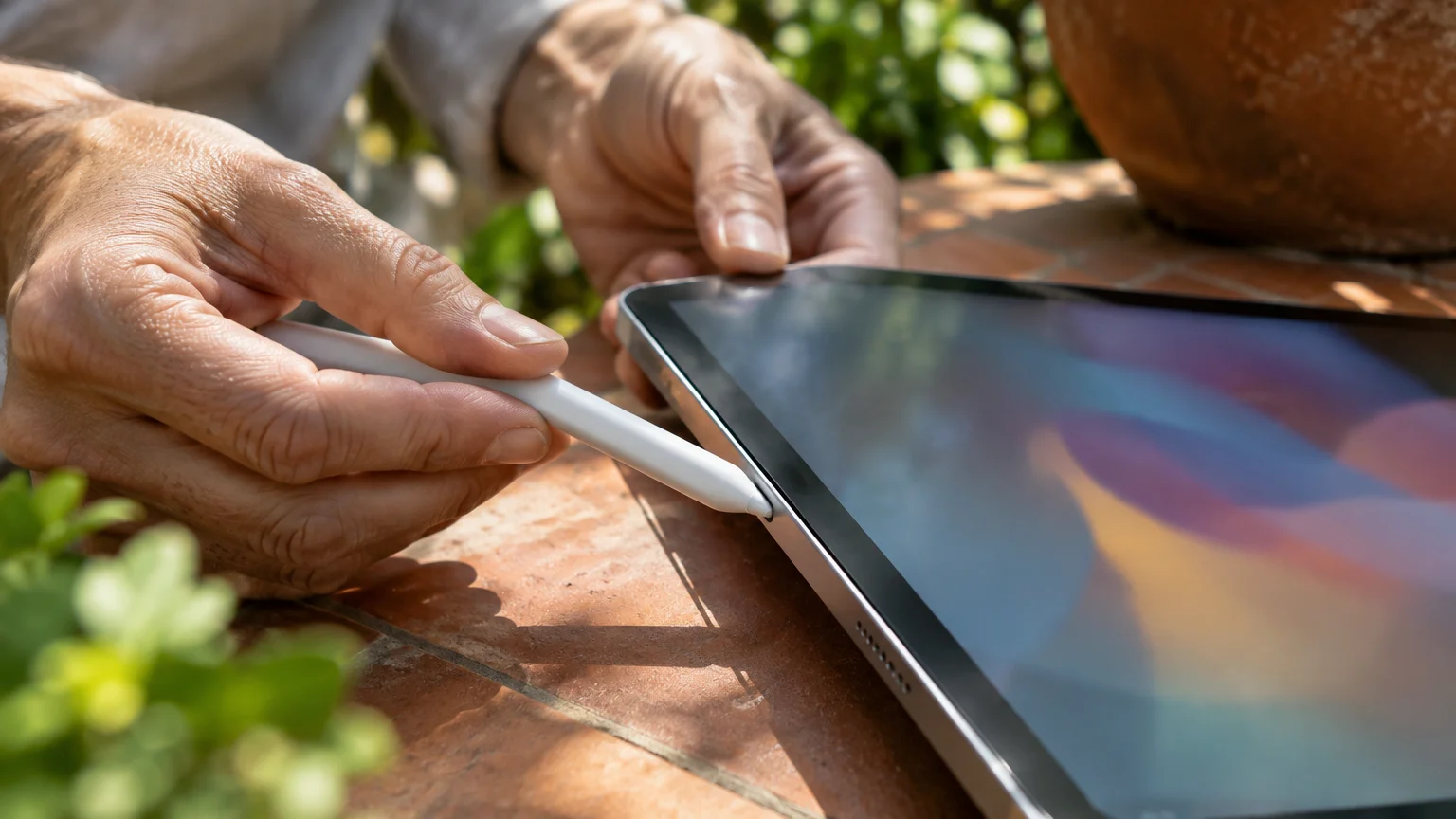
- For Apple Pencil Pro: Attach the flat edge of the stylus magnetically to the long right edge of your compatible iPad; pairing occurs automatically.
- For Logitech Crayon: Press and hold the power button for one second until the green indicator light turns on; no Bluetooth menu pairing is required.
Once connected, verify that palm rejection operates correctly before opening your puzzle game. You can test your settings quickly using the built-in Notes application.
To run the Notes test:
- Open the Notes app on your iPad and tap the New Note icon in the top right corner.
- Tap the Markup icon (the pen tip inside a small circle) to display drawing tools.
- Select the fine-tip pen tool from the toolbar at the bottom of the screen.
- Rest the fleshy heel of your drawing hand firmly in the center of the screen.
- Draw slow circles with the stylus tip while keeping your palm planted on the glass.
If the canvas pans or draws unwanted smudges beneath your hand, active palm rejection is inactive. Confirm your stylus battery charge and ensure third-party Bluetooth styluses are fully disconnected.
Optimizing In-Game Settings for Precision Piece Placement
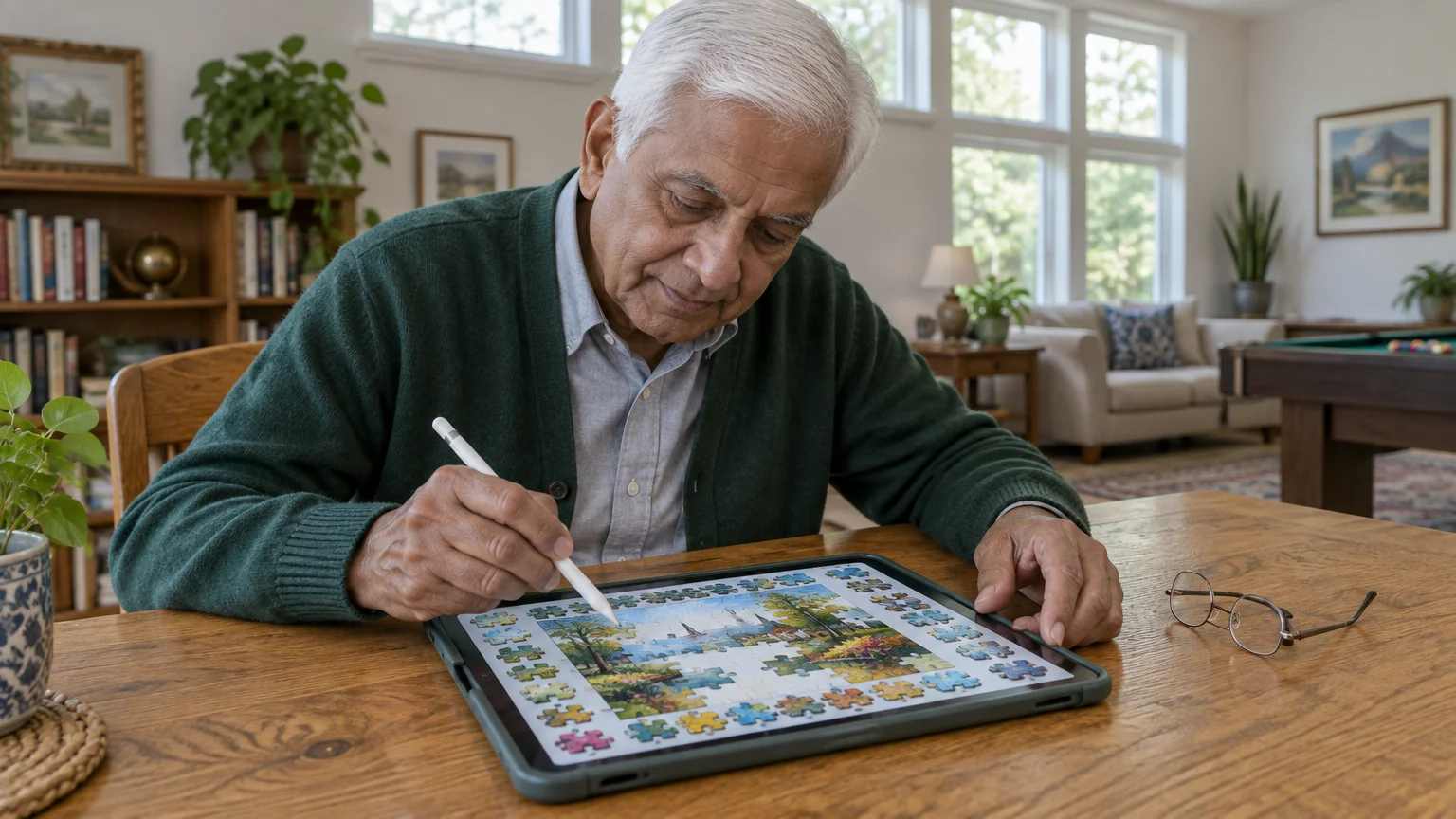
Digital jigsaw puzzle applications contain internal settings that can either help or hinder motor control. Adjusting these settings reduces the physical effort needed to complete difficult sections.
You can also use Siri voice commands to open your favorite puzzle app or set break timers hands-free.
Most puzzle games allow you to toggle piece rotation on or off. Turning rotation off ensures that pieces always load right-side up, eliminating complex two-finger twisting gestures that aggravate hand tremors.
Locate the snap sensitivity setting in your game’s options menu. Increasing magnetic snap allows the game engine to pull a piece into place once you bring it within 4 or 5 millimeters of its correct position.
Keep these puzzle game configurations active for smoother play:
- Piece Rotation: Set to Locked or Off to keep all pieces facing upright automatically.
- Magnetic Snap: Set to High or Generous so pieces lock securely into adjacent pieces.
- Puzzle Tray Pockets: Use sorting trays to keep unused pieces off the main assembly board.
- Board Background: Choose neutral dark gray or natural wood to maximize piece outline contrast.
- Zoom Lock: Lock the puzzle board scale once adjusted to prevent accidental zooming during play.
Using tray pockets keeps your working canvas clean. Dragging pieces across a cluttered board increases the risk of bumping adjacent pieces out of position.
Locking the zoom level prevents sudden shifts in perspective when moving pieces near the borders. Combined with an active stylus, these software tweaks deliver steady, comfortable gameplay.
Frequently Asked Questions
Can I use an artist drawing glove instead of buying an active stylus?
An artist drawing glove covers the side of your hand with friction-reducing fabric, but it does not block electrical signals reliably on capacitive touch screens. The iPad may still detect your palm as a touch input when you press down firmly.
For those monitoring dexterity and joint health over time, pairing your tablet with an Apple Watch for everyday health tracking can provide helpful activity and wellness insights.
Active styluses provide digital palm rejection built into the hardware, eliminating the need for gloves entirely.
Why does my iPad zoom in when I drag a puzzle piece?
Accidental zooming happens when the tablet detects two points of contact simultaneously and interprets them as a pinch-to-zoom gesture. This occurs when you use a passive stylus while resting your hand on the glass.
Switching to an active stylus or setting iPadOS Touch Accommodations to ignore rapid repeated touches resolves the problem.
Will an Apple Pencil tip scratch my iPad glass screen over time?
The standard plastic tip on an Apple Pencil or Logitech Crayon is softer than the iPad’s chemically strengthened glass and will not scratch the screen during normal puzzle play. However, abrasive dust trapped under the tip can cause minor scratches.
Wipe your screen with a dry microfiber cloth before each puzzle session to keep the glass clean and smooth.
Do digital puzzle apps require an active internet connection to use a stylus?
No, an active stylus functions entirely offline through direct hardware communication with the iPad screen digitizer. Once you download your puzzle pack, you can assemble jigsaws without Wi-Fi or cellular data.
Playing offline also blocks unexpected pop-up advertisements that can interrupt your puzzle assembly.
Note: Menus and button names change with software updates. These steps were written for current versions as of 2026; if a screen looks different on your device, the maker’s support page linked above has the latest wording.
ClearTechGuide is independent and is not affiliated with Apple, Google, Microsoft, Amazon or any other company mentioned.
