Television used to be simple. You turned it on, flipped through a few dozen channels, and watched whatever was playing at that exact moment.
Today, the landscape looks different. You might hear neighbors talking about “streaming” their favorite shows or using “apps” on their television screens.
This shift represents the move toward the Smart TV—a device that combines traditional television hardware with internet connectivity.
Transitioning to a Smart TV might feel like a daunting leap, especially if you enjoy the reliability of your current setup. However, these devices offer more than just extra channels; they provide a level of control and accessibility that traditional cable boxes cannot match.
You can pause a show in the middle of a live broadcast, watch a movie that came out forty years ago at 2:00 PM on a Tuesday, or even see who is at your front door without leaving your recliner.
This guide explains how these devices work, helps you decide if you need one, and walks you through the setup process from start to finish.
Table of Contents
- What Is a Smart TV and What Can It Do?
- Is This Right for You?
- What You’ll Need to Get Started
- Built-in Smart TVs vs. Streaming Sticks
- Step-by-Step Setup Guide
- Useful Things to Try
- Privacy and Security Considerations
- Common Problems and Solutions
- Understanding Prices and Ongoing Costs
- Frequently Asked Questions
What Is a Smart TV and What Can It Do?
In the simplest terms, a Smart TV is a television that connects to the internet. Think of it as a hybrid between a traditional TV and a computer or smartphone.
While a standard TV only receives signals from an antenna, cable wire, or satellite dish, a Smart TV uses your home’s Wi-Fi (wireless internet) to access a massive library of content stored on the web.
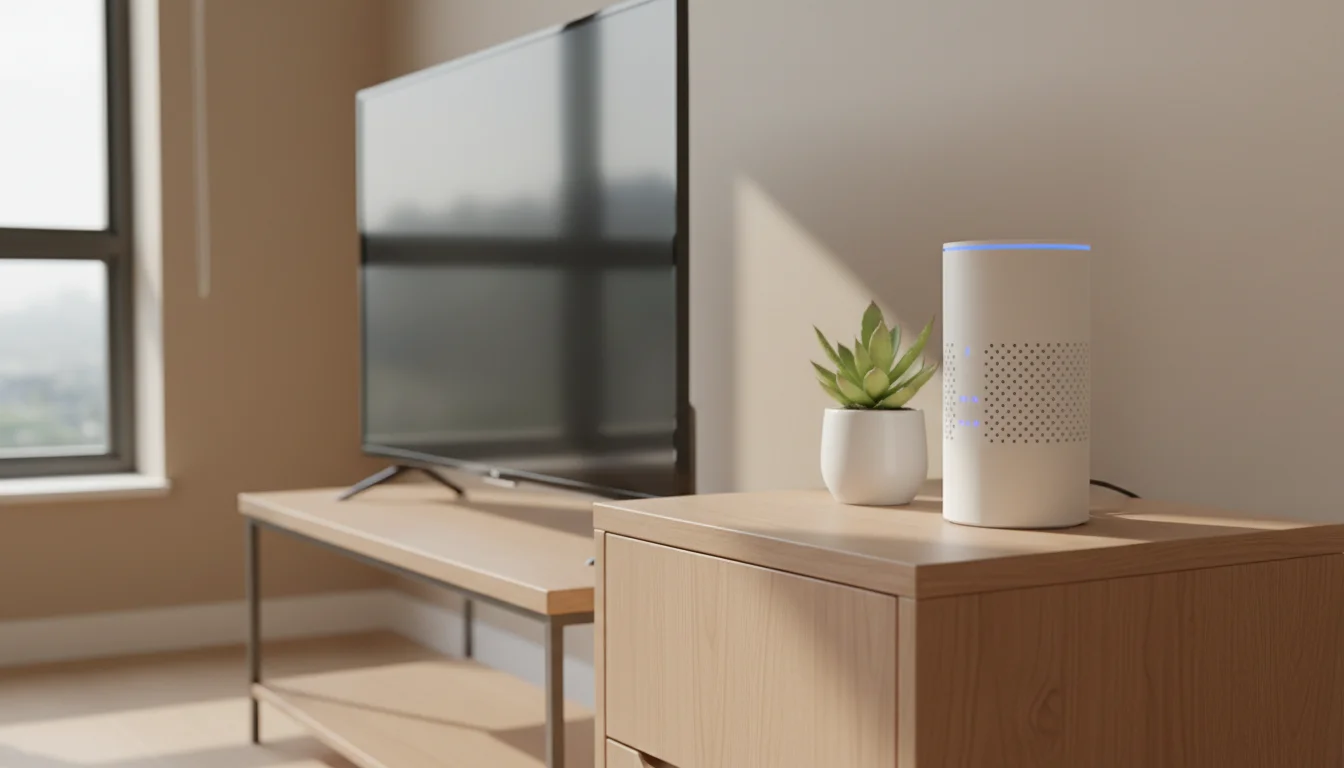
Many of these features work even better if you set up and use Amazon Echo to control your television with simple voice commands.
If you enjoy displaying family pictures, you might also be interested in how digital photo frames can keep your favorite memories on display all day long.
The primary benefit of a Smart TV is streaming. Streaming allows you to watch shows or movies over the internet instead of waiting for them to air on a specific channel.
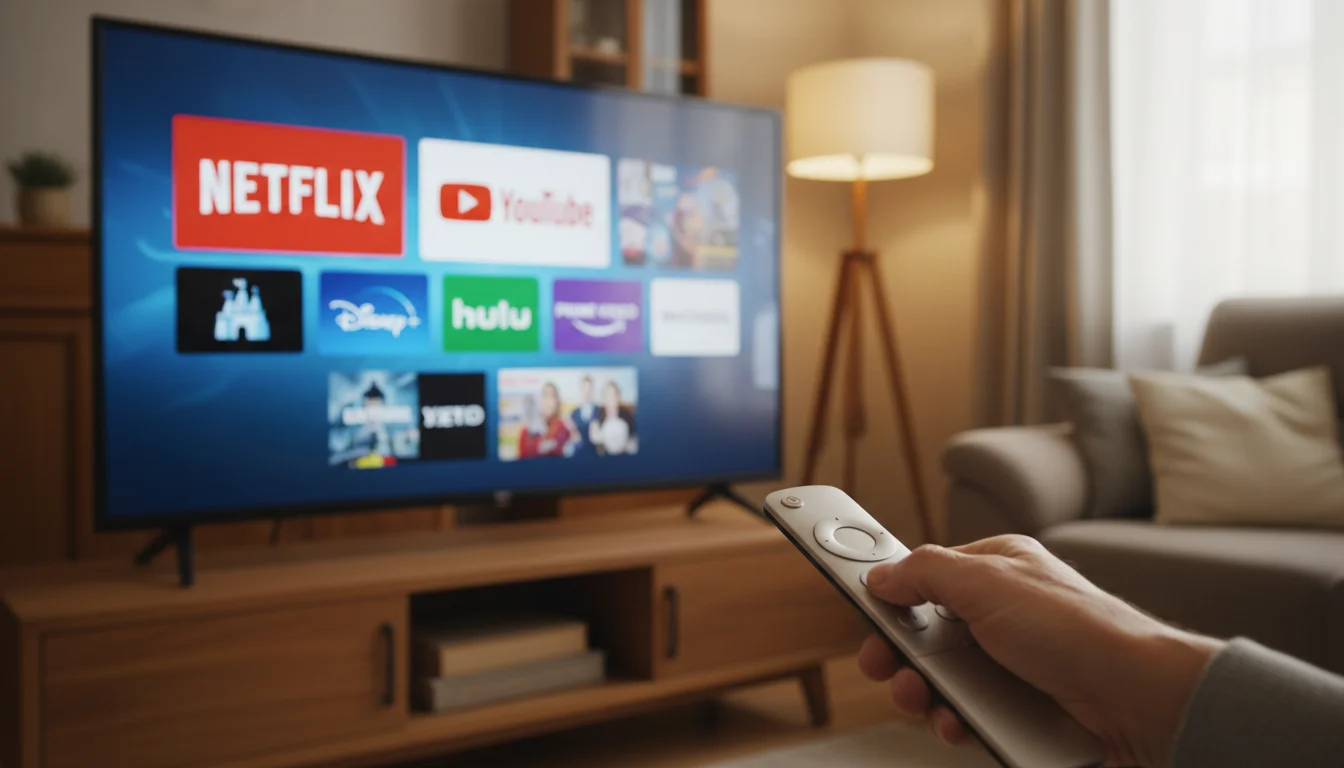
Instead of flipping through channels to find something to watch, you open an “app”—similar to an app on a phone—like Netflix, Amazon Prime Video, or YouTube. You then select exactly what you want to see, and it plays instantly.
Beyond movies and shows, these TVs offer several practical features:
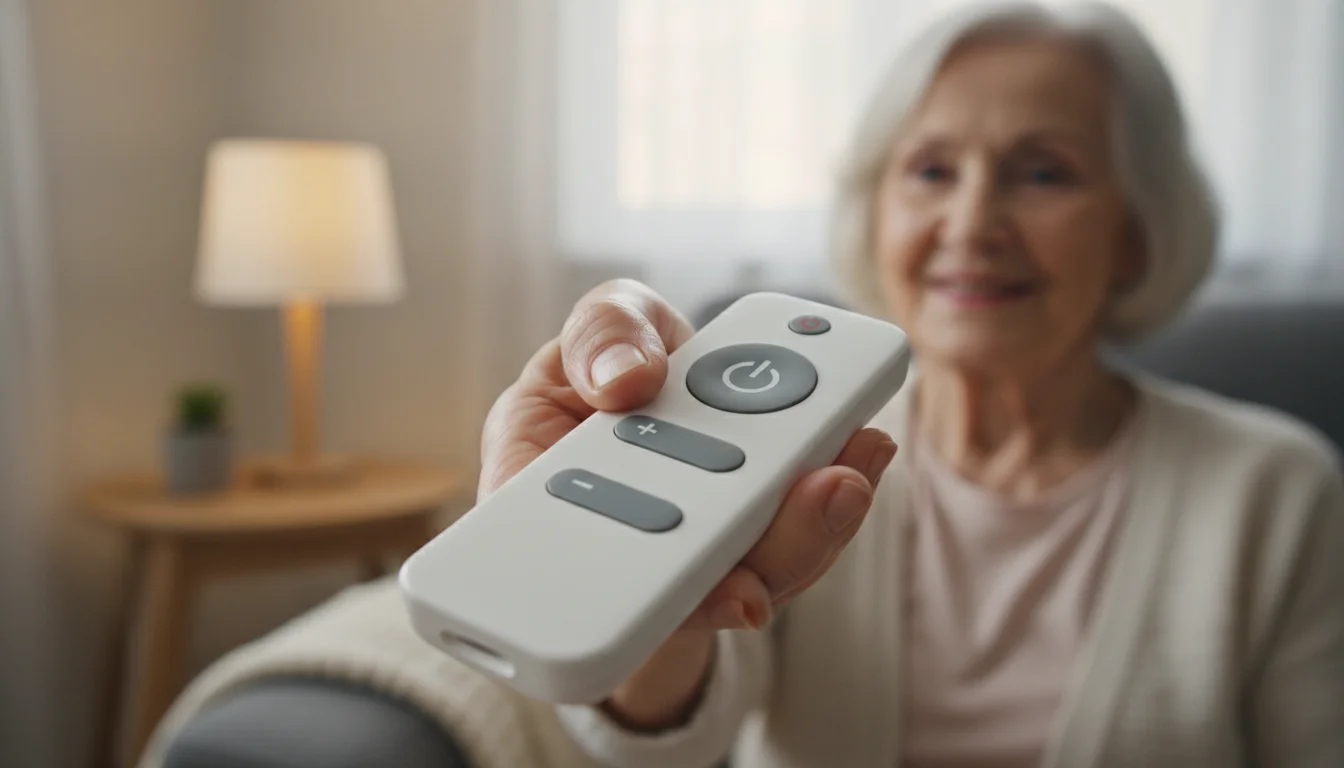
- Voice Control: Many models include a remote with a built-in microphone. You can press a button and say, “Find Jeopardy,” and the TV will locate the show for you. This eliminates the need to navigate complex menus or squint at small text.
- Catch-up Services: If you missed the local news or a favorite sitcom last night, most Smart TVs have apps that let you watch those episodes the following day.
- Photo Sharing: You can wirelessly send photos from your smartphone to the TV screen to show your family recent vacation pictures in high definition.
- Smart Home Integration: Some TVs can connect to your video doorbell. If someone rings the bell while you are watching a movie, a small window appears on the screen showing you who is at the door.
Is This Right for You?
Deciding whether to upgrade depends on your current viewing habits and your patience for a small learning curve. You might benefit from a Smart TV if you feel your current cable bill is too high.
Many people use Smart TVs to “cut the cord,” meaning they cancel expensive cable packages and instead pay for a few specific streaming services that cost significantly less.
If you prefer a more portable way to enjoy these apps, exploring the best tablets for seniors can provide a similar streaming experience that travels with you from room to room.
To keep your costs down further, you might also consider our tips for saving money on your internet bill.
According to Consumer Reports, nearly all new televisions sold today are “smart” by default. If you are shopping for a new TV, you will likely get these features whether you specifically want them or not.
The real question is whether you should actively use them.
“Technology should serve you, not the other way around. If you find yourself frustrated by the lack of options on cable or the high monthly costs, a Smart TV provides a flexible alternative that puts you back in the driver’s seat.”
However, if you are perfectly happy with your current cable setup and find technology updates stressful, you don’t necessarily need to change.
You can still use a Smart TV just like a “dumb” TV by plugging in your existing cable box and ignoring the internet features entirely. The choice remains yours.
What You’ll Need to Get Started
Before you bring a new TV home or try to connect your current one, ensure you have the necessary infrastructure. A Smart TV is only as good as the connection feeding it.
Once you have your network set up for your TV, you can use that same connection for other tasks like setting up a printer for wireless printing from your phone or tablet.
Keep in mind that streaming high-definition video uses a lot of bandwidth, which is a key part of understanding data usage and managing your monthly home internet limits.
If your connection seems slow or drops out, you can follow our guide on troubleshooting home Wi-Fi issues.
- High-Speed Internet (Wi-Fi): You need a stable wireless internet connection in your home. For standard high-definition viewing, a speed of at least 5 to 10 Megabits per second (Mbps) is required. If you want to watch in 4K (the highest modern picture quality), you should aim for 25 Mbps or higher.
- A Strong Signal: Your TV needs to be within range of your Wi-Fi router. If your TV is in the basement and your router is on the second floor, you might experience “buffering”—that annoying circle that spins while the video pauses to load.
- An Email Address: Most Smart TVs require you to create an account with the manufacturer (like Samsung, LG, or Sony) or the platform provider (like Google or Amazon). This allows the TV to save your preferences and download new apps.
- Power and Cables: While the internet connection is wireless, you still need a power outlet and, if you are keeping your cable service, an HDMI cable to connect your cable box to the new TV.
Built-in Smart TVs vs. Streaming Sticks
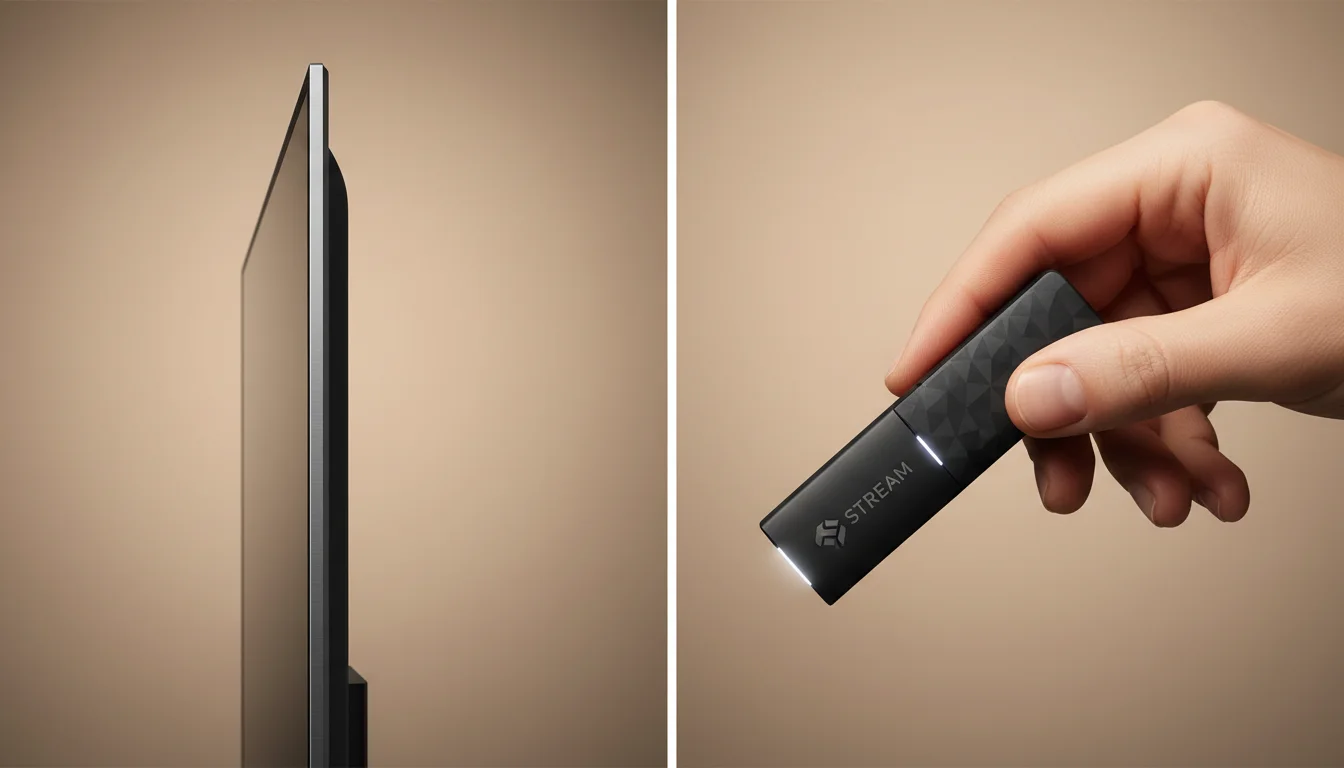
You have two ways to get “smart” features on your screen. You can buy a TV that has the software built-in, or you can turn your existing TV into a smart one using a small device called a streaming stick or media player.
| Option | Pros | Cons |
|---|---|---|
| Built-in Smart TV | Everything is in one box; only one remote control; cleaner look without extra wires. | The software can become slow after a few years; harder to upgrade just the “smart” part. |
| Streaming Stick (Roku, Fire Stick) | Inexpensive ($25–$50); very easy to use; can be moved to different TVs; easy to replace if it gets outdated. | Requires an extra device plugged into the back; usually requires a second remote control. |
If your current TV has a good picture and works well, do not feel pressured to buy a brand-new set.
A $30 Roku stick or Amazon Fire TV Stick plugged into the back of your old TV provides the exact same experience as a brand-new $800 Smart TV.
These sticks are roughly the size of a pack of gum and hide behind the screen, making them a favorite for those who want to save money.
Step-by-Step Setup Guide
Once you have your device, follow these steps to get it up and running. While every brand is slightly different, the logic remains the same across the board.
Navigating the TV’s menu system will feel much more familiar if you are already comfortable understanding your Android phone’s home screen, as many smart platforms use similar layouts.
1. Physical Connection
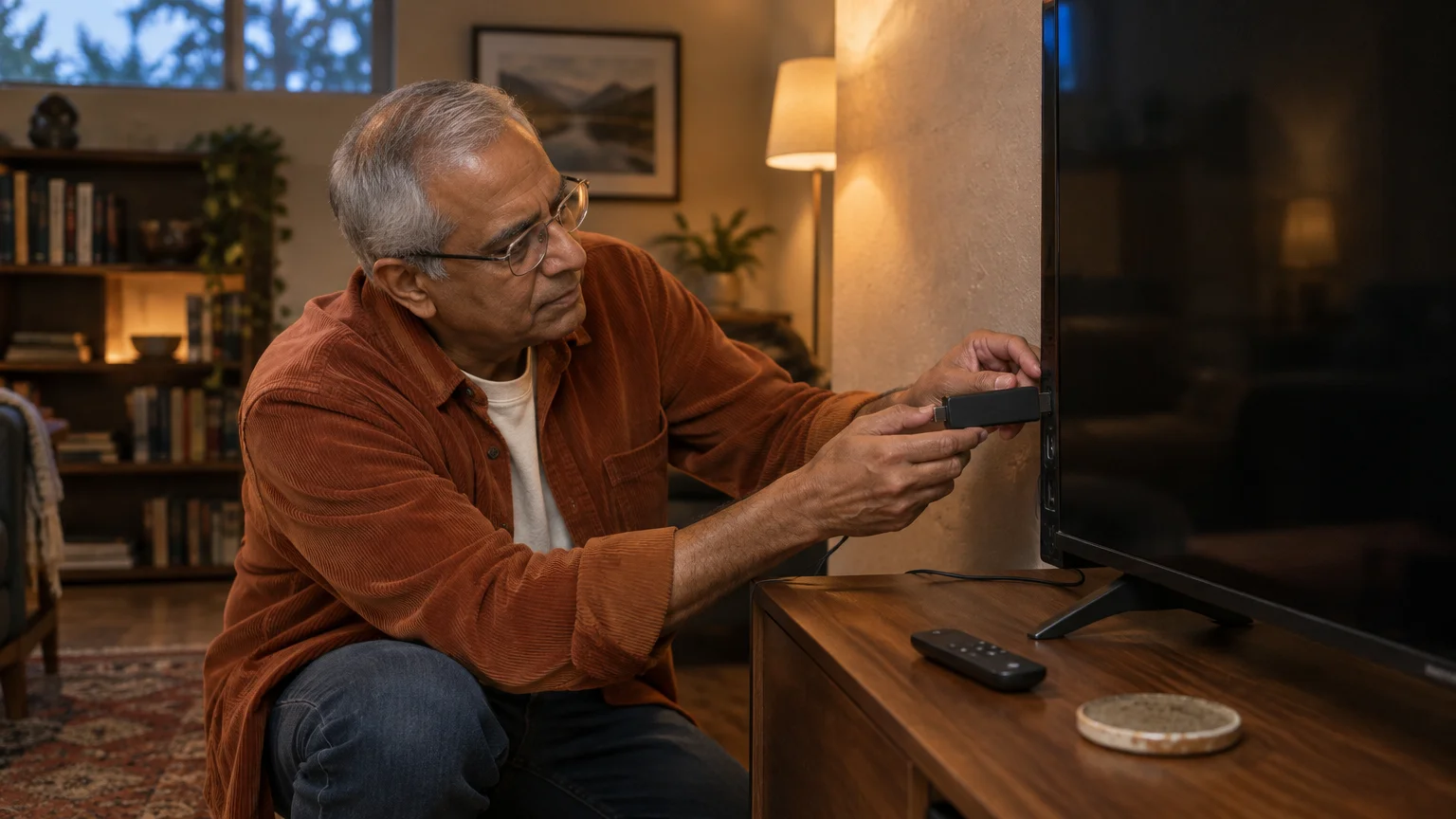
If you bought a new TV, plug it into the wall and turn it on. If you are using a streaming stick, plug the stick into an “HDMI port” on the back or side of your TV.
These are rectangular slots with slanted corners. Most sticks also require power, so you will need to plug the included USB cord into a wall outlet or a USB port on the TV itself.
2. Initial Language and Region Settings
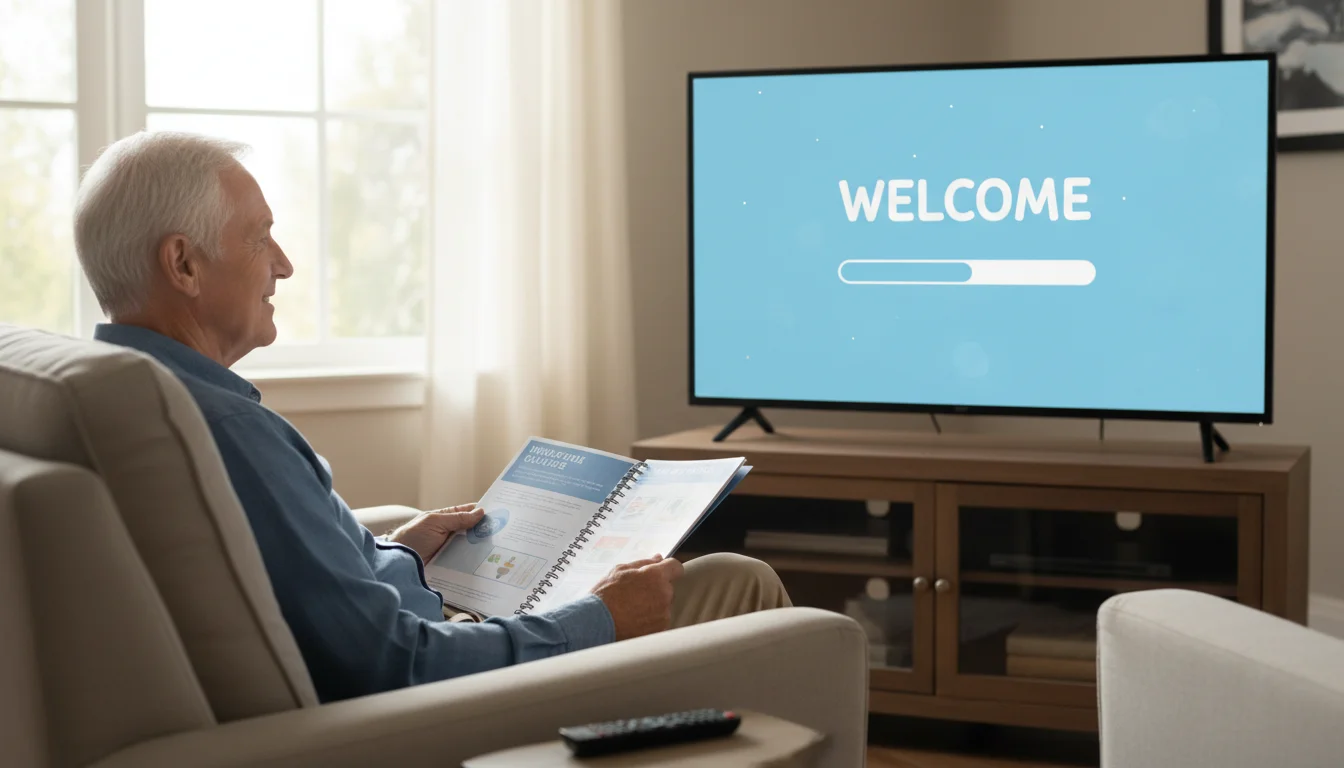
The TV will greet you with a “Welcome” screen. Use the arrow buttons on your remote to select your language (English) and your country.
This ensures the TV shows you the correct apps for your region.
3. Connecting to Wi-Fi
The TV will scan for nearby internet signals. Select your home’s Wi-Fi name from the list.
You will then need to enter your Wi-Fi password. Tip: Passwords are case-sensitive.
If your password has a capital “A,” make sure you select the capital version on the on-screen keyboard.
4. Software Updates
Once connected, the TV will likely ask to “Update Software.” Do not skip this.
These updates fix security holes and improve the speed of the menus. This process may take 5 to 10 minutes, and the TV might restart itself.
Simply wait for it to finish.
5. Signing In
The TV will ask you to sign in to an account. For example, a Sony TV might ask for a Google account, while a Fire TV will ask for your Amazon login.
If you don’t have one, the TV will walk you through creating one. You will often need your smartphone or a computer nearby to “verify” that it is really you.
6. Setting Up Your Apps
Your TV will come with several apps pre-installed, such as YouTube or Netflix. To use them, you generally have to sign in to each one individually.
If you already pay for Netflix on your computer, use that same email and password on the TV. You do not need to pay for a new subscription just for the TV.
Useful Things to Try
After the setup is complete, take some time to explore the features that make these devices “smart.” Start with these three practical tools:
To stay connected with family, you can even learn how to watch movies together online so you can share a laugh or a suspenseful moment with someone in a different city.
Along with video content, many people use their Smart TVs to explore audio programs by getting started with podcasts through built-in music and radio apps.
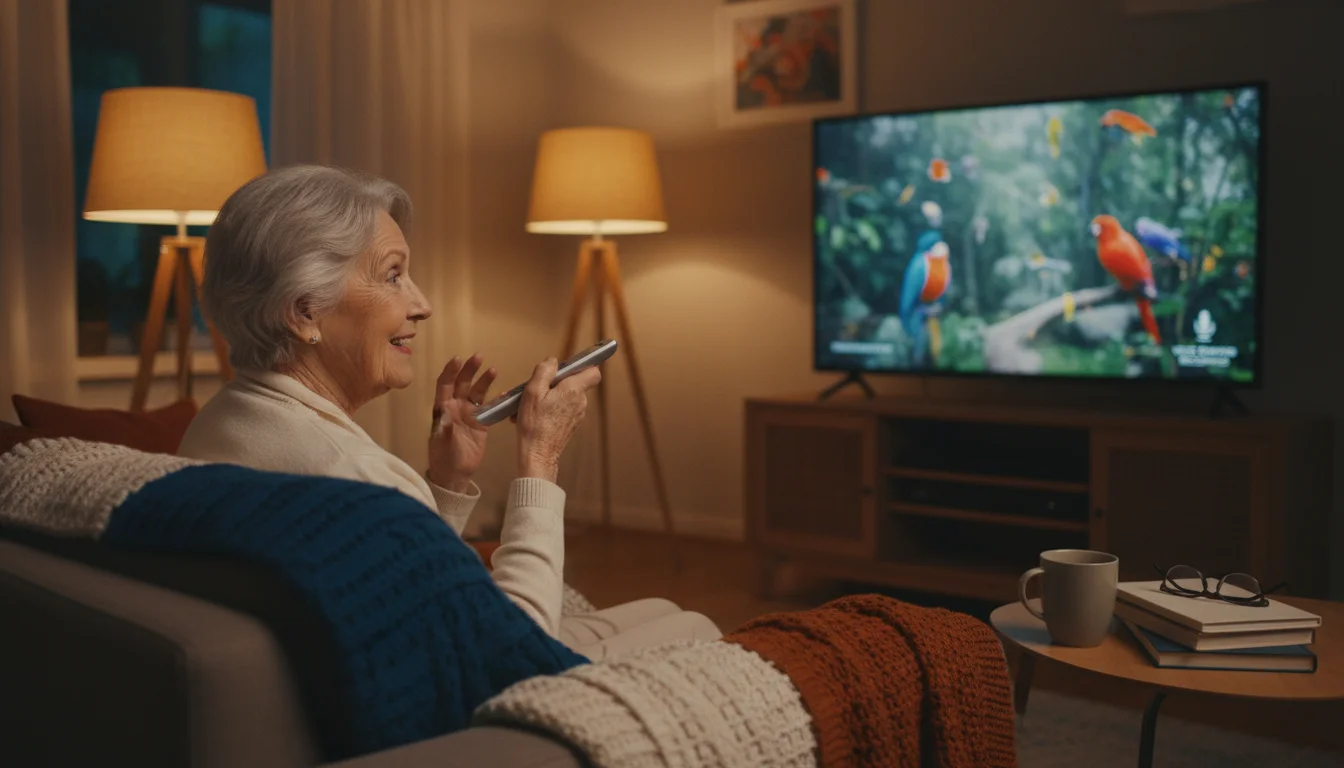
Voice Search: Look for a button on your remote with a microphone icon or a colorful circle. Press and hold it, then say, “Find movies starring Jimmy Stewart” or “What is the weather tomorrow?”
The TV will display the results immediately. This is the fastest way to find content without typing on a clunky on-screen keyboard.
Closed Captioning: If you have difficulty hearing the dialogue, Smart TVs make it very easy to turn on captions. Usually, you can find this under the “Accessibility” or “Settings” menu.
You can often customize the text size and color to make it easier to read against the background.
Free “Live” TV Apps: You do not have to pay for everything. Apps like Pluto TV, Tubi, and Roku Channel offer hundreds of “live” channels for free.
They look and feel just like traditional cable TV, complete with commercials, but they cost nothing. They are excellent for watching old game shows, classic movies, and news.
Privacy and Security Considerations
It is important to be honest: Smart TVs do collect data. They track what you watch so they can recommend other shows you might like or show you relevant advertisements.
To some, this is a helpful feature; to others, it feels like an invasion of privacy.
You can limit this tracking by visiting the Settings menu and looking for Privacy or Terms and Conditions. Look for an option called “ACR” (Automatic Content Recognition) and turn it off.
This prevents the TV from “watching” what you watch.
Additionally, be cautious about using a TV with a built-in camera for video calls; if you are not using the camera, you can place a small piece of black electrical tape over the lens so you know no one can see you.
For more detailed information on staying safe online, Senior Planet from AARP offers excellent resources on digital privacy for older adults. They provide clear, non-technical advice on how to manage your data across various devices.
Common Problems and Solutions
Technology occasionally hits a snag. Here are the three most common issues you might encounter and how to fix them yourself.
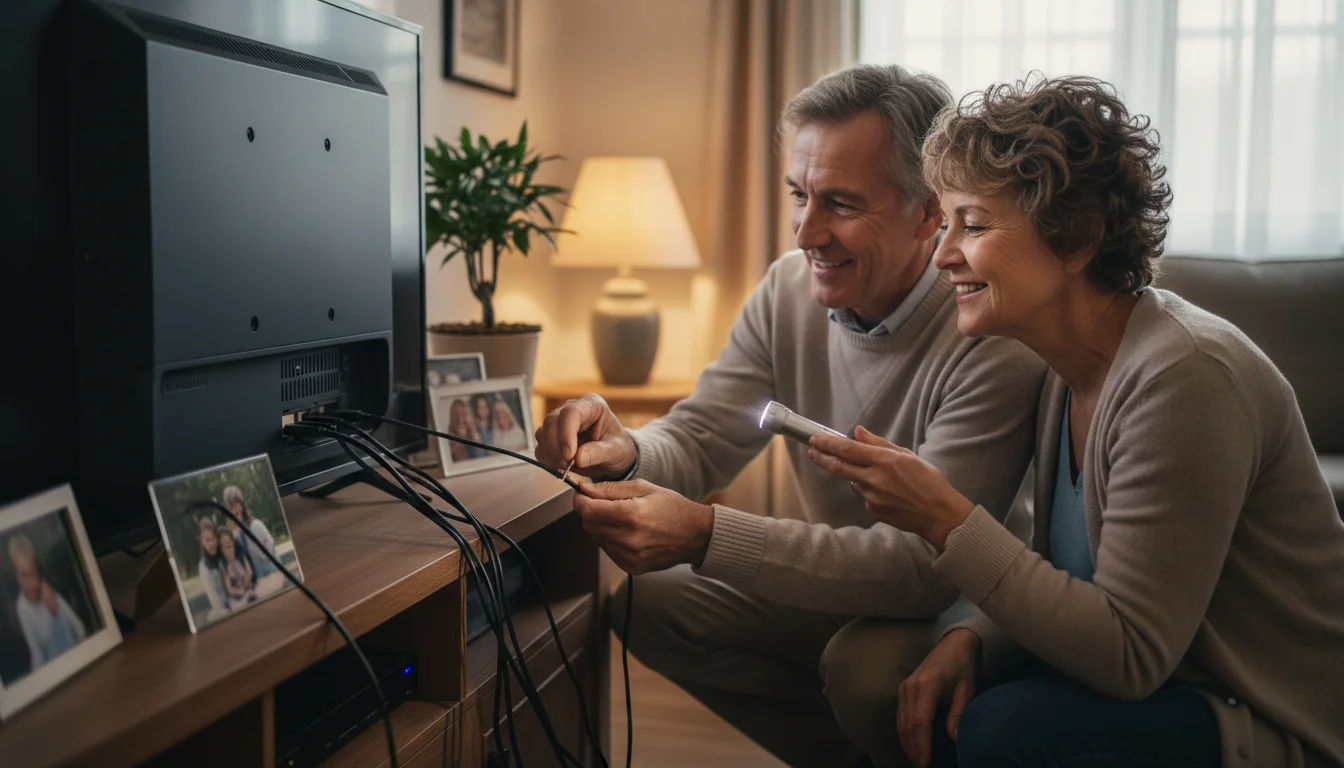
The Video Keeps Pausing (Buffering): This is almost always a Wi-Fi issue. If your router is far away, try moving it closer to the TV or removing any physical obstructions like heavy furniture.
If the problem persists, you can buy a “Wi-Fi Extender” for about $20, which boosts the signal to that specific room.
The Remote Stopped Working: Smart TV remotes use more power than old-fashioned ones because they often stay connected via Bluetooth. If the remote is unresponsive, replace the batteries first.
If that doesn’t work, you may need to “re-pair” it. Check your manual for a specific button combination (usually holding the “Back” and “Home” buttons simultaneously) to reconnect it to the TV.
The App is Frozen: Just like a computer, an app can sometimes “crash.”
Instead of turning the TV off and on (which often just puts it in “sleep” mode), unplug the TV from the wall, wait 60 seconds, and plug it back in. This “cold boot” clears the memory and fixes 90% of software glitches.
Understanding Prices and Ongoing Costs
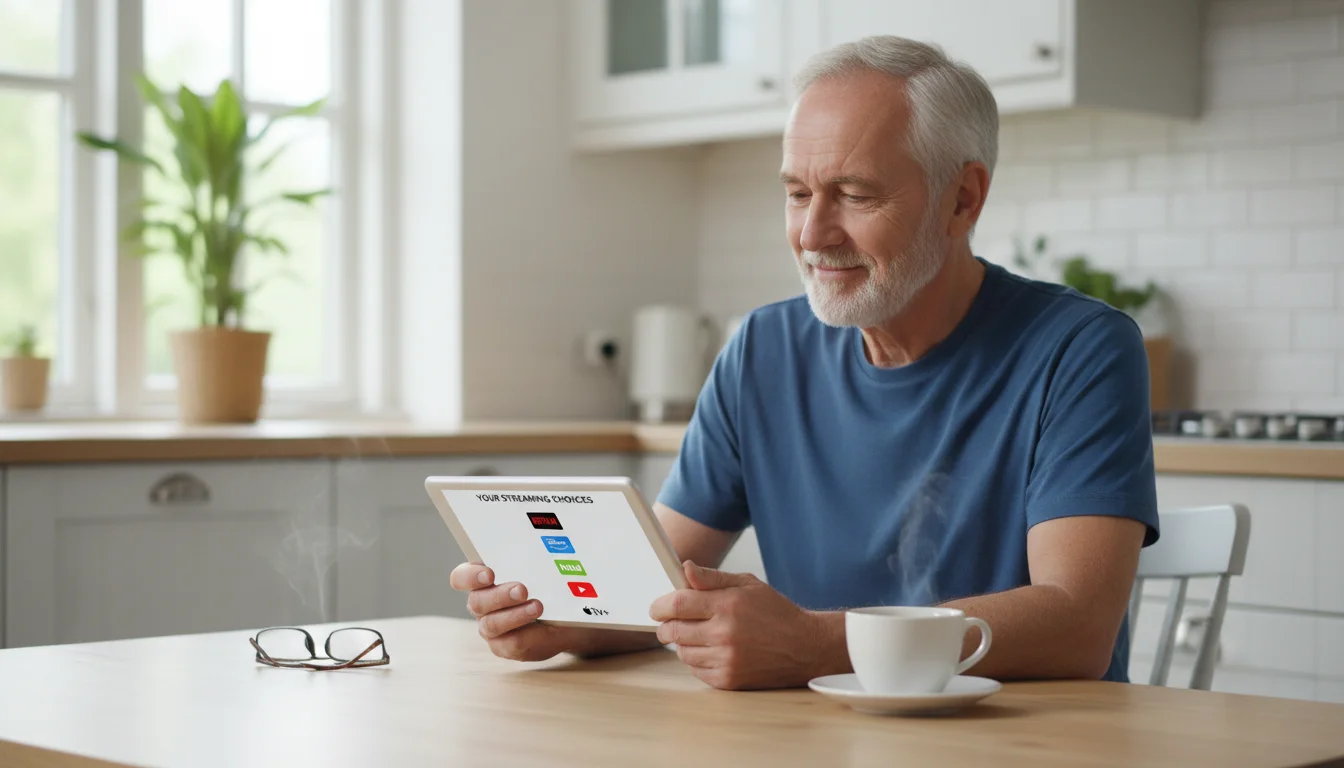
One of the biggest concerns for seniors is the fear of hidden monthly fees. It is important to distinguish between the device cost and service costs.
- Device Cost: This is a one-time purchase. A 43-inch Smart TV typically costs between $200 and $400. A streaming stick costs between $25 and $50.
- Monthly Services: The TV itself does not require a monthly fee to function. However, the content inside the apps might.
- Free Apps: YouTube, Pluto TV, and Tubi (No cost).
- Subscription Apps: Netflix, Hulu, and Disney+ (Usually $7 to $20 per month each).
- Live TV Replacements: Services like YouTube TV or FuboTV provide live local channels and sports ($70+ per month).
You can choose exactly which services you want. If you only want to watch free movies on Tubi, your monthly cost is $0.
You are never forced to subscribe to anything just to own the TV.
Frequently Asked Questions
Is the TV always listening to me?
Technically, if you have voice features enabled, the TV is “listening” for a “wake word” (like “Hey Google”). However, most remotes require you to physically press a button before they start listening.
If you are concerned, you can disable the voice assistant in the settings menu.
Do I need a Smart TV if I already have cable?
No, you do not need one, but you might enjoy it. Even with cable, a Smart TV gives you access to things cable doesn’t have, like family videos on YouTube or specific movies on Netflix.
You can use both at the same time by switching the “Input” on your TV.
Can I use a Smart TV without the internet?
Yes. You can plug in an antenna or a cable box and watch TV just like you always have.
However, the “smart” features (apps, voice search, streaming) will not work without an internet connection.
Do I need to pay for a “Smart TV Subscription”?
No. There is no such thing as a general “Smart TV Subscription.” If a website or person asks you to pay a monthly fee just to “activate” your Roku or Samsung TV, it is a scam.
You only pay for individual services like Netflix or Amazon Prime.
Moving into the world of Smart TVs doesn’t have to be an all-or-nothing decision. You can start small with a simple streaming stick, explore the free channels, and see if it adds joy to your daily routine.
If you find it too complicated, you can always go back to your familiar cable remote. But for many, the ability to find any show at any time with just the sound of their voice makes the small learning curve well worth the effort.
Disclaimer: This article is for informational purposes only. Product features and prices change frequently.
Always check current specifications and reviews before purchasing. We recommend buying from authorized retailers with good return policies.
Keywords: smart TV, streaming, setup guide, smart home devices for seniors, cord cutting for retirees
Meta Description: Learn the basics of Smart TVs, from understanding streaming apps to a step-by-step setup guide designed specifically for beginners and seniors.