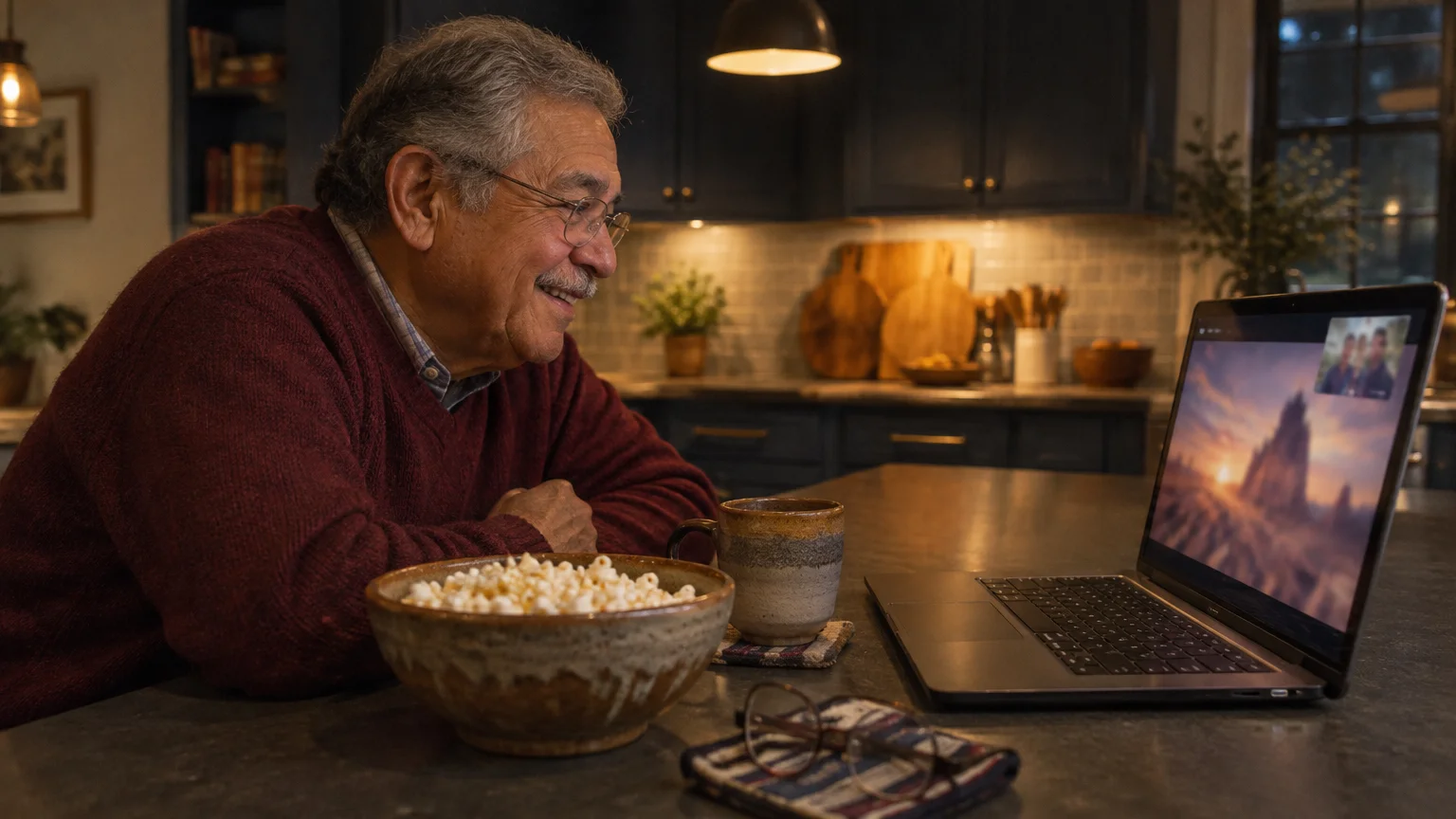
Do you remember gathering around the television with loved ones, sharing popcorn and laughter? Those cherished moments create lasting memories.
While distances might keep you physically apart, technology now offers wonderful ways to recreate that cozy, shared experience.
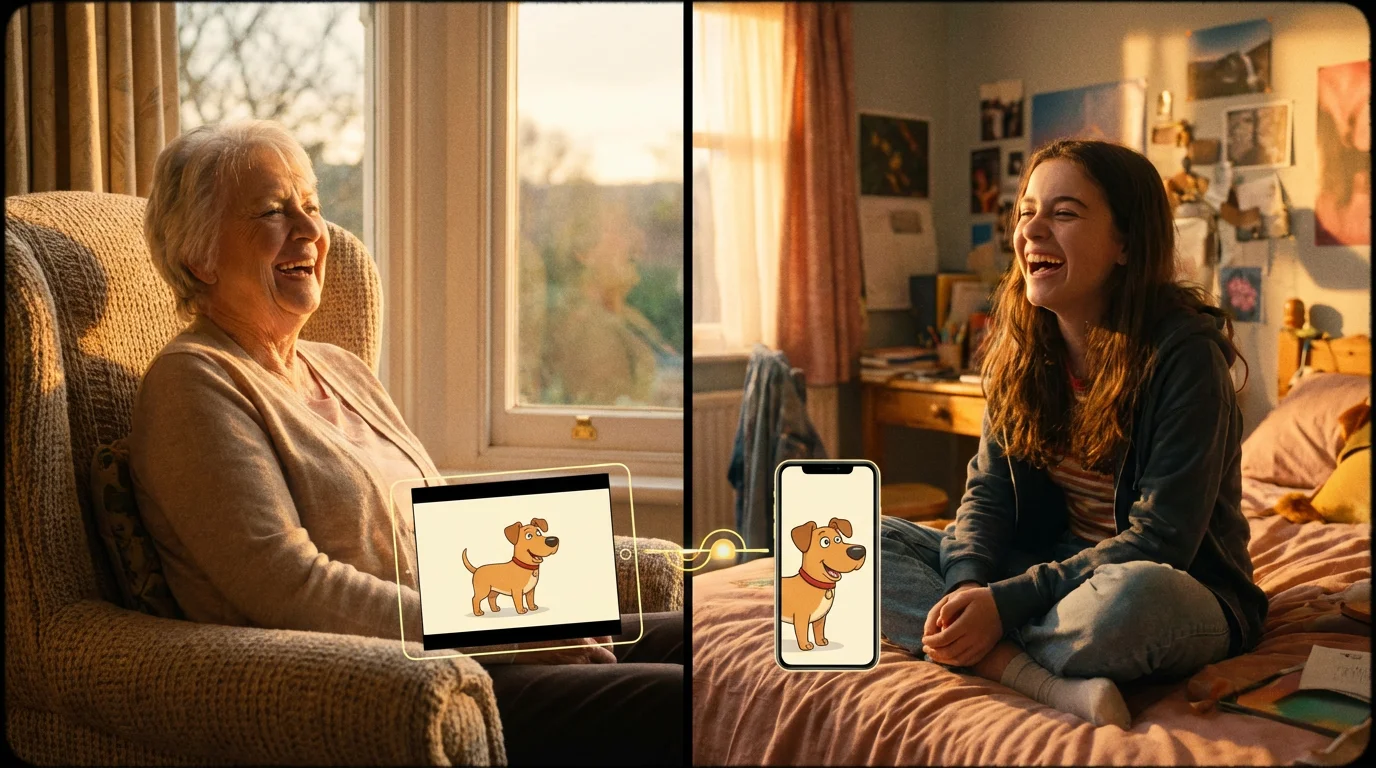
Imagine snuggling up with your favorite blanket, knowing your grandchildren or distant friends are doing the same, watching the exact same movie or TV show at the exact same time.
Learning how to stay connected when family lives far away is essential for modern families, and movies provide a perfect bridge.
This is the magic of a virtual watch party, a fantastic way to bond over entertainment, share reactions, and simply enjoy being together, no matter the miles.
You might think it sounds complicated, but we are here to show you that with a few simple steps, you can host or join an incredible online movie night. It is about creating joy and connection, and we know you can do it!
In this guide9 sections
- What is a Virtual Watch Party and Why You will Love It
- What You Need to Host or Join a Watch Party
- Popular Watch Party Tools: A Simple Overview
- Setting Up Your First Watch Party with Teleparty
- An Easier Alternative: Screen Sharing on a Video Call
- Tips for a Smooth and Enjoyable Watch Party
- When Your Watch Party Hits a Snag: Troubleshooting Common Issues
- Making Watch Parties a Cherished Family Tradition
- Frequently Asked Questions
What is a Virtual Watch Party and Why You will Love It
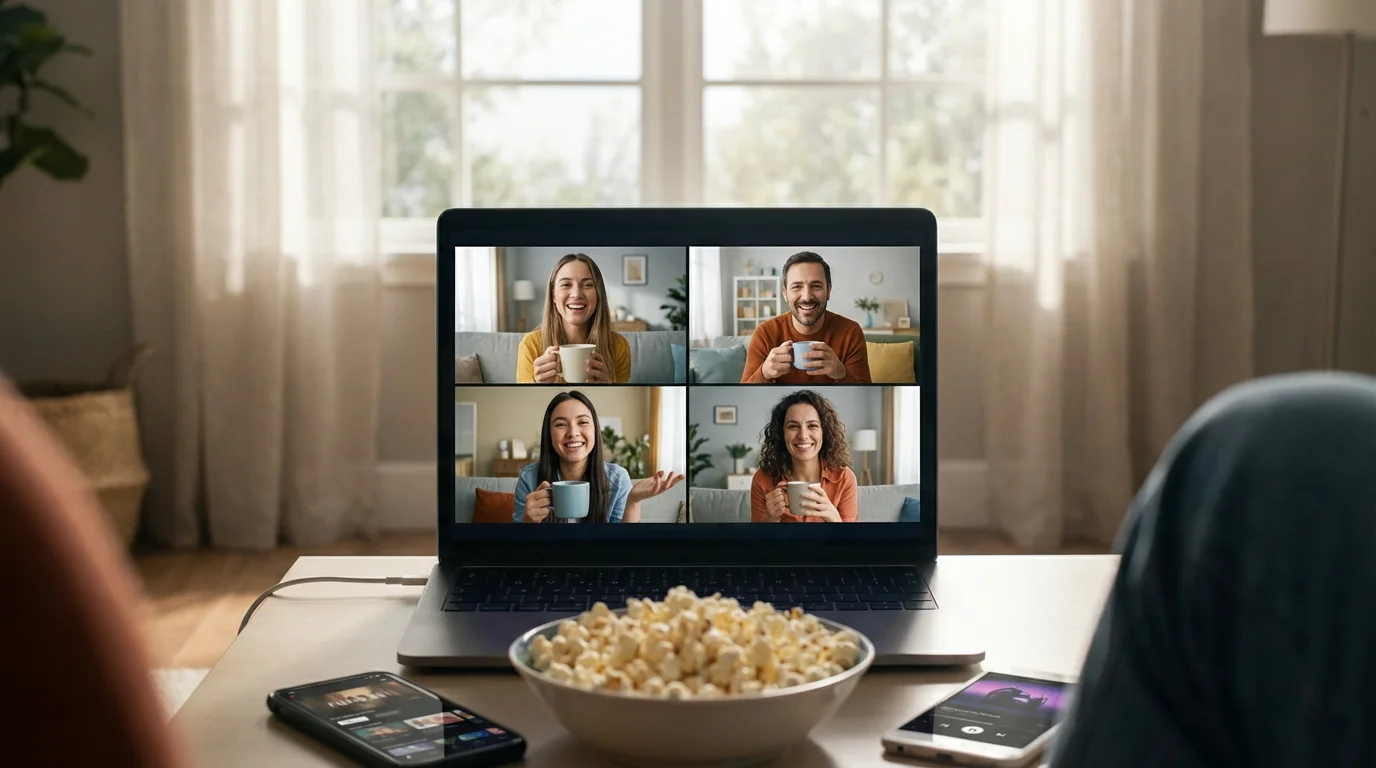
A virtual watch party, sometimes called a group streaming session or a virtual movie night, lets you and your loved ones watch the same movie or TV show together online.
It synchronizes the playback for everyone, so when you pause it, everyone else’s screen pauses too.
Many watch party tools also include a group chat feature, allowing you to react in real-time with messages, emojis (small pictures like smiley faces), and even GIFs (short, animated images) without pausing the show.
Think of it as sitting on the same couch, but across different homes, sharing laughs and gasps as the story unfolds.
Building these shared memories is similar to the joy of viewing family photos through a shared album to stay involved in each other’s daily lives.
Virtual movie nights are among the most fun things to do with grandchildren over video call to build lasting bonds.
Why is this so wonderful for family connections? It builds shared experiences.
When you watch a show together, you create common memories and talking points. You get to hear your grandchildren’s insights, joke with your children, or relive a classic film with old friends.
It is a fantastic way to feel “present” with your loved ones, bridging the physical distance with shared entertainment. The warmth of seeing a familiar story or discovering a new one together strengthens those bonds, proving that technology genuinely connects hearts.
A weekly watch party gives you something special to talk about with your grandchildren during the week. You can share reactions to funny moments and stay close, even if you live hundreds of miles away.

What You Need to Host or Join a Watch Party
Preparing for a watch party is simpler than you might imagine. You likely already have most of what you need.
Here is a quick checklist:
- A Streaming Service Subscription: Most watch parties use existing streaming platforms like Netflix, Disney+, Hulu, HBO Max, or Amazon Prime Video. Everyone participating in the watch party usually needs their own active subscription to the specific service hosting the movie or show. For example, if you want to watch a movie on Netflix, everyone needs a Netflix subscription.
- A Device: You will need a computer (desktop or laptop), a tablet, or even a smartphone. While some services offer watch party features directly on smart TVs, browser-based tools often provide the most flexibility and chat options. For ease of use and a larger screen, we recommend a computer or tablet.
- A Stable Internet Connection: A reliable internet connection ensures smooth streaming without constant buffering or interruptions. If your internet is slow, the video might pause frequently, which can be frustrating for everyone.
- A Watch Party Tool or App: This is the special ingredient that synchronizes everyone’s playback. We will cover a few popular options shortly.
- A Communication Method: Beyond the watch party tool’s chat feature, you might want to use your phone, a text message group chat (a text conversation with multiple people at once), or a separate video call (a phone call where you can see each other’s faces) to coordinate and chat verbally before or after the show.
- Your Loved Ones: Of course, the most important ingredient is your family and friends ready to join you for some fun!
Popular Watch Party Tools: A Simple Overview
Several tools help you host a virtual movie night. Some are browser extensions, meaning they add a small program to your internet browser (like Chrome or Microsoft Edge) to make the magic happen.
Others are standalone apps. We focus on options that are generally user-friendly.
For shorter clips, news, or classic performances, you might also enjoy learning how to use YouTube to watch videos together with your friends.
-
Teleparty (formerly Netflix Party): This is one of the most popular and easiest watch party tools. It works as a browser extension for Google Chrome and Microsoft Edge.
Teleparty synchronizes Netflix, Disney+, Hulu, HBO Max, and Amazon Prime Video. It offers a simple text chat sidebar where you can type messages and react in real-time.
It is excellent for families because it focuses on shared viewing and light conversation without requiring extra video cameras.
-
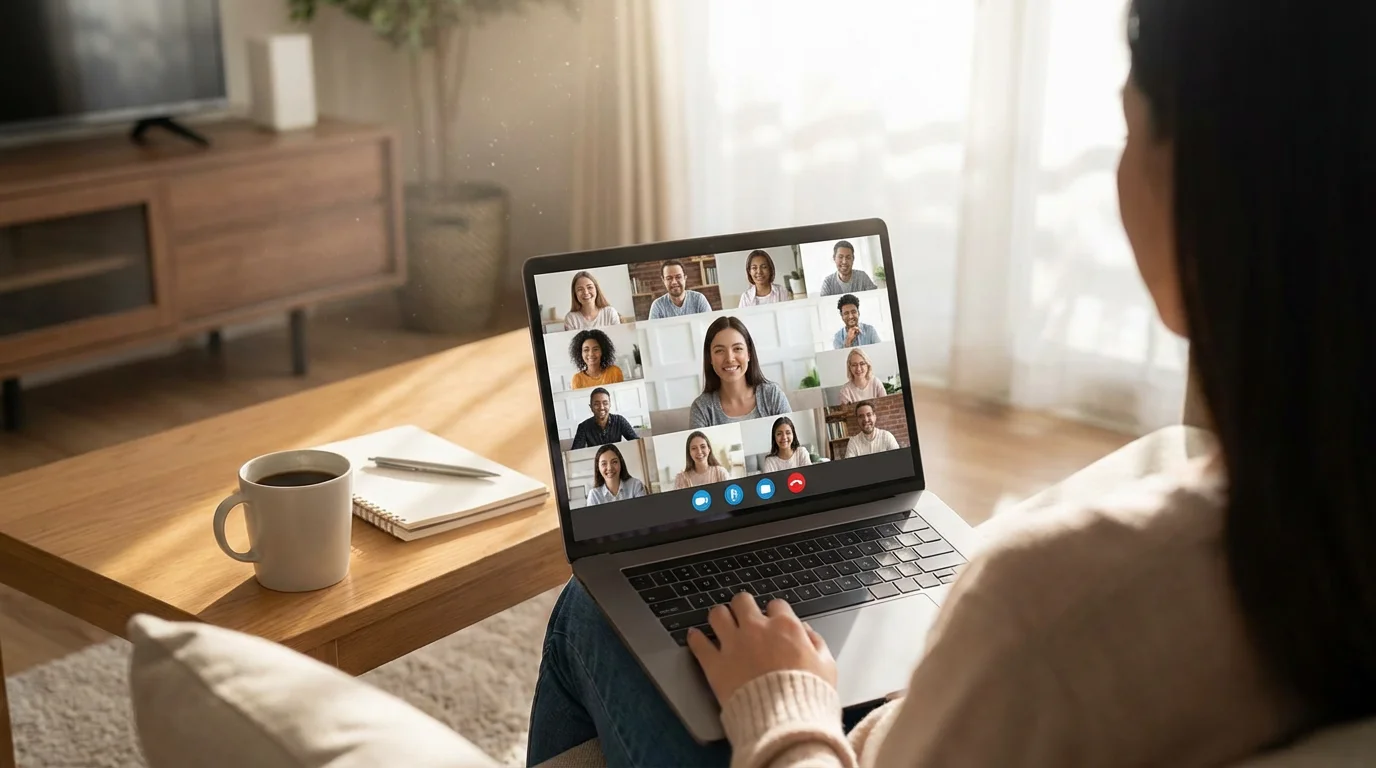
Screen Sharing via Video Call Apps (Zoom, Google Meet): While not a dedicated “watch party” tool, this is a very accessible option if you are already comfortable with video calls.
One person shares their screen (showing the movie playing on their device) with everyone else on the video call.
The biggest drawback is that the video might not be perfectly synchronized for everyone, and the audio can be a bit tricky to manage, but it requires no extra apps or extensions beyond your video calling software.
It is a good starting point if you want to avoid installing new browser extensions.
-
Other Options (e.g., Gaze, Scener): There are other services like Gaze or Scener that often integrate video chat directly into the watch party experience. While these can be fun, they sometimes involve more setup and can feel a bit more complex.
For your first few watch parties, we recommend starting with Teleparty or simple screen sharing to build your confidence.
For the rest of this guide, we will walk you through setting up a watch party using Teleparty, as it offers a great balance of features and ease of use for synchronized viewing and chat.
Setting Up Your First Watch Party with Teleparty
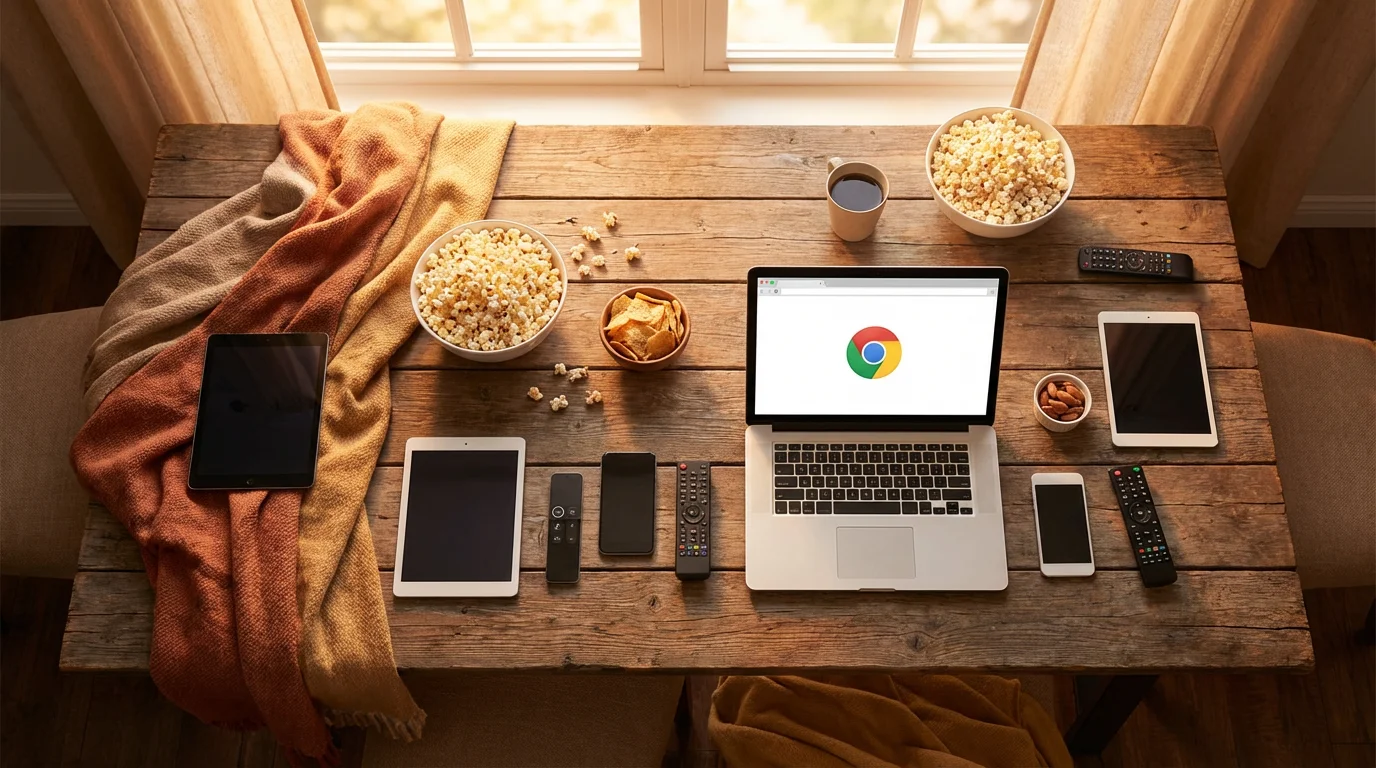
Teleparty works best on a computer using either the Google Chrome or Microsoft Edge web browser. Make sure you have one of these browsers installed on your computer before you start.
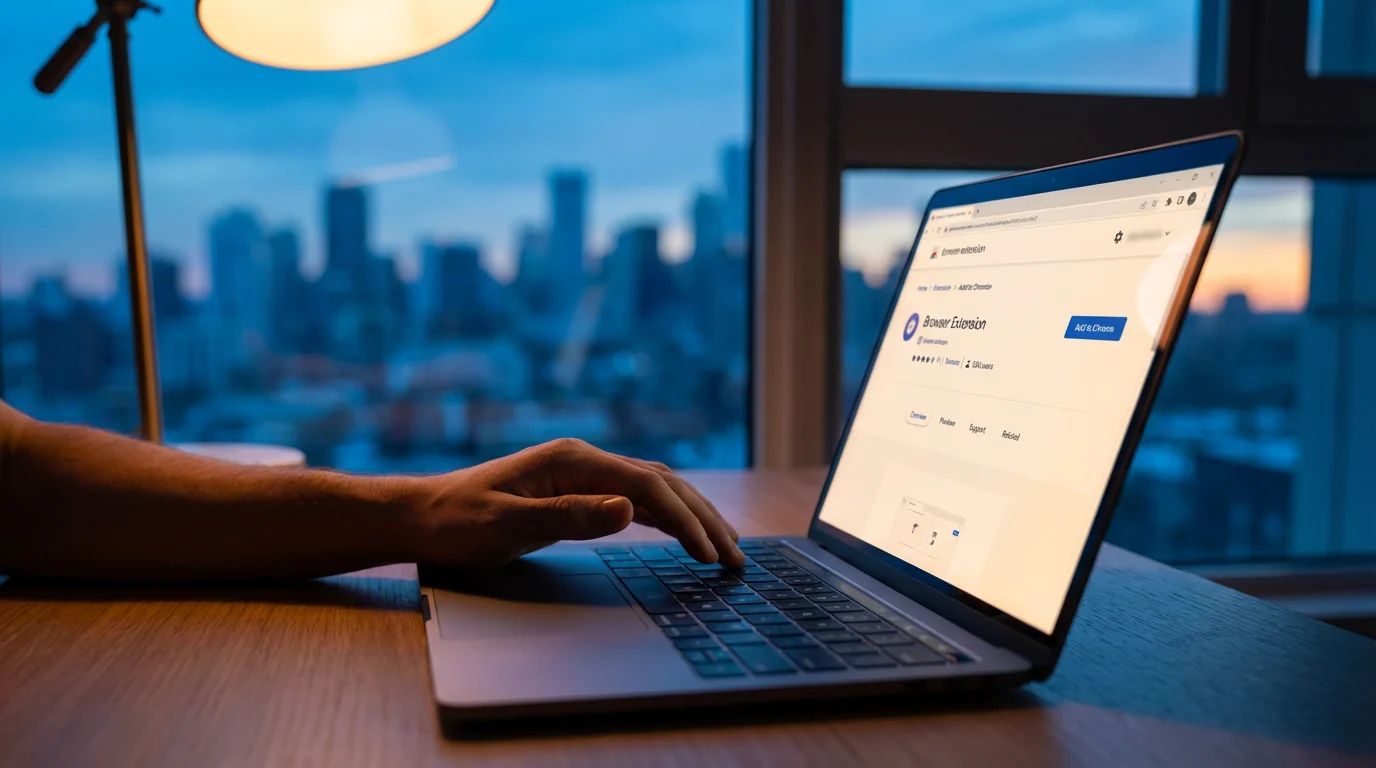
Step 1: Install the Teleparty Extension
- Open your Chrome or Edge browser.
- Go to the official Teleparty website. You can find it by searching “Teleparty extension” on Google, or visit their website directly.
- Look for a button that says “Install Teleparty for Chrome” or “Install Teleparty for Edge.” Click it.
- Your browser will ask you to confirm adding the extension. Click “Add extension.”
- You will see a small “TP” icon (or a puzzle piece icon that you click to find “TP”) appear in the top right corner of your browser window, near your address bar. This confirms it is installed!

Step 2: Choose Your Movie or Show
- Go to the streaming service you want to use (e.g., Netflix, Disney+, Hulu, HBO Max, Amazon Prime Video).
- Log into your account.
- Find the movie or TV show episode you want to watch. Make sure everyone joining your watch party also has access to this streaming service and the specific title.
- Start playing the video as you normally would.
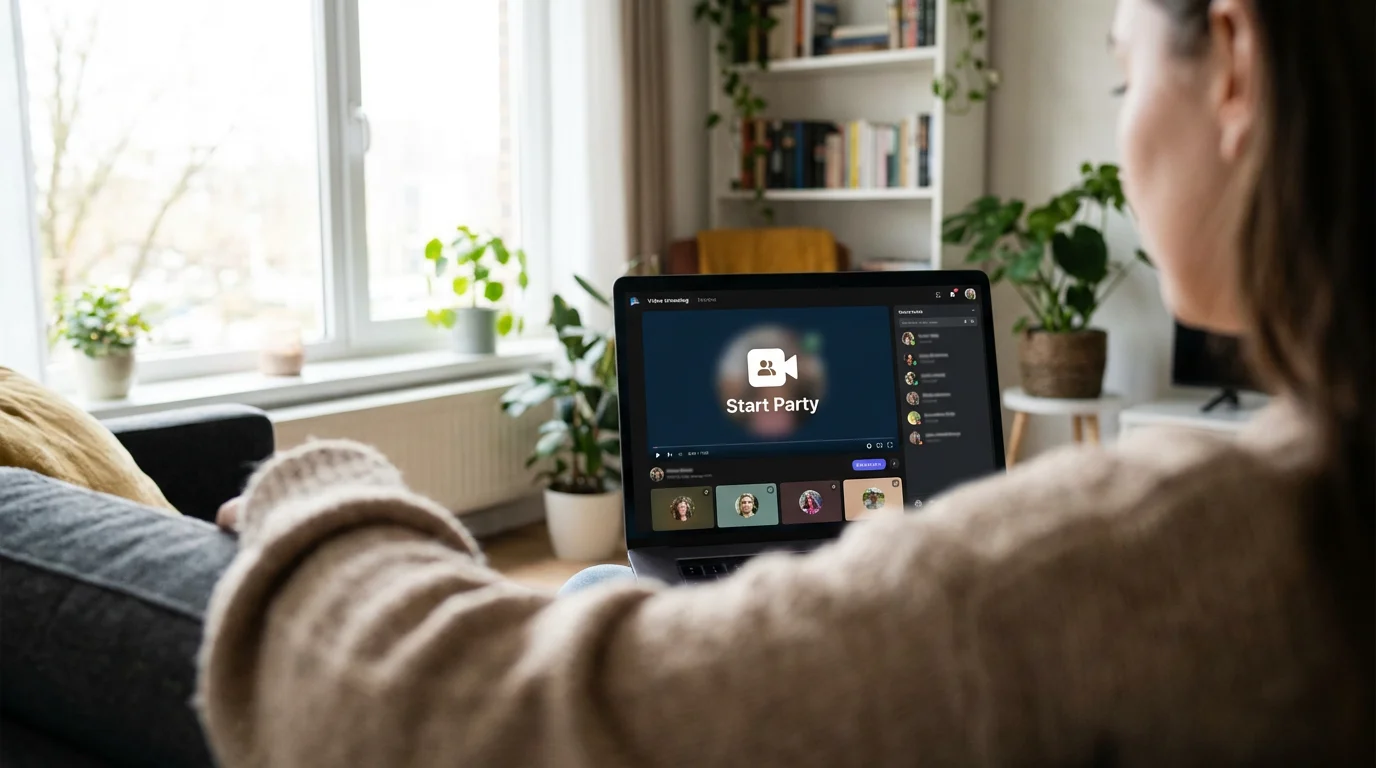
Step 3: Start the Watch Party
- While the video is playing, click the “TP” icon in the top right corner of your browser.
- A small window will pop up. You will see an option to “Start the party.” Click it.
- You can choose if you want “Only I have control” (meaning only you can pause, play, or fast forward for everyone) or if “Everyone has control.” For a family gathering, letting “Everyone has control” often works well, but if you prefer to be the moderator, select the first option.
- Click “Start the party” again.

Step 4: Share the Party Link
- After you start the party, a unique link will appear in the Teleparty window. This is your “party link.”
- Click “Copy URL” to copy this link.
- Now, send this link to your family and friends through email, a text message, or a group chat.
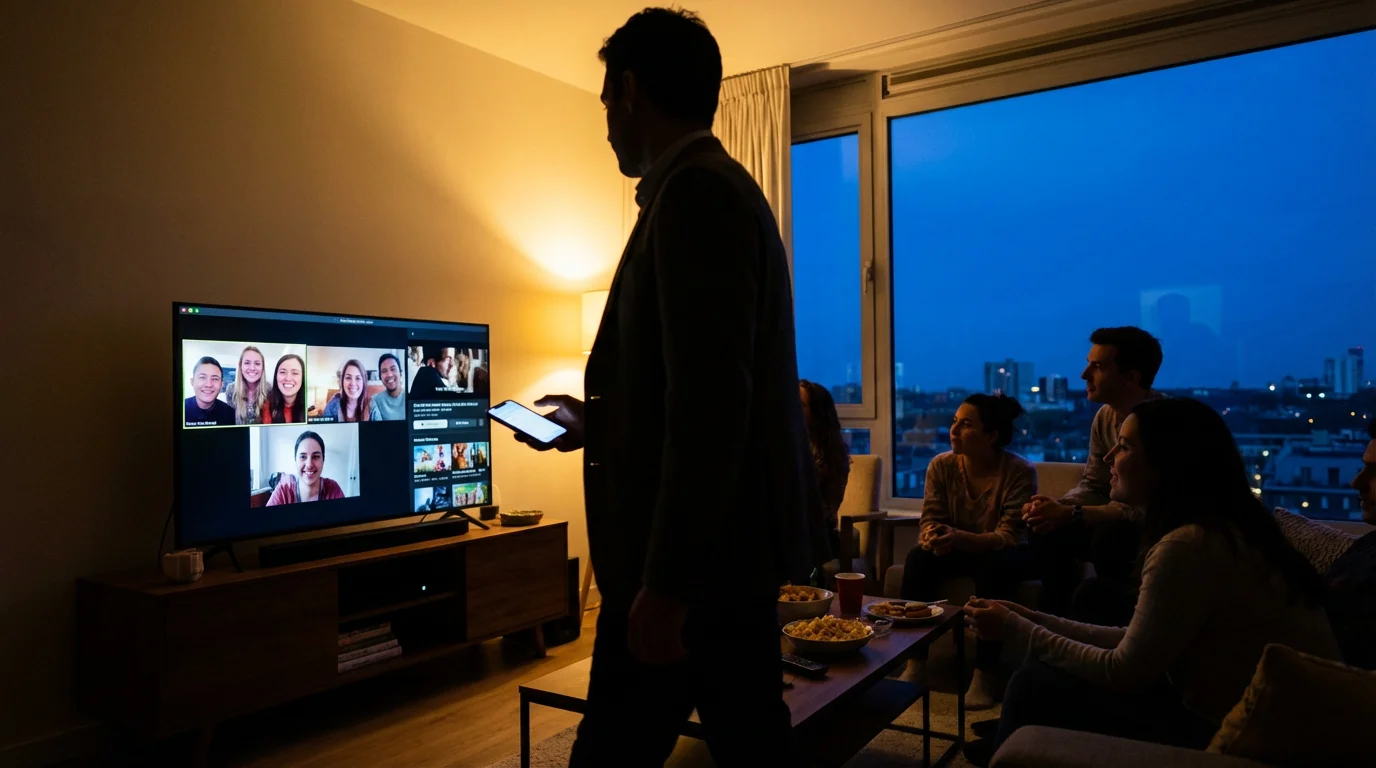
Step 5: Joining the Watch Party
- When your family and friends receive the link, they need to open it in their Chrome or Edge browser.
- They will also need to have the Teleparty extension installed (Step 1).
- They will click the party link, and it will take them to the streaming service with the movie already playing.
- They might need to click the “TP” icon in their browser and then click “Join Party.”
- Everyone should see the video playing in sync, with a chat window appearing on the right side of their screen.
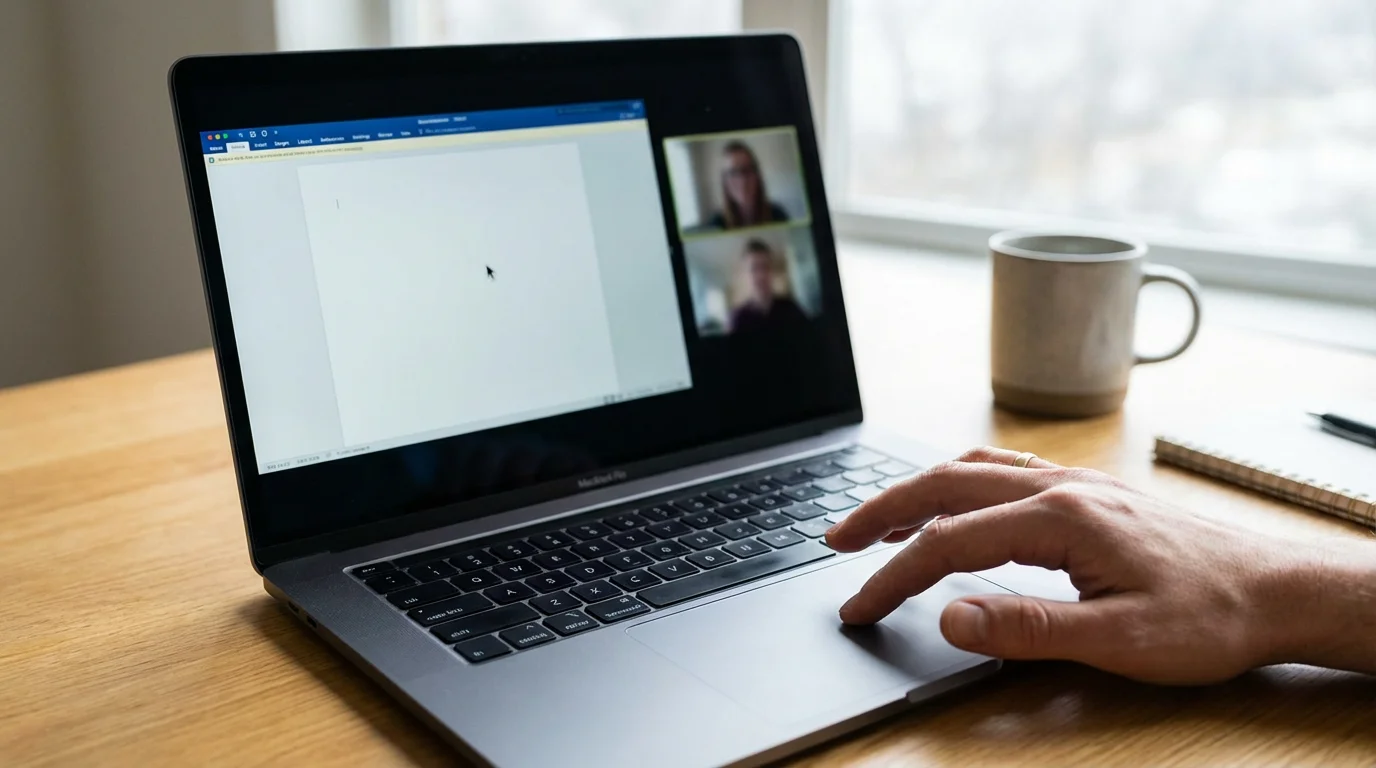
An Easier Alternative: Screen Sharing on a Video Call
If installing browser extensions feels like an extra step you want to avoid, or if your family members are less tech-savvy, using a video call app like Zoom or Google Meet to share your screen is a very accessible option.
It is not perfectly synchronized like Teleparty, but it gets the job done and leverages tools many people already use.

How it Works:
- Start a Video Call: Initiate a Zoom meeting or a Google Meet call with your family members.
- Open Your Streaming Service: On your computer, open the streaming service (e.g., Netflix) and select the movie or TV show you want to watch. Do not start playing it yet.
- Share Your Screen:
- In Zoom: Look for a “Share Screen” button, usually at the bottom of the Zoom window. Click it. A new window will appear showing all your open applications. Select the window where your streaming service is playing the movie. Make sure to check the box for “Share sound” (or “Optimize for video clip”) so everyone can hear the movie’s audio. Then click “Share.”
- In Google Meet: Look for a “Present now” button, usually at the bottom of the Meet window. Click it and choose “A window.” Select the window where your streaming service is playing the movie. Then click “Share.”
- Play the Movie: Once you are sharing your screen, start playing the movie or show on your streaming service. Everyone on the video call will see your screen and hear the audio.
- Communicate: You can still talk to each other while the movie plays. You might want to mute your microphones during intense scenes and unmute them for discussions during pauses or after the show.

Pros and Cons of Screen Sharing:
- Pros: No extra software to install, uses familiar video call apps, easy for coordinating verbal reactions.
- Cons: Video quality might be lower for viewers, playback may not be perfectly synchronized (some might see it a few seconds before others), and managing audio (your voices vs. movie audio) can require practice.
This method is great for casual viewing, especially if synchronization is not the absolute top priority and you value the ease of using familiar video call tools.
Tips for a Smooth and Enjoyable Watch Party
Making your watch party a success involves a little preparation and some communication. These tips will help ensure everyone has a great time:
- Test Your Setup Ahead of Time: If you are using a new tool like Teleparty, do a quick practice run with one family member before the main event. This helps you work out any kinks.
- Ensure Everyone Has the Right Subscriptions: Confirm that all participants have an active subscription to the streaming service you plan to use. There is nothing worse than someone being unable to join because they do not have access.
- Communicate Expectations: Before the movie starts, decide if you will primarily use the chat feature or talk over a separate phone call. If you are using Teleparty, the chat is usually the best way to communicate during the show. If you are screen sharing via a video call, decide if you will talk over the movie or mute yourselves and only chat during breaks.
- Have Snacks Ready: Just like a real movie night, snacks are essential! Encourage everyone to have their favorite popcorn, candy, or drink ready to enhance the experience.
- Pause Etiquette: If you are the host with control over playback, be mindful of pausing. If someone needs a bathroom break or has a quick question, a polite “Can we pause for a minute?” in the chat is helpful.
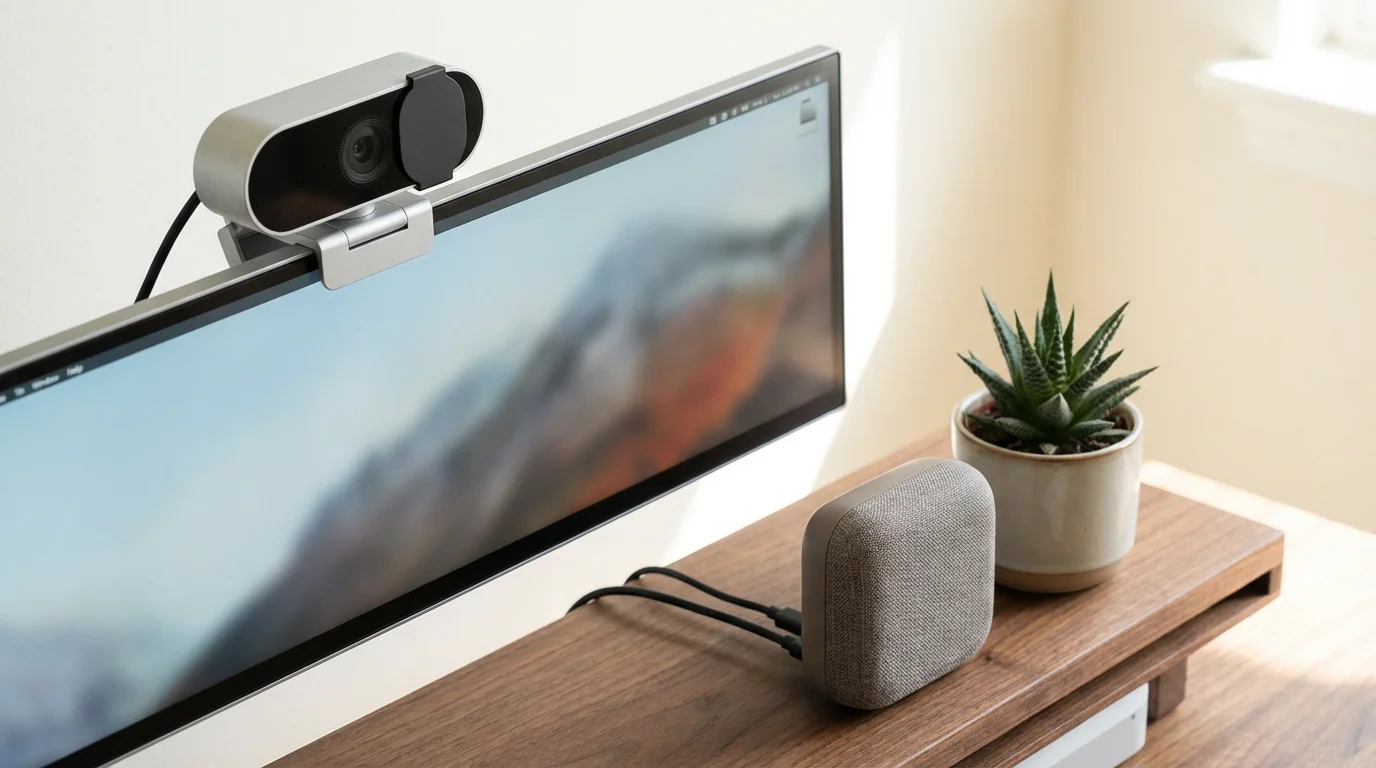
- Lighting and Camera Angle (if using video chat): If you also have a separate video call running, or if your watch party tool includes video, pay attention to your environment.
- Good Lighting: Sit facing a window or a lamp so light illuminates your face, making you visible and friendly. Avoid sitting with a bright light source (like a window) behind you, as this will turn you into a silhouette.
- Camera Position: Position your device so the camera is at eye level. This creates a more natural and engaging connection. Elevate your laptop on a stack of books if needed.
- Clear Background: Try to have a relatively uncluttered background. This helps keep the focus on you and avoids distractions.
- Do Not Be Afraid to Experiment: Your first watch party might not be perfect, and that is completely normal! Learn from each experience and adjust for next time. The goal is connection, not perfection.
When Your Watch Party Hits a Snag: Troubleshooting Common Issues
Even with preparation, technology can sometimes have its own ideas. Do not let minor issues discourage you.
Most problems have straightforward solutions. Here are common watch party challenges and how to fix them:
-
Video Not Syncing or Freezing:
- Solution: Ask everyone to refresh their browser tab. Sometimes, simply closing and reopening the streaming service tab (or even the entire browser) and rejoining the party link can fix synchronization issues. Ensure everyone has a stable internet connection. If someone is on Wi-Fi, moving closer to the router might help.
-
Audio Problems (No Sound or Poor Quality):
- Solution: First, check your device’s volume settings and the volume slider within the streaming player. If using a browser extension, ensure the extension has permission to play sound. If you are screen sharing via a video call, the host must ensure they selected “Share sound” when they started screen sharing. Sometimes, restarting the browser or even the computer can resolve audio glitches.
-
Can’t Find the Teleparty Extension or the “TP” Icon:
- Solution: Double-check that you are using Google Chrome or Microsoft Edge. Sometimes, browser extensions can be hidden. Look for a puzzle piece icon in the top right of your browser, click it, and you should see a list of your extensions, including “Teleparty.” You might be able to “pin” it to make it always visible. If it is still missing, try reinstalling it from the official Teleparty website.
-
People Having Trouble Joining the Party:
- Solution: Ensure everyone has the Teleparty extension installed and is using the correct browser (Chrome or Edge). Remind them that they also need an active subscription to the streaming service you are using. The host should re-copy the party link and send it again, just in case there was a copy-paste error. Sometimes, explaining the steps over a quick phone call helps guide someone through.
-
Chat Window Not Appearing:
- Solution: After joining a Teleparty, if the chat window does not appear, try clicking the “TP” icon again. It might be minimized or require a gentle nudge to pop up. Ensure your browser window is wide enough, as sometimes the chat sidebar needs space.
Remember, patience is key. These tools are designed to be user-friendly, and most issues are temporary.
A deep breath and a quick check of these common fixes will usually get you back on track to enjoying your show.
For more general technology tips, you can often find helpful articles on GCFGlobal — Technology Tutorials.
Making Watch Parties a Cherished Family Tradition
The true joy of a watch party lies in its potential to become a regular, anticipated event. Think of it as a new way to keep those family connections strong and vibrant.
Here are some ideas to weave watch parties into your family’s routine:
If you are still getting comfortable with the technology, our guide on video calling your grandchildren provides patient, step-by-step help to get you started.
For younger grandchildren who might not sit through a whole film, you can also read bedtime stories over a video call for a shorter but equally sweet connection.
To ensure these movie nights happen regularly, consider starting a regular video call routine so everyone has the date saved on their calendar.
- Weekly Movie Nights: Schedule a regular night, like “Friday Family Movie Night,” where everyone knows to clear their calendars. Take turns choosing the movie or show.
- Holiday Specials: During holidays, gather everyone for a virtual viewing of classic holiday movies or special televised events. It is a wonderful way to feel together even when you are far apart.
- Book Club with a Twist: Read a book together, then have a watch party for the movie adaptation. You can discuss the differences and similarities afterward.
- Themed Viewing: Explore a specific genre, an actor’s filmography, or even old home videos (by digitizing them and sharing the screen!). This creates a shared journey through storytelling.
- Kid-Friendly Morning Cartoons: For younger grandchildren, a Saturday morning cartoon watch party can be a delightful way to start the weekend. Even 30 minutes of shared laughter makes a huge difference.
The consistency of these shared moments is what builds lasting memories. It is not just about the show itself, but the simple act of carving out time for each other, laughing, reacting, and creating a sense of togetherness despite the miles.
These digital tools are powerful bridges for staying connected, fostering the love and laughter that keep families close.
Frequently Asked Questions
What streaming services work with watch party tools?
Most popular watch party tools, like Teleparty, support major streaming services such as Netflix, Disney+, Hulu, HBO Max, and Amazon Prime Video. Each participant generally needs their own active subscription to the specific service you are using for the watch party.

Is a watch party difficult to set up?
Setting up a watch party is simpler than it sounds. Installing a browser extension like Teleparty takes just a few clicks, and then it is a matter of starting your chosen show and sharing a link.
If you prefer, you can also use familiar video call apps like Zoom or Google Meet to share your screen, which avoids new installations but might have slightly less synchronized playback.
You can follow Zoom’s guide to screen sharing to broadcast your display and include your computer sound.

Can I really hear my family talk while we watch?
With tools like Teleparty, you communicate primarily through a text chat window that appears alongside the video. This allows for quiet viewing with shared real-time reactions.
If you want to talk verbally, you can use a separate phone call or a muted video call on another device.
When screen sharing via Zoom or Google Meet, you can talk over the movie, though many families choose to mute microphones during key scenes and unmute for discussions.
Does everyone need their own streaming account to join the party?
Yes, most tools like Teleparty require every viewer to have their own active subscription to the streaming service. If someone does not have an account, you can use the screen-sharing method on a video call instead.
With screen sharing, only the person hosting needs to be logged in to the streaming service.
How do I ensure my camera and audio are good during a watch party?
If you are also using a video call alongside your watch party, ensure good lighting by facing a window or lamp. Position your camera at eye level, perhaps by elevating your device.
Check your microphone and speaker settings before the call. A quick test call with a family member can help you confirm everything is working well.
The most important thing, however, is your presence and enjoyment, not perfection.
Disclaimer: This article is for informational purposes only. App interfaces change with updates, so screens may look slightly different.
The most important thing is making the connection—the technology is just the tool to help you do that.