
Facebook offers a wonderful way to bridge the distance between you and your loved ones. You can see your grandson’s first steps, watch a video of your niece’s graduation, or reconnect with a childhood friend you haven’t spoken to in decades.
This digital connection brings immense joy—but it also brings a need for caution. You might have heard stories about people losing money or having their identities stolen online; these stories can feel overwhelming and might even make you want to log off for good.
Beyond social media, it is also important to keep your computer safe from viruses and other digital threats that could compromise your information.
However, you do not need to retreat from the digital world to stay safe. Just as you lock your front door at night or keep your wallet in a secure place while shopping, you can learn the digital habits that keep your information private.
Think of this guide as your personal security manual. We will walk through the specific buttons to click and the signs to look for so you can use Facebook with confidence.
Protecting yourself isn’t about being tech-savvy; it is about being informed and taking a few simple, proactive steps.
According to the Federal Trade Commission (FTC), social media has become a primary playground for scammers. In 2023 alone, consumers reported losing more than $1.4 billion to scams that started on social media platforms.
By learning how to tighten your privacy settings and recognize red flags, you place yourself in the best position to enjoy the benefits of Facebook without the risks.
In this guide8 sections
- Understanding the Facebook Privacy Landscape
- Locking Down Your Profile: The Privacy Checkup
- How to Recognize and Avoid Common Facebook Scams
- Managing Friend Requests and Messages Safely
- Strengthening Your Account Security
- Safe Interactions in Groups and Facebook Marketplace
- What to Do If Something Goes Wrong
- Frequently Asked Questions

Understanding the Facebook Privacy Landscape
When you first create a Facebook account, many of the settings are designed to help you find people and be found. While this “open door” policy helps build a network quickly, it often shares more information than you might realize.
For instance, your birth date, your hometown, and even your current location might be visible to the general public—not just your friends.
A scammer (someone trying to trick you out of money or information) can use these small details to build a profile of you and gain your trust.
Privacy is not a “set it and forget it” task. Facebook frequently updates its features and settings; therefore, you should review your choices at least once every few months.
The goal is to ensure that only the people you know and trust can see your personal life. You have the right to decide who sees your photos, who can comment on your posts, and who can see your list of friends.
Taking control of these settings removes the “low-hanging fruit” that bad actors look for when choosing targets.
“Scammers are clever—falling for a trick doesn’t make you foolish. These individuals spend their entire lives practicing how to deceive people.
The best defense is a combination of strong settings and a healthy sense of skepticism.”
Locking Down Your Profile: The Privacy Checkup
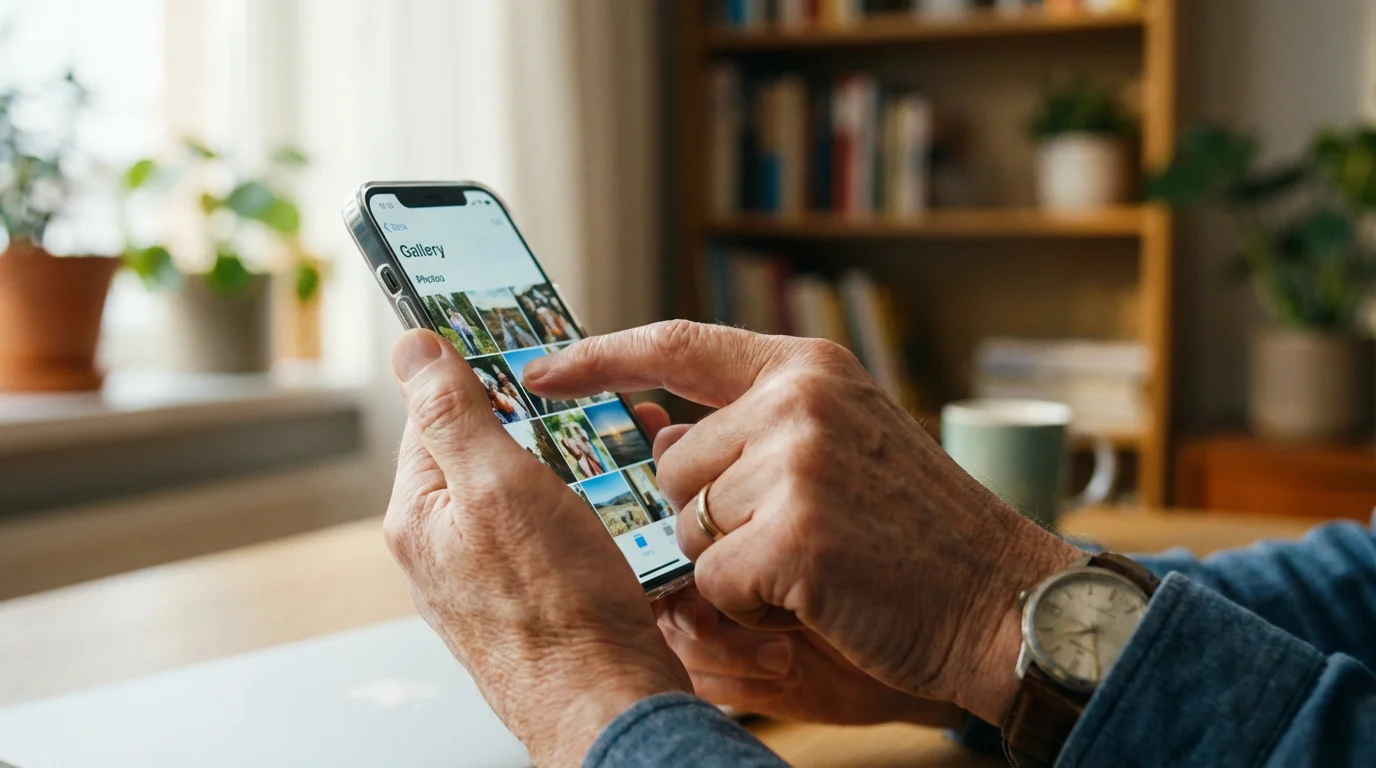
Facebook provides a tool called the “Privacy Checkup” that acts as a guided tour through your most important security settings. You can find this by clicking on your profile picture in the top right corner, selecting “Settings & Privacy,” and then clicking “Privacy Checkup.”
This tool breaks down your security into manageable categories.
Before diving in, you may want to review our detailed guide on understanding privacy settings on Facebook to get a broader view of how the platform handles your data.
Who Can See What You Share: This is the most critical section. You should ensure that your email address, phone number, and full birth date are set to “Only Me” or “Friends.”
Scammers often use birth years to help answer security questions for your bank or other sensitive accounts. If your posts are set to “Public,” anyone on the internet can see your photos and locations.
Change your “Default Audience” to “Friends” so your private moments stay within your circle.
How People Can Find You on Facebook: By default, Facebook allows search engines like Google to link directly to your profile. You can turn this off in your settings.
You can also limit who can send you friend requests to “Friends of Friends” rather than “Everyone.” This significantly reduces the number of random, suspicious requests you receive from strangers.
Data Settings: This section shows you which websites and apps have access to your Facebook information. If you have ever used your Facebook login to play a game or sign up for a service, those companies may still have access to your data.
Regularly remove any apps you no longer use to keep your digital footprint small.

How to Recognize and Avoid Common Facebook Scams
To protect yourself, you must recognize the “scripts” that scammers use. Most scams rely on a sense of urgency or an emotional hook to make you act before you think.
If a message makes your heart race—whether from fear or excitement—take a deep breath and step back.
While these scripts are common on social media, you can apply similar logic to recognize and avoid phone scams that create a false sense of urgency.
The Grandparent Scam: You receive a message that appears to be from a grandchild or a close relative. They claim they are in trouble—perhaps they were arrested, in a car accident, or lost their wallet while traveling—and they need money immediately.
They often beg you not to tell their parents. Before sending a dime, contact that relative directly through a known phone number.
Usually, you will find they are perfectly safe at home.
The “Look Who Died” Phishing Scam: You might see a post or get a private message saying, “I can’t believe he’s gone, look who died,” followed by a link.
This is a phishing scam (a fake message trying to trick you into giving personal information). If you click the link, it may take you to a fake Facebook login page designed to steal your username and password.
Never click on sensationalist links, even if they appear to come from a friend’s account.
Lottery and Government Grant Scams: Someone posing as a Facebook official or a government representative might message you to say you’ve won a large sum of money or are eligible for a “senior grant.”
They will ask for a “processing fee” to release the funds. Real grants and lotteries never ask for money upfront.
If you see this, it is a scam.
Red Flags to Watch For:
- Poor grammar and unusual spelling, even from friends who usually write well.
- Requests for money via gift cards, wire transfers, or cryptocurrency.
- An urgent “emergency” that requires immediate action.
- A friend asking for your phone number or a “code” that was just sent to your phone.
- Messages from “Facebook Security” threatening to delete your account unless you click a link.

Managing Friend Requests and Messages Safely
One of the most common ways scammers enter your life is through a “cloned account.” A scammer copies a friend’s profile picture and name, then sends you a new friend request.
You might think, “Oh, maybe they lost their old account,” and accept it. Once you are “friends,” they have access to your photos and can send you private messages that seem trustworthy.
Before accepting a friend request from someone you are already friends with, search for their name in your existing friends list. If you see two profiles, call your friend or send a message to the original profile to verify.
If the new account is fake, report it to Facebook immediately. This helps protect not only you but also your friend whose identity was stolen.
Be wary of messages in your “Message Requests” folder. Facebook filters messages from people you aren’t connected with into a separate area.
If a stranger reaches out with a compliment or a “business opportunity,” it is best to delete the message without responding. Engaging with these messages, even to say “no,” lets the scammer know that your account is active, which can lead to even more messages.
Strengthening Your Account Security
Your password is the first line of defense, but it shouldn’t be the only one. Many people use the same password for every website, which is dangerous.
If a scammer gets your Facebook password, they might try to use it to log into your bank or your email.
Using a password manager (a secure app that remembers all your passwords for you) allows you to have a unique, complex password for every site without having to memorize them all.
If you notice unusual activity after an alert, it helps to know how to tell if your computer has been hacked so you can respond quickly.
Enable Two-Factor Authentication (2FA): This is an extra security step, like getting a code texted to your phone. When you log in from a new computer or phone, Facebook will ask for your password AND a special code.
Even if a scammer steals your password, they cannot get into your account because they don’t have your phone to see the code. This is one of the single most effective ways to stop hackers in their tracks.
You can also set up “Login Alerts.” This feature sends you a notification if someone tries to log into your account from an unrecognized device or browser.
If you receive an alert and it wasn’t you, you can immediately tell Facebook to “Secure Account,” which logs everyone else out and lets you change your password. You can learn more about these tools through resources like the AARP Technology Resources page.

Safe Interactions in Groups and Facebook Marketplace
Facebook Marketplace and community groups are excellent for finding deals or selling items you no longer need. However, because these involve financial transactions and meeting strangers, they require extra care.
When selling an item, never share your home address publicly. Instead, suggest meeting in a “Safe Exchange Zone,” which many local police departments provide in their parking lots.
Be cautious of buyers or sellers who want to move the conversation off Facebook. Scammers often ask for your cell phone number or email address immediately so they can send you “phishing” links or fake payment receipts.
Keep your communication within the Facebook Messenger app until you are ready to meet. messenger provides a record of the conversation that Facebook can use if a dispute arises.
Avoid payment methods that offer no protection. If a seller asks you to pay via “Friends and Family” on PayPal or through a wire transfer, be suspicious.
These methods are like handing over cash; once the money is gone, you cannot get it back. Use the official payment methods suggested by the platform or exchange cash in person at a safe location after inspecting the item.

What to Do If Something Goes Wrong
If you realize you have clicked a suspicious link or that someone has accessed your account, don’t panic. Speed is important, but a calm head will help you take the right steps.
First, try to log in and change your password immediately. If you can’t log in because the scammer changed the password, go to facebook.com/hacked.
Facebook has a dedicated process to help you prove your identity and regain control.
If you shared financial information, such as a credit card number or bank details, contact your bank or credit card company immediately. They can freeze your accounts and issue new cards to prevent unauthorized charges.
You should also report the incident to the Federal Trade Commission (FTC). Reporting scams helps the government track patterns and take down the criminal networks behind them.
Finally, tell your friends. If a scammer is using your account to send messages, a quick phone call or an email to your close circle can prevent them from falling for the same trick.
There is no shame in being targeted. By speaking up, you turn a negative experience into an opportunity to protect your community.
You can also check the Better Business Bureau Scam Tracker to see if others in your area have reported similar issues.
Frequently Asked Questions
What if I already clicked a link or shared my information?
If you clicked a link but didn’t enter any information, run a scan with a reputable antivirus program to check for malware (bad software). If you entered your password, change it immediately on Facebook and any other site where you use that same password.
If you shared your Social Security number or bank details, contact those institutions and visit IdentityTheft.gov for a recovery plan.
How do I know if a message is really from a friend?
If the message seems out of character—for example, if they are asking for money, using strange language, or sending a link without explanation—it might not be them.
The best way to verify is to contact them through a different method, like a phone call or a text message. Don’t ask them if it’s them through Facebook, as the scammer will be the one answering!
Is Facebook actually safe for seniors to use?
Yes, Facebook can be safe and rewarding. Millions of older adults use it daily to stay connected.
Safety is a matter of using the right tools. By setting your profile to “Friends Only,” enabling two-factor authentication, and being skeptical of unusual requests, you can significantly reduce your risk.
Think of it like driving a car: it requires attention and safety rules, but it’s a valuable tool for getting where you want to go.
Should I accept friend requests from people I don’t know?
Generally, no. If you don’t recognize the name or have no mutual friends, it is safer to decline the request. Scammers often use “attractive” or “friendly-looking” profile pictures to lure people into connecting.
If you are unsure, you can click on their profile to see if they have a history of posts or if the account was created very recently, which is a common red flag.
Staying safe on Facebook doesn’t require you to be a computer expert. It simply requires you to be mindful of who you are sharing with and to trust your instincts.
If something feels too good to be true, or if someone is pressuring you to act quickly, it is almost always a scam.
You have worked hard for your security and your reputation; by taking these steps, you ensure that your time online remains a source of connection and joy.
Remember that you are part of a massive community of users who are all learning together. Technology changes quickly, but the principles of safety—protecting your identity, verifying who you are talking to, and using strong locks—remain the same.
Stay curious, stay cautious, and enjoy the wonderful photos of those grandkids.
Disclaimer: This article provides general information about online safety and is not a substitute for professional advice.
If you believe you’ve been a victim of fraud, contact your bank immediately and report the incident to the FTC at ReportFraud.ftc.gov or call 1-877-382-4357. If you’ve lost money, also file a report with your local police.
Keywords: Facebook privacy, social media safety, online protection
Meta Description: Learn how to protect your Facebook privacy with this comprehensive guide for seniors, featuring tips on recognizing scams and securing your account.