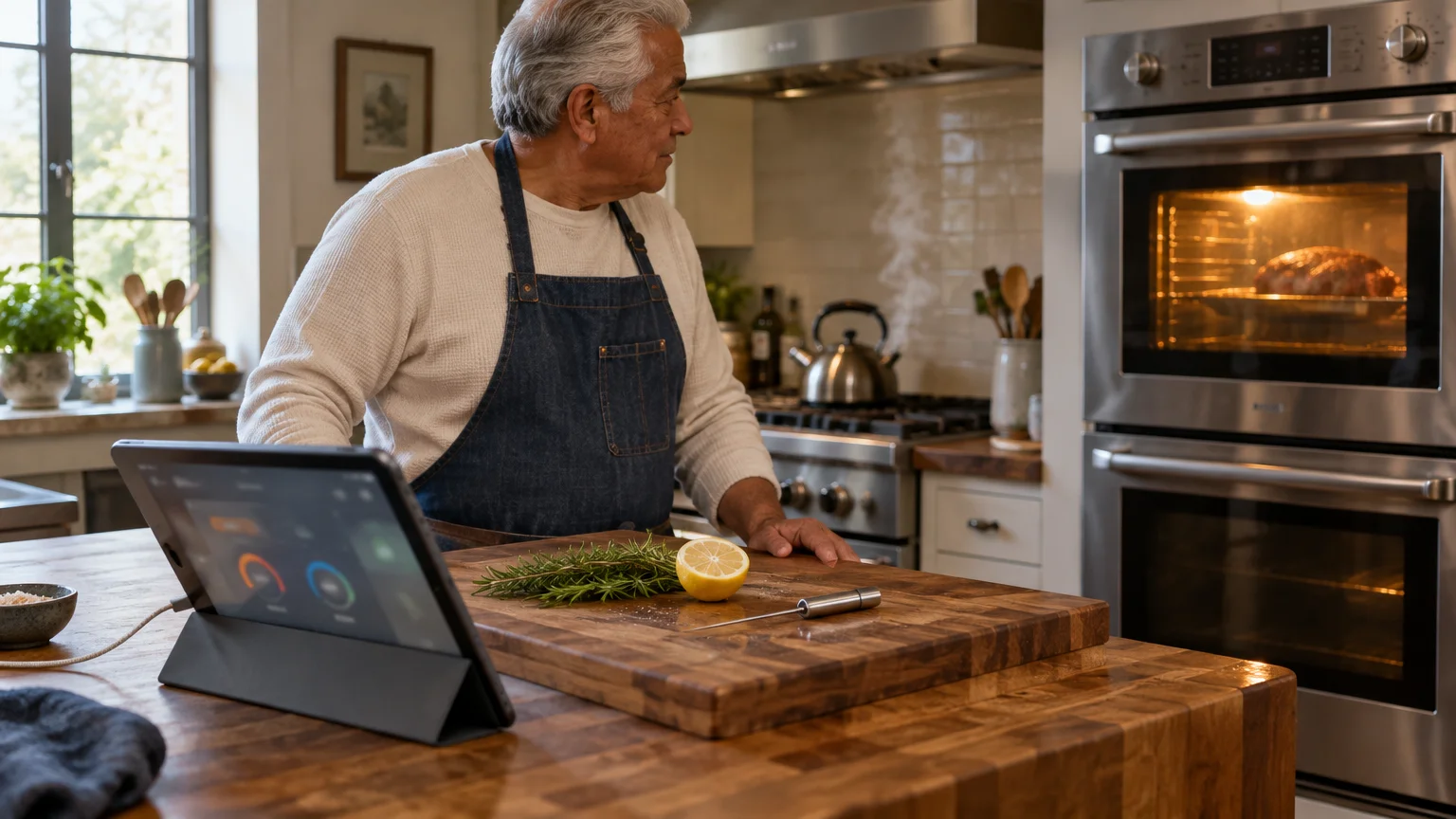
You are 72, cooking a family roast with a MEATER wireless probe, an iPhone in your pocket and a spare iPad that mostly sits in a drawer. Your phone’s reading freezes once you sit down with guests.
Your probe is almost certainly fine. Its small Bluetooth radio is shut inside a metal box, and your phone is too far away to hear the little that leaks out.
The fix is that spare iPad, plugged in on the counter and held on the MEATER app. It passes readings to your phone over home Wi-Fi with MEATER Link.
In this guide7 sections
Why the Oven Door Cuts the Signal
Bluetooth uses the 2.4 gigahertz radio band. It crosses an open room easily but does not pass through sheet metal.
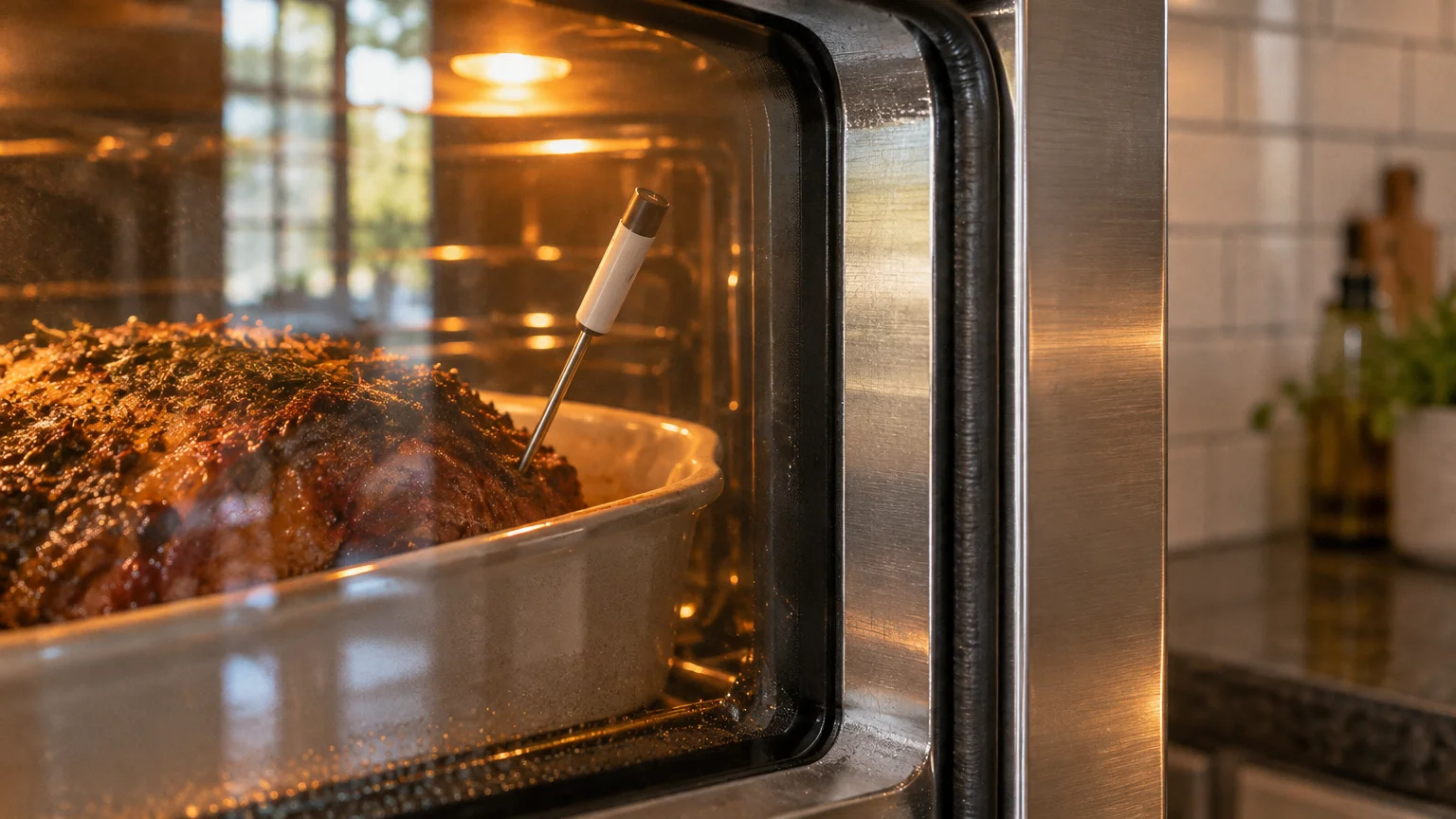
A closed oven behaves much like a Faraday cage: its steel walls bounce radio waves back inside. Only a little signal escapes, mostly around the door glass and seal.
Add distance and a wall or two, and that weak leak never reaches the sofa. The probe has not failed; your phone simply cannot hear it.
Leave the probe’s handle standing clear of the pan rim, because its antenna sits in the handle.
The Setting That Matters Most
Our judgement for your setup: the setting that matters most is Guided Access on the counter iPad, not any battery setting on the phone you carry.
If your network connection drops when you leave the kitchen, take a look at our guide on troubleshooting common Wi-Fi problems at home.
Look at the chain. The probe talks Bluetooth to the iPad a few feet away, the iPad hands readings to your home Wi-Fi, and Wi-Fi carries them to the sofa.
Home Wi-Fi is built to cover a house, so the sofa end is rarely the weak spot. The fragile link is the short Bluetooth hop, and it exists only while the iPad’s MEATER app is listening.
iPadOS, like iOS, can pause apps that are not on screen to save power. If the iPad locks, or someone swipes to another app, nothing may be listening, and your phone’s reading stops changing.
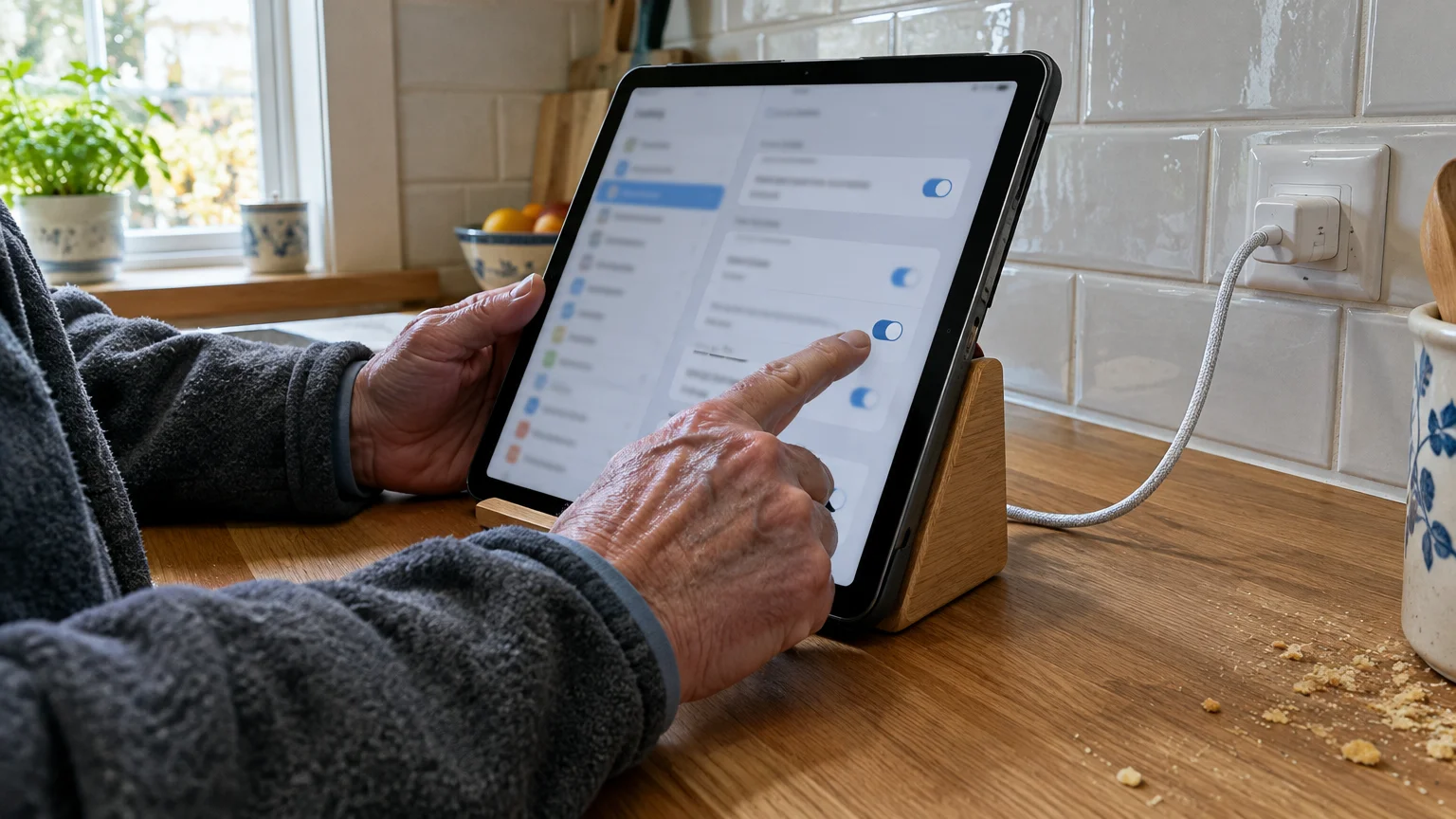
Auto-Lock set to Never stops the locking. Guided Access, an accessibility feature, stops the swiping: it holds the iPad on one app until someone enters your passcode.
Generic advice starts with your phone’s battery settings, but your phone was never the device losing the probe.
Keep that old iPad updated, since it now joins your home network. See CISA’s guidance on software updates.
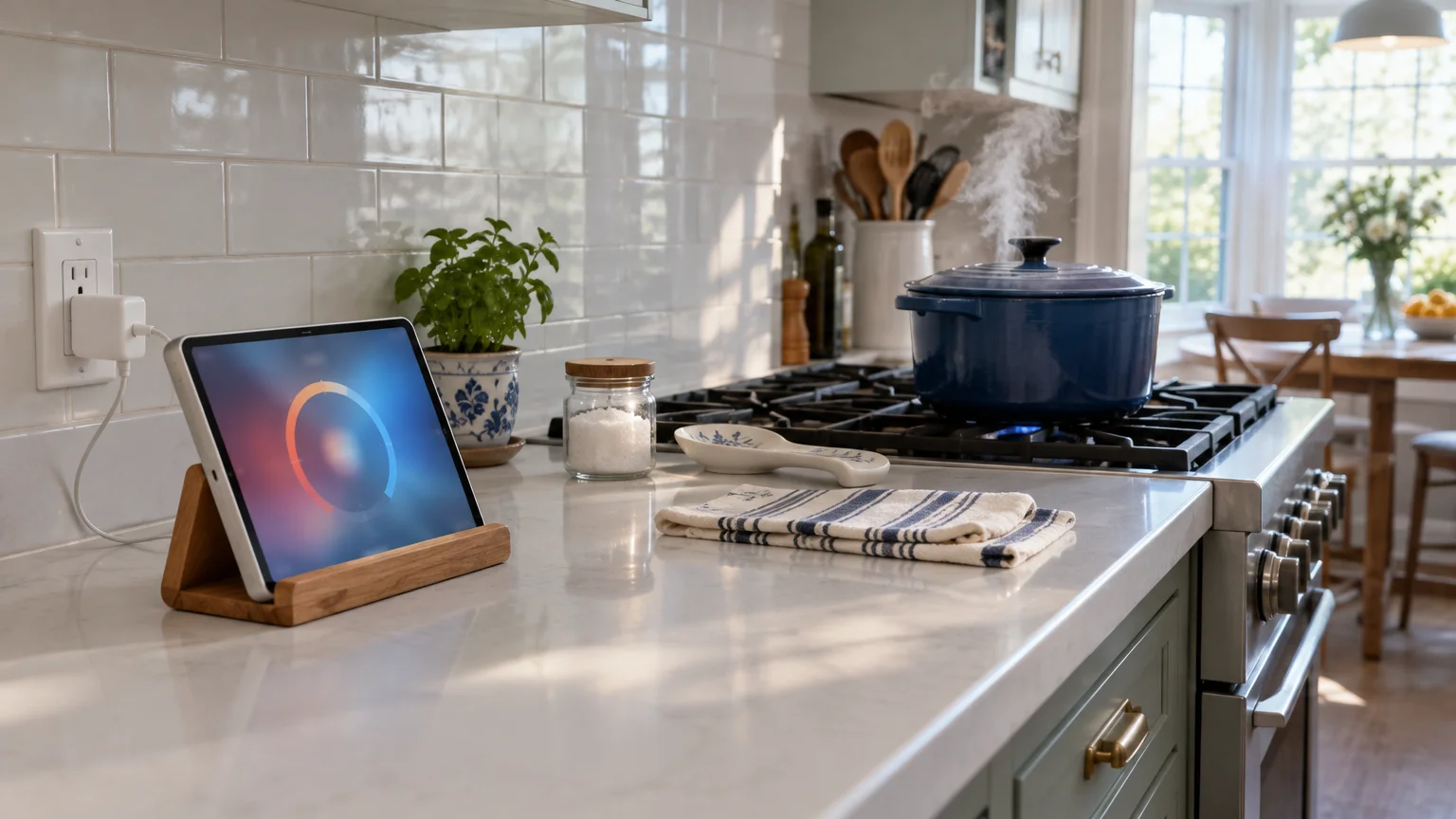
Setting Up MEATER Link on a Counter iPad
Both devices must join the same home Wi-Fi network. If small numbers are hard to read, first follow Apple’s instructions on making text bigger on iPad.
If you ever need to disconnect accessories before switching gadgets, our guide on how to use Bluetooth headphones with your phone or computer walks through how wireless pairings behave.
- On the iPad, open Settings > Wi-Fi and join your home network.
- Open Settings > Display & Brightness > Auto-Lock and choose Never. If Low Power Mode is on under Settings > Battery, turn it off, as it can shorten Auto-Lock.
- Plug the iPad into its wall charger and stand it on the counter a few feet from the oven, away from the hot stovetop.
- Install the MEATER app on the iPad and follow its pairing steps. If the iPad cannot find the probe, close the app on your iPhone; the probe usually talks to one device at a time.
- In the MEATER app on the iPad, open the menu, tap Settings and turn on MEATER Link. The wording varies by app version.
- On your iPhone, confirm it is on the same home Wi-Fi, open the MEATER app and turn on MEATER Link the same way.
- On the iPad, open Settings > Accessibility > Guided Access and turn it on. Tap Passcode Settings > Set Guided Access Passcode and choose one you will remember.
- Open the MEATER app, triple-click the top button (the Home button on older iPads) and tap Start.
To finish later, triple-click again, enter the passcode and tap End. Apple’s official iPhone User Guide covers the same steps if an old iPhone is your counter device.
On an Android tablet, set Settings > Display > Screen timeout to its longest option and search Settings for App pinning; the wording varies by model. Google’s Android accessibility guide covers enlarging text.
If something glitches, close and reopen the app rather than deleting it; deleting may lose your saved cooks and settings.

Worked Example: A Sunday Roast
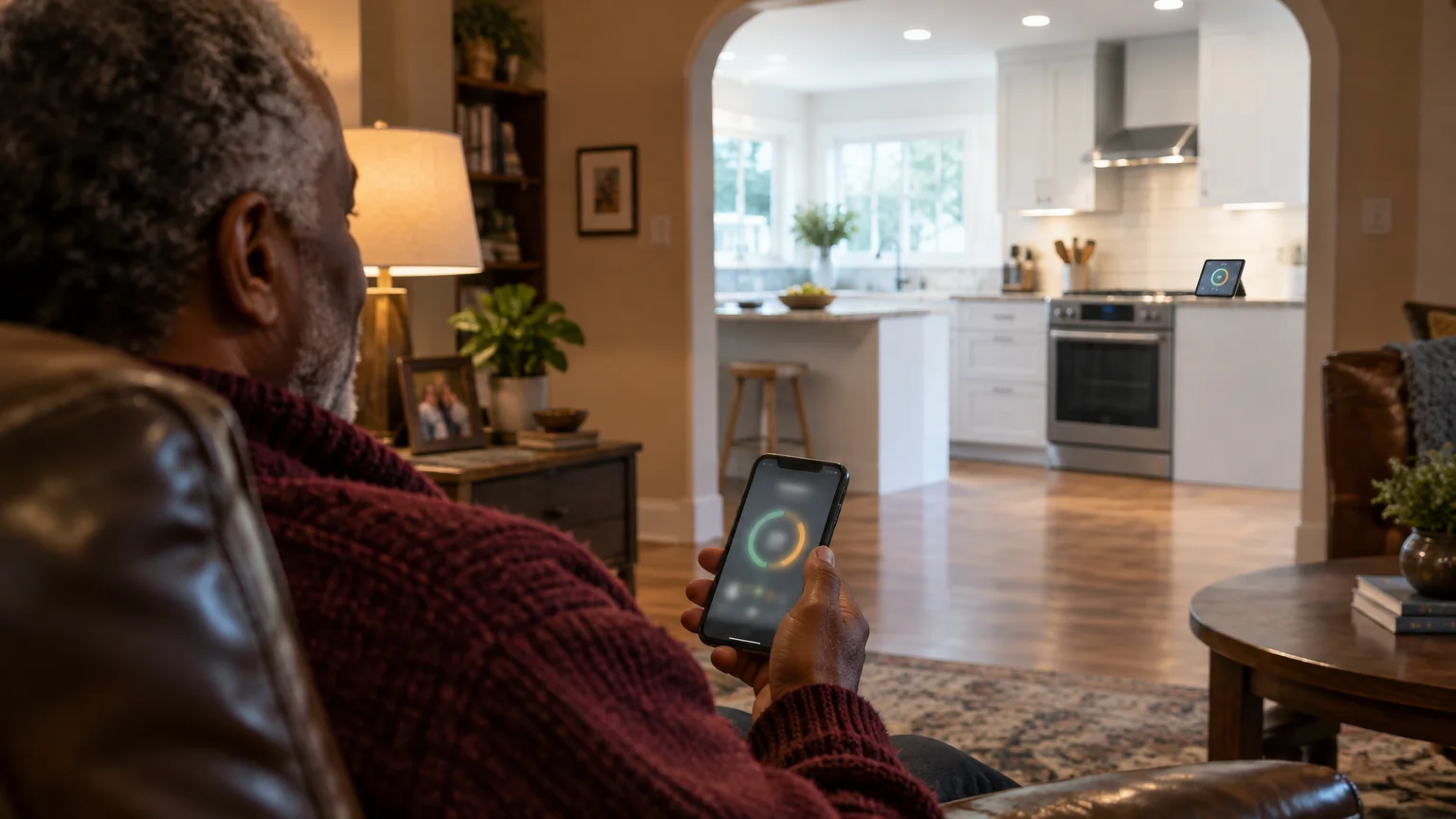
Here is your roast end to end: iPad on the counter, iPhone going with you to the living room.
If a guest checks the tablet and notices inaccurate local forecasts, see why your iPhone weather app alerts the wrong town to reset location permissions.
Before the oven goes on, you push the probe into the thickest part of the meat, handle clear of the pan rim. On the iPad, you choose the cut and the target temperature.
That target now shows on screen, so there is nothing to remember. You start Guided Access and check three things: a lightning bolt on the battery icon, Auto-Lock at Never, and the cook on screen.
Then the test generic guides skip: hold your iPhone beside the iPad. If both show the same internal and ambient readings, MEATER Link works before you walk away.
On the sofa, glance at the phone after a few minutes. A reading that has crept up means the whole chain is live.
Midway, a visitor picks up the iPad to check the weather. Without Guided Access, the MEATER app would leave the screen and your phone’s reading could freeze.
With Guided Access on, the iPad stays on the cook and nothing else opens without your passcode. Your phone never notices.
If a reading does freeze, walk to the kitchen and bring the MEATER app back onto the iPad’s screen. Your phone picks the cook back up.
As the meat nears your target, the alert reaches your phone, provided you allowed notifications. You take the roast out, rest it as the app suggests, then end Guided Access.
Comparing Your Connection Options
| Setup | Where the setting lives | What it changes | Needs home Wi-Fi? | What silently breaks it |
|---|---|---|---|---|
| Probe straight to phone | MEATER app pairing screen, with iPhone Settings > Bluetooth on | Your phone must stay near the oven | No | Carrying the phone out of the kitchen |
| Repeater charger (some models, such as MEATER Plus) | Built into the charger; no menu | Adds a listener near the oven, but your phone must stay within Bluetooth range of the charger | No | Sitting beyond the charger’s Bluetooth range |
| Counter iPad with MEATER Link | MEATER app > Settings > MEATER Link, on both devices | iPad listens; Wi-Fi carries readings to any room on your network | Yes, same network for both | The MEATER app leaving the iPad’s screen; Guided Access prevents it |
| MEATER Cloud sign-in | Account sign-in inside the MEATER app; wording varies | Lets you check the cook away from home | Yes, plus internet | The counter device stops listening, or the internet drops |
For your situation, the counter iPad row wins: the listener stays beside the oven, and your phone works in any room your Wi-Fi reaches.
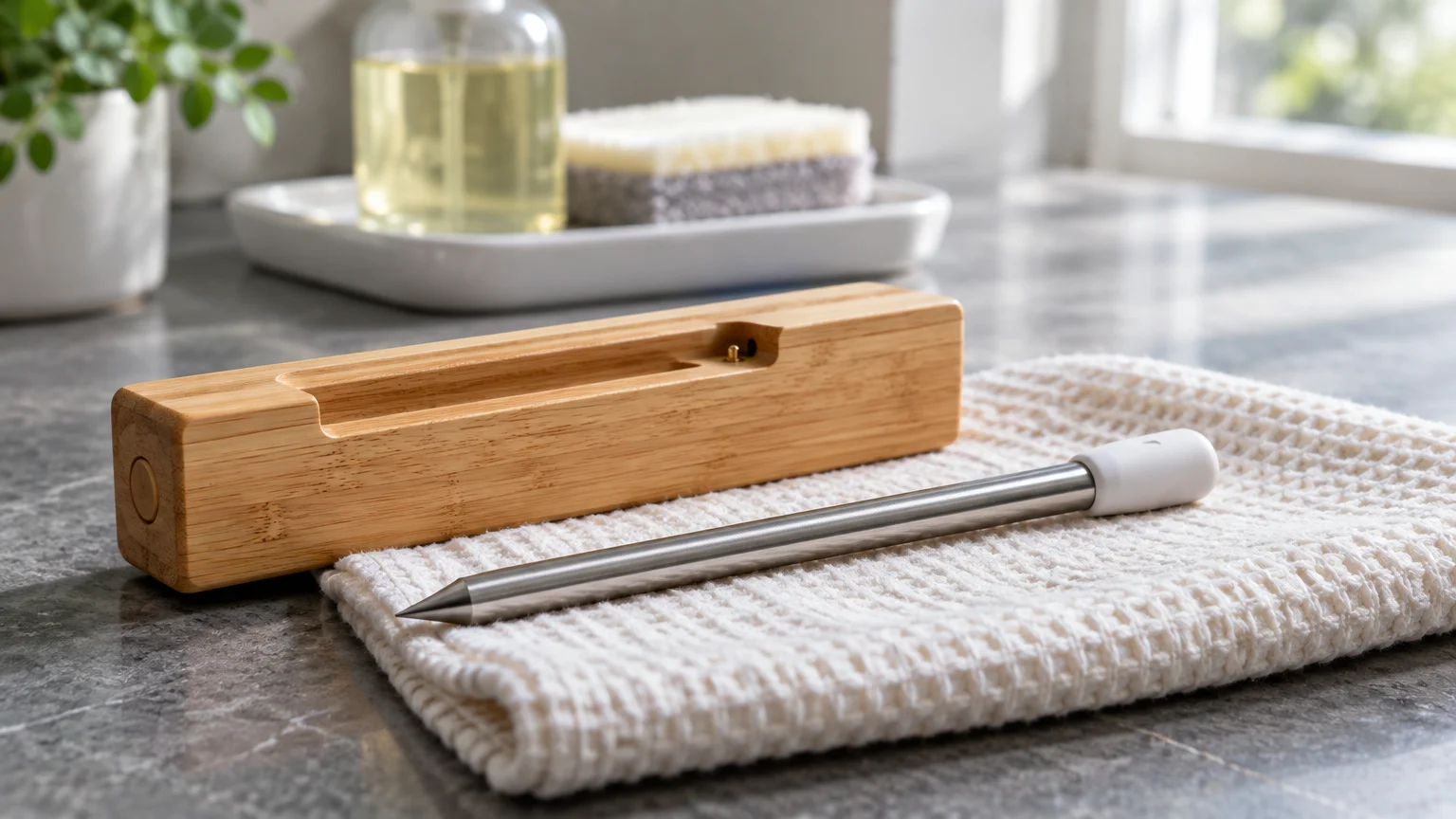
Probe Care and Phone Settings
Wipe the probe after every cook with a soft damp cloth, including the metal end that touches the charger. Grease there can stop it charging fully, and a flat probe drops off mid-cook.
Just as you would clean a dusty phone charging port safely, keeping grease off the probe’s charging contacts prevents unexpected power failure.
Once the counter iPad is right, check these on the phone you carry:
- Alerts: on iPhone, Settings > Notifications > MEATER, turn on Allow Notifications.
- Bluetooth: Settings > Privacy & Security > Bluetooth, turn MEATER on.
- Background App Refresh: Settings > General > Background App Refresh, turn MEATER on.
- Android phones: Settings > Apps > MEATER, allow Nearby devices and Notifications, and set battery use to Unrestricted; the wording varies by model.
For Android menus, see Google’s Android Help resources.
Frequently Asked Questions
Why does the reading freeze when I shut the oven door?
The steel walls trap most of the probe’s Bluetooth signal. A listening device a few feet away, such as your counter iPad, catches what escapes.
Just as oven walls alter wireless probe readings, sensor placement is why smart thermostat temp does not match the room when nearby drafts or heat sources interfere.
Can an old iPhone do the job instead of an iPad?
Yes. Any spare device that runs the MEATER app and joins your Wi-Fi can work, if it stays plugged in, awake and held on the app with Guided Access.
Do I need internet, or just home Wi-Fi?
MEATER Link is designed for devices on the same home network. Checking the cook away from home needs a MEATER Cloud sign-in, which uses the internet.
My probe isn’t a MEATER. What should I look for?
Look in its app’s settings for a link, relay or cloud option; the wording varies by brand. Either way, keep the counter device awake, plugged in and on the app.
Note: Menus and button names change with software updates. If a screen looks different on your device, the maker’s support page linked above has the latest wording.
ClearTechGuide is independent and is not affiliated with Apple, Google, MEATER or any other company mentioned.