
Technology often promises to make our lives easier, but few advancements offer as much direct benefit as the virtual doctor visit. For many years, a medical appointment required a commute, a search for parking, and a long wait in a room filled with other patients.
Today, you can speak with your healthcare provider from the comfort of your favorite armchair using telehealth.
Beyond medical needs, technology is a wonderful tool to stay connected when family lives far away or when you want to bridge the distance with loved ones.
A telehealth appointment—also called a virtual doctor visit or an online appointment—is simply a medical consultation that happens over a video call rather than in person.
According to the Centers for Disease Control and Prevention (CDC), nearly 40 percent of adults in the United States used telehealth in 2021. This technology allows you to discuss symptoms, review lab results, and manage prescriptions without leaving your home.
It saves time, reduces exposure to seasonal illnesses, and bridges the gap for those who find travel difficult.
If the idea of “logging in” to see your doctor feels daunting, you are not alone. This guide provides a clear, step-by-step path to help you master the process.
You will learn how to find the right apps, set up your device, and ensure your next virtual visit goes off without a hitch.
Table of Contents
- Understanding Telehealth Basics
- Choosing Your Device: Computer, Tablet, or Phone
- How to Find and Download Telehealth Apps
- Setting Up Your Patient Account
- Preparing Your Space for a Virtual Visit
- Step-by-Step: Joining Your Online Appointment
- Troubleshooting Common Tech Issues
- Frequently Asked Questions
Understanding Telehealth Basics
Before we dive into the technical steps, let’s clarify what we mean by certain terms. In the world of technology, an app is simply a program you can download and use on your phone, tablet, or computer.
To download an app means to get it from a digital store and put it onto your device. Once you have it, you must install it, which means setting it up so it is ready to use.
While telehealth is great for scheduled visits, using a medical alert device is another essential way to ensure your safety at home during emergencies.
Telehealth functions much like a video call with a grandchild on FaceTime or Zoom. You see your doctor on your screen, and they see you through your device’s camera.
You speak into your device, and they hear you through the microphone. Most healthcare systems use secure, private apps to ensure your medical information stays between you and your provider.
Telehealth is not just for minor issues like a cold; providers now use it for mental health counseling, physical therapy consultations, and even monitoring chronic conditions like heart disease or diabetes.
While it might feel different to talk to a screen, the medical care you receive is professional and thorough. Your doctor will ask questions, observe your physical appearance, and guide you through any necessary self-checks.
If the doctor decides they need to listen to your heart or perform a physical exam, they will simply ask you to schedule an in-person follow-up.

Choosing Your Device: Computer, Tablet, or Phone
You can participate in a virtual doctor visit using a variety of devices. The “best” one is usually whichever one you feel most comfortable using.
However, each has its own advantages.
For those using a smartphone, you might also want to learn how to use the magnifier on your phone to see small details or text more clearly.
Since a stable connection is vital for clear video, you might want to check if you can save money on your internet bill while maintaining high speeds.
Computers (Laptops or Desktops): A computer offers the largest screen, making it much easier to see your doctor’s face and any charts they might share. Laptops usually have a built-in camera at the top of the screen.
If you use a desktop computer, make sure you have a “webcam” plugged in and speakers turned on. Computers are excellent for telehealth because you can set them on a table, leaving your hands free to hold medication bottles or take notes.
Tablets (iPads or Android Tablets): Tablets offer a great middle ground. They have larger screens than phones but are more portable than computers.
You can easily prop a tablet up on a stand on your kitchen table or desk. Most people find the touch-screen interface of a tablet very intuitive.
Smartphones (iPhones or Androids): Your phone is likely the device you use most. It is portable and always has a high-quality camera and microphone built-in. If you use a phone, try to lean it against a stable surface during your call.
Holding a phone for a 20-minute appointment can lead to a shaky picture and a tired arm.
Regardless of the device, you will need a reliable internet connection. If you have a choice, use “Wi-Fi” (your home wireless internet) rather than your cellular data plan to ensure the video stays clear and doesn’t “freeze.”

How to Find and Download Telehealth Apps
Most large hospital systems and doctor’s offices use specific apps to host their appointments. The most common app is called MyChart, but your doctor might also use Zoom, Doxy.me, or Microsoft Teams.
Your doctor’s office will usually tell you which app they use when you schedule your appointment.
If you find the process of searching for and installing programs difficult, you can always get tech support for your computer to help you through the setup.
While your doctor may require a specific app, learning how other platforms like Google Meet work can help you feel more comfortable with video technology in general.
Here is how you find and get these programs onto your device.
For iPhone and iPad Users
- Locate the App Store icon on your home screen. It looks like a blue square with a white letter “A.”
- Tap the Search magnifying glass at the bottom right of the screen.
- In the search bar at the top, type the name of the app (for example, “MyChart” or “Zoom”).
- Find the app in the results and tap the Get button. You may need to enter your Apple ID password or use your fingerprint/face ID to confirm the download.
- Once the circle fills up, the button will say Open. Tap it to start the app.
For Android Phone and Tablet Users
- Open the Google Play Store. This icon looks like a multicolored triangle.
- Tap the search bar at the top of the screen and type the name of the app your doctor requested.
- Tap the app from the list and select Install.
- Wait for the download to finish; then tap Open.
For Computer Users (Windows or Mac)
Most of the time, you do not need to download a separate app on a computer. Instead, you will use your “web browser”—the program you use to look at websites, like Google Chrome, Safari, or Microsoft Edge.
Your doctor’s office will send you an email with a link. When it is time for your appointment, you simply click that link, and the virtual “room” will open in your browser.

Setting Up Your Patient Account
Once you have the app, you usually need to create an account. Think of an account as your private digital file at the doctor’s office.
It requires a username (often your email address) and a password.
The security measures for these accounts are very high, similar to the protocols for using your bank’s mobile app safely.
If you are using MyChart, you may need an “activation code.” You can usually get this by calling your doctor’s office or looking at the paperwork from your last in-person visit.
If you don’t have a code, most apps have a button that says “Sign Up Now” or “Find My Health Center.” Follow the prompts to verify your identity by entering your name, date of birth, and zip code.
Pro Tip: Write your username and password down in a secure place. Using a physical notebook kept in a safe spot at home is a great way to manage your passwords if you find them hard to remember.
If you have multiple devices, your account will sync automatically. This means if you change your password on your computer, it will also change on your tablet.
Many apps will ask if you want to receive notifications. These are alerts or messages that pop up on your screen to remind you of an upcoming appointment.
It is a good idea to allow these so you don’t accidentally miss your visit.

Preparing Your Space for a Virtual Visit
Preparation is the key to a stress-free online appointment. If you take ten minutes to set up your environment beforehand, you can focus entirely on your health during the call.
Check Your Lighting: Place your lamp or sit facing a window. If the light is behind you, your face will appear as a dark shadow, making it hard for the doctor to see you.
You want the light hitting your face directly so the camera captures a clear image.
Find a Quiet Space: Turn off the television and the radio. Close the door to keep out noise from pets or family members.
If you use a hearing aid, make sure it is turned on and the volume is adjusted.
Gather Your Materials: Just like an in-person visit, have your essentials ready.
- A list of your current medications or the actual pill bottles.
- A list of symptoms or questions you want to ask.
- A pen and paper to take notes.
- If you have a home blood pressure cuff or thermometer, have those nearby in case the doctor asks for a reading.
Check Your Battery: Video calls use a lot of battery power. Plug your device into a charger during the call to ensure it doesn’t shut off in the middle of your conversation.
Step-by-Step: Joining Your Online Appointment
When the time for your appointment arrives, don’t wait until the exact minute to log in. Try to “arrive” about 10 or 15 minutes early to handle any last-minute technical steps.
If you are worried about the technical side of the call, practicing how to answer a video call with a friend beforehand can help you feel prepared.
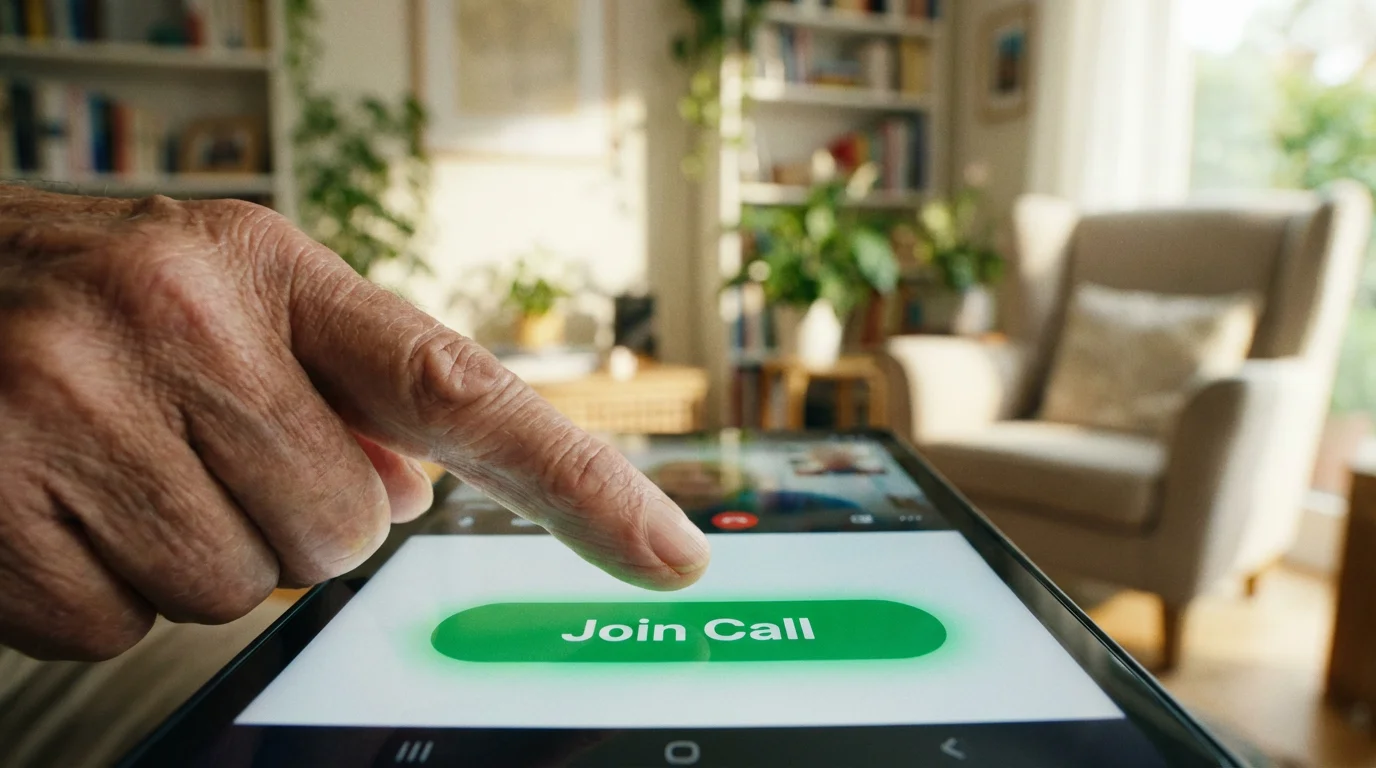
- Open the Link or App: If your doctor sent an email, click the link that says “Join Appointment” or “Start Visit.” If you are using an app like MyChart, log in and look for a button that says “Appointments” or “Visits.”
- Complete the “E-Check In”: Many doctors require you to confirm your address, insurance, and medications digitally before the call starts. This is just like signing in at the front desk.
- Grant Permissions: Your device might pop up a message asking, “Allow this app to access your camera and microphone?” Always tap Allow or Yes. If you say no, the doctor won’t be able to see or hear you.
- Enter the Waiting Room: Once you click start, you will likely see a screen that says, “Waiting for your provider to join.” This is the virtual waiting room. You might see your own face on the screen; use this time to make sure your hair is out of your eyes and your lighting looks good.
- Start the Conversation: When the doctor joins, their face will appear large on the screen, and yours will move to a small corner. Wave and say hello to confirm they can hear you!
During the call, look at the camera lens (usually a small dot at the top of your screen) rather than the doctor’s eyes on the screen. This makes it look like you are making eye contact with them.
Speak clearly and at a normal volume.

Troubleshooting Common Tech Issues
Even for tech experts, things occasionally go wrong. If you run into trouble, try these simple fixes before you panic.
“I can’t see the doctor”: Check if there is a line through the camera icon on your screen. If there is, tap the icon to “unmute” your video.
Also, make sure you didn’t accidentally cover the camera lens with your finger or a case.
“The doctor can’t hear me”: Look for a microphone icon. If it has a slash through it, you are muted.
Tap it to turn your sound on. If that doesn’t work, check the physical volume buttons on the side of your phone or tablet to make sure your volume isn’t turned all the way down.
“The video is frozen”: This usually happens because of a weak internet connection. Try moving closer to your internet router (the box with blinking lights).
If that fails, “refresh” the page or close the app and click the link from your email again to rejoin.
“The app crashed”: If the app closes unexpectedly, simply open it again. Most telehealth platforms allow you to rejoin a meeting in progress.
If you are truly stuck, call the doctor’s office phone number. They are used to technical glitches and can often finish the appointment over a regular phone call if necessary.
Remember, your doctor wants to help you. They are patient and understand that technology can be fickle.
If the video fails, you haven’t “failed”—it’s just a technical hiccup.
Frequently Asked Questions
Is telehealth safe and private?
Yes. Healthcare providers use platforms that are “HIPAA-compliant.”
This means the apps use high-level encryption—a type of digital lock—to ensure your video and medical data cannot be accessed by anyone else. It is much more secure than a standard social media video call.
Do I have to pay for a telehealth appointment?
Most insurance plans, including Medicare, cover telehealth appointments just like they cover in-person visits. However, you may still have a co-pay depending on your specific plan.
It is always wise to call your insurance provider or ask the doctor’s office about the cost when you schedule the visit.
Can I have a family member help me during the call?
Absolutely. Just as you might bring a spouse or adult child to a physical office, they can sit with you during a virtual visit.
In fact, many telehealth apps allow you to invite a third person to the call even if they are in a different house. This is a great way for your family to stay involved in your care.
What if I don’t have a smartphone or a computer?
If you do not have a device capable of video, many doctors offer “audio-only” appointments. This is essentially a scheduled phone call where you discuss your health over a standard landline or mobile phone.
While not as thorough as video, it is still a valid form of telehealth for many basic needs.
Embracing telehealth is a significant step toward taking control of your health. It removes the physical barriers of traditional medicine and puts your care back into your hands—literally.
For more help with using technology to stay healthy, you can explore the Senior Planet from AARP website for free workshops or visit Google Support for specific guides on using your Android device.
If you use an iPhone, Apple Support offers excellent tutorials on downloading apps and managing your privacy settings.
Do not be afraid to practice. You can ask a friend or family member to do a “practice” video call with you using an app like FaceTime or Zoom.
Once you see how easy it is to connect, your upcoming virtual doctor visit will feel like a walk in the park.
Disclaimer: This article is for informational purposes only. App interfaces change frequently with updates, so screens may look slightly different from what’s described.
Always download apps from official app stores (Apple App Store or Google Play Store) to ensure safety.
Keywords: telehealth, virtual doctor, online appointment, how to use telehealth for seniors, telehealth apps for seniors
Meta Description: Learn how to easily find, download, and use telehealth apps for your next virtual doctor visit with our simple, step-by-step guide for seniors.